AI can often make a blurred face look clearer when the source retains usable structure, but it cannot guarantee the person's original features. Start by identifying the blur type, then choose a local desktop, browser, or mobile workflow based on privacy, clip length, and export needs.
What Makes a Blurry Face Recoverable?
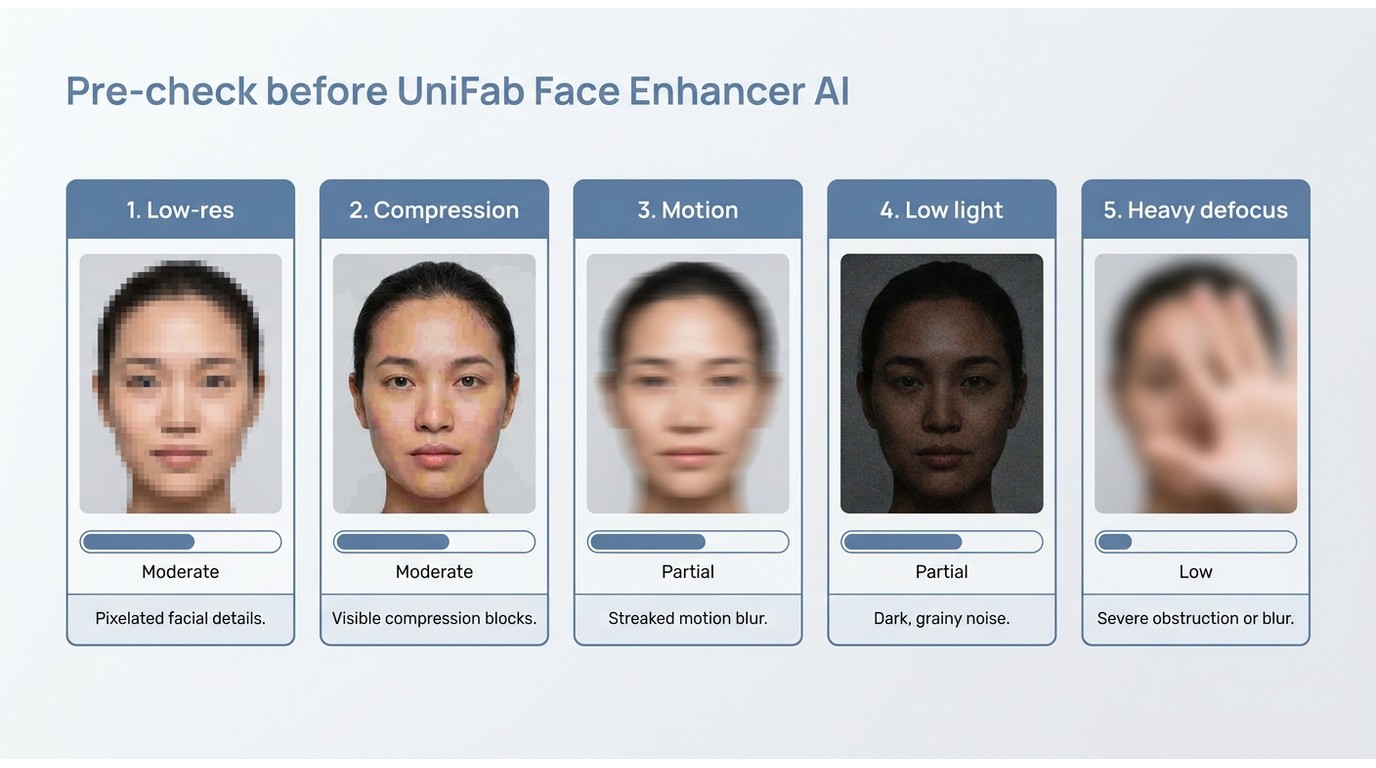
A blurry face video is a reasonable enhancement candidate when the eyes, nose, mouth, and face outline remain partly visible across several frames. Tiny faces, severe motion smear, heavy obstruction, or an out of focus video with little structure has much stricter face recovery limits.
My practical rule is simple: low-resolution softness and compression damage often leave more usable structure than a distant, blocked, or strongly defocused face. Check several frames before choosing a tool because one frame may be worse than the surrounding sequence.
Blur Types, Likely Results, and Prevention
| Blur type | Likely improvement | Main failure mode | Prevention tip |
|---|---|---|---|
| Low-resolution capture | Moderate when facial structure remains visible | Fine features may be estimated rather than recovered | Record at a higher resolution when possible |
| Compression artifacts | Moderate for blockiness and soft edges | Repeated compression may erase stable detail | Keep the least-compressed source file |
| Motion blur | Partial when some nearby frames are clearer | Fast movement can smear features across frames | Stabilize the camera and improve capture lighting |
| Low light | Partial if the face is still exposed | Noise reduction can flatten skin and edges | Add light and avoid strong backlighting |
| Distance, obstruction, or heavy defocus | Low | Too little source information remains | Move closer, clear obstructions, and confirm focus |
If the goal is to remove face blur, judge success by a more coherent and readable face, not by whether the software appears to reveal details the camera never recorded.
Unblur a Face in Photos or Video?
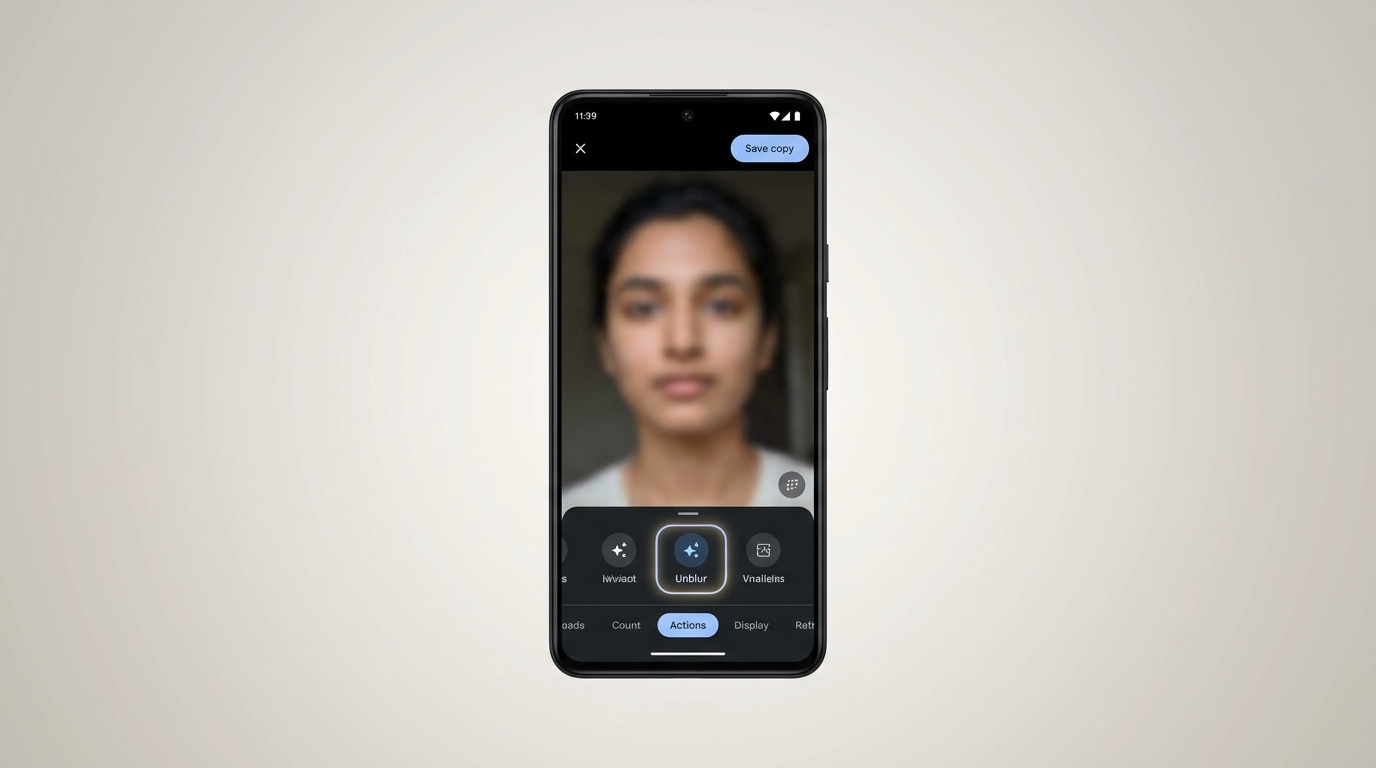
If you want to unblur a face, first decide whether the blurry face appears in one photo or across a video sequence. For a still image, open the photo in Google Photos, open the photo-editing controls, then use Actions and Unblur when the option is available on your device. Review the face at normal size and close up, and save a copy so the original remains intact.
A photo edit changes one frame. A video workflow must keep facial details stable as the person moves. Start with the least-compressed original, import it into a face-focused editor, preview a short sequence in motion, and export a sample as MP4 or MKV before processing the full clip. For sensitive or long footage, local full-video processing provides more control. Browser-local photo sharpening does not process an entire video.
What Is an AI Face Unblur Tool?
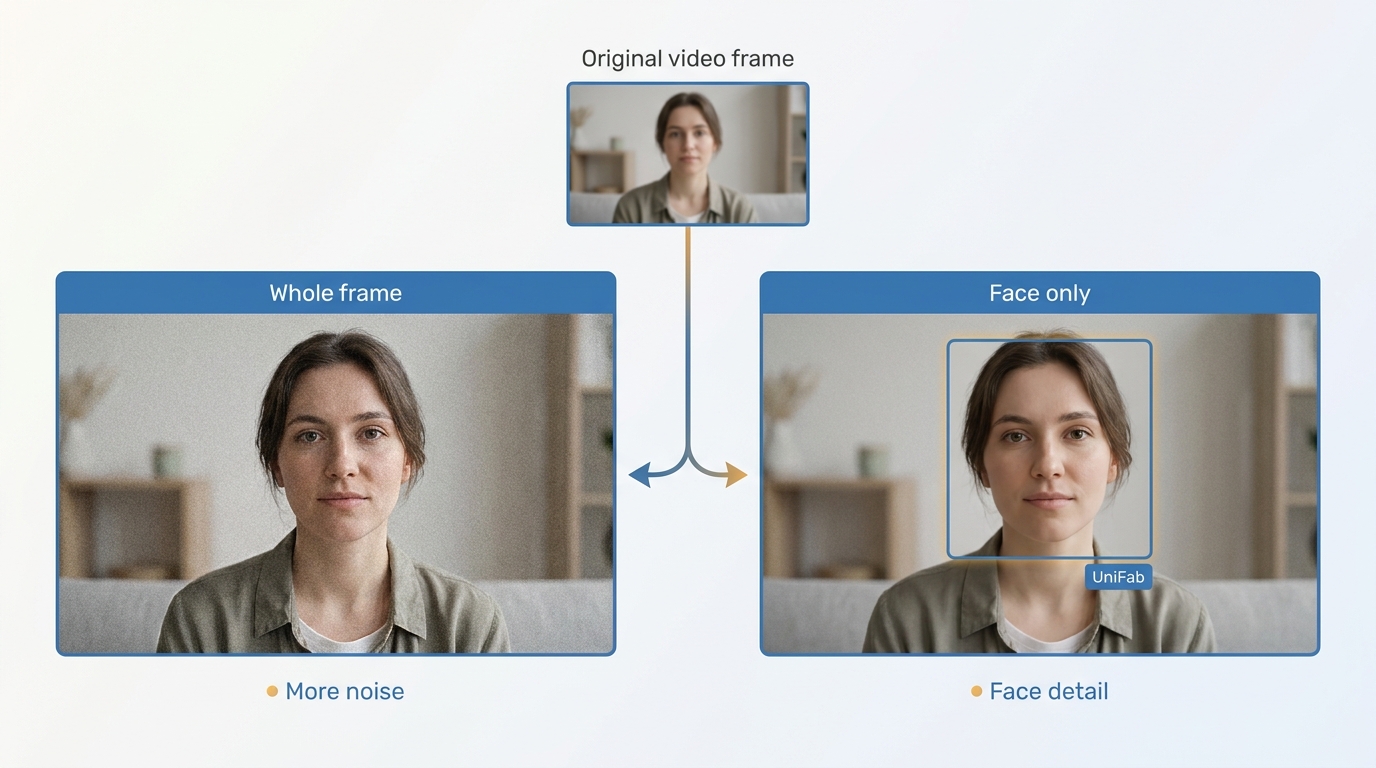
Photo unblurring edits a still image. Video face enhancement processes a sequence, so facial details also need to remain consistent as the person moves. UniFab Face Enhancer AI is video software for this sequence-based workflow. A conventional filter boosts edges across the frame, while an AI face blur remover detects facial regions and applies learned patterns to improve their visible structure.
This distinction matters because global sharpening can make compression blocks, noise, and halos more obvious. Face-focused processing can treat a face separately from the background, but the output still depends on the information present in the source frames.
- Use face-focused enhancement when faces are the main problem and the rest of the frame is acceptable.
- Use ordinary editing controls when the whole video mainly needs mild sharpening, contrast, or noise adjustment.
- Stop early when stronger settings create waxy skin, unstable eyes, or changing features between frames.
What AI Face Unblurring Actually Does
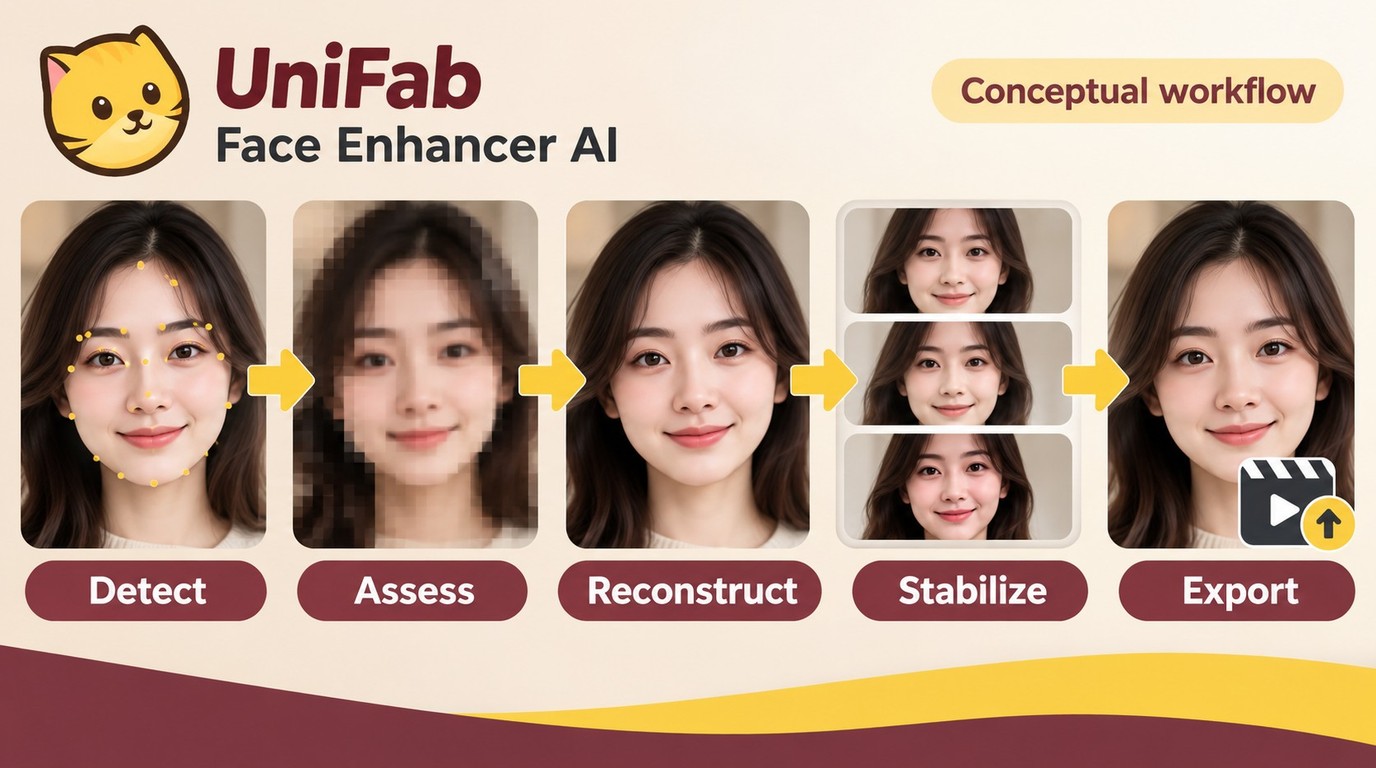
AI face unblur processing detects a face, aligns its main landmarks, evaluates the degradation, and generates a visually cleaner version that is blended back into each frame. The process can improve perceived clarity, but some fine detail may be plausible rather than historically accurate.
- Detect and align the face. The model tracks the face and its main features across frames.
- Assess the damage. It distinguishes softness, compression, noise, motion smear, and other visible problems.
- Build a cleaner facial image. The model estimates edges, texture, and contours from the available evidence and learned patterns.
- Check temporal consistency. The result should remain stable as the face moves rather than changing noticeably from frame to frame.
- Blend and export. Color, exposure, and texture are balanced with the surrounding frame.
My editorial rule is to compare a representative sequence, not a single flattering frame. A face that looks sharper in one still can remain distracting in motion if the eyes, mouth, or skin texture shift between frames.
Enhancement Is Not Forensic Identity Recovery
Visual improvement is not factual identity recovery. Generated eyes, skin texture, hair edges, or contours may look convincing without matching details that were actually present when the video was recorded.
Treat the output as an edited visual rather than identity evidence. Enhanced facial details cannot establish identity or reliably reverse deliberate anonymization. When privacy protection is the goal, preserve that intent and use purpose-built anonymization that remains effective throughout the clip.
UniFab Face Enhancer AI: Fit and Limits
UniFab Face Enhancer AI is a Windows and Mac desktop option for local video processing, face-focused enhancement, and controlled export. It fits users who want to keep footage on their computer, process more than one file, and avoid sending video to a cloud processor. It includes three free exports.
Restore Blurry Faces with UniFab Face Enhancer AI!
- AI automatically restores facial details with high accuracy
- Significantly boosts face clarity in blurred or pixelated videos
- Free trial for full features with no watermark for 30 days
Face Enhancer AI
Restore Blurry Faces with UniFab Face Enhancer AI!
- AI automatically restores facial details with high accuracy
- Significantly boosts face clarity in blurred or pixelated videos
- Free trial for full features with no watermark for 30 days
Face Enhancer AI for Mac
Suitable for: portrait video or low-resolution faces that retain recognizable structure, especially when privacy and export control matter. I recommend this route when keeping a full video local and controlling the export matter more than phone-only convenience. Desktop requirements: The workflow requires Windows or Mac, and graphics capability affects processing performance; the linked official product page provides supported-system and compatibility details.
Verified Features and Suitable Footage
The specification table below is where I would check compatibility, output choices, and acceleration support. For choosing this workflow, the more important question is whether the face remains large enough to inspect across multiple usable frames; batch processing is mainly a convenience when several authorized clips need the same review-and-export workflow.
Start with restrained settings. Aggressive enhancement can make generated texture more noticeable, so the useful outcome is a face that remains coherent in motion rather than a sharper-looking still frame alone.
Results by Blur Type
Product demonstration: The image below illustrates visible clarity changes across facial areas.
| Source condition | What to inspect | Reasonable success signal | Warning sign |
|---|---|---|---|
| Low-resolution face | Eyes, mouth edges, and face outline | Cleaner structure that remains stable in motion | Invented-looking pores or facial features |
| Compression damage | Blocks around cheeks, hair, and jawline | Reduced blockiness without plastic texture | Smearing or ringing around the face |
| Motion blur | Frames before and after the strongest smear | Partial improvement where adjacent frames retain detail | Features that jump or change between frames |
| Heavy defocus or obstruction | Amount of visible facial structure | Minor readability improvement | A sharp-looking face unsupported by the source |
For an authorized low-resolution clip with movement and privacy concerns, I would begin here: compare the result with the original, then inspect the eyes and mouth while the video is moving. Reduce the enhancement strength if skin texture becomes unnatural or facial features shift between frames.
Formats, Export, and Hardware Requirements
For an MP4 face unblur workflow, import the source, preview a short segment, choose 1x, 2x, or 4x scaling, and export to MP4 or MKV at an appropriate resolution up to 4K. GPU acceleration is supported, but processing time depends on clip length, source resolution, settings, and the computer's graphics capability.
| Supported systems | Windows and Mac |
|---|---|
| Verified output containers | MP4 and MKV |
| Scaling and output | 1x, 2x, or 4x; up to 4K |
| Acceleration | GPU acceleration supported |
| Queue workflow | Batch processing supported |
| Input focus | Portrait video and low-resolution faces |
A suitable GPU can reduce waiting, but no universal processing-time estimate is credible without a defined source clip and settings. Previewing a short section is the quickest way to judge both speed and facial stability on a specific computer.
Unblur Faces in Video with UniFab
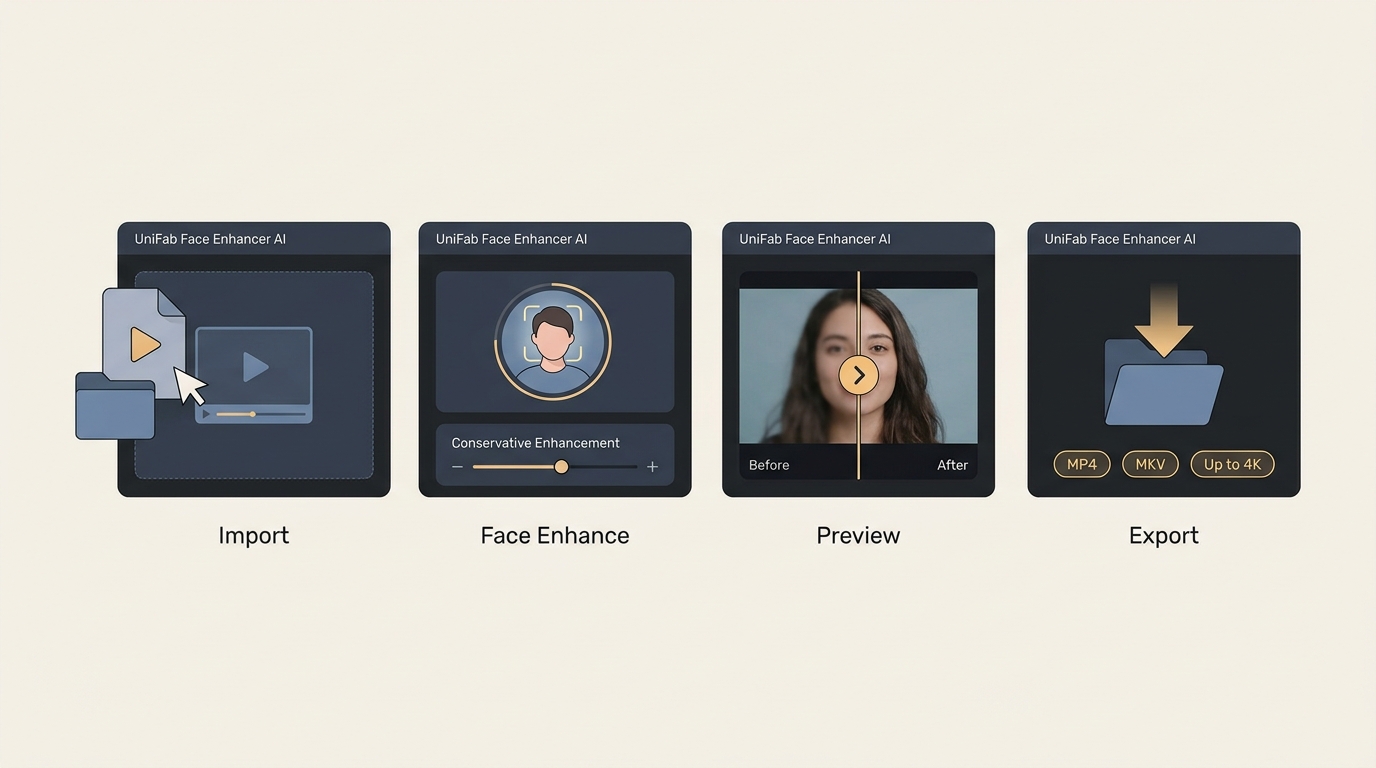
To unblur a face in video with UniFab, use a four-stage workflow: import, configure face enhancement and scaling, preview a representative section, and export to a chosen folder, starting with a short sample. For the authorized low-resolution clip described above, use that sample to settle on restrained settings before committing to the full export. The preview and sample export help you judge visual consistency, duration, file size, and storage needs before processing the full clip.
Import, Enhance, Preview, and Export
- Import the video. Open Face Enhancer AI and add the authorized source clip. Keep the original file unchanged for comparison.
- Select face enhancement. Choose settings that fit the source and intended output, including 1x, 2x, or 4x scaling. Begin conservatively to reduce unstable generated detail.
- Preview a representative section. Include movement, a clear face, and the worst blur in the sample. Check the sequence at normal speed as well as frame by frame.
- Choose export settings. Select MP4 or MKV, set an output resolution up to 4K, and save a short sample in the intended format before the full export. Check its visual consistency, duration, file size, destination folder, and available storage.
30-day Free Trial with full feature access!
Download and Launch UniFab on your PC. Select the Face Enhancer mode, then import the video file you want to enlarge from your local files.
Customize your preferred output format, quality, codec, and other parameters. Then, click on the Start button to begin enhancing your video.
I would test a short section before committing a long video. That small check exposes temporal inconsistency, over-smoothed skin, and unrealistic facial detail sooner, while also showing how the selected settings perform on the available hardware.
Choose Desktop, Online, or Mobile
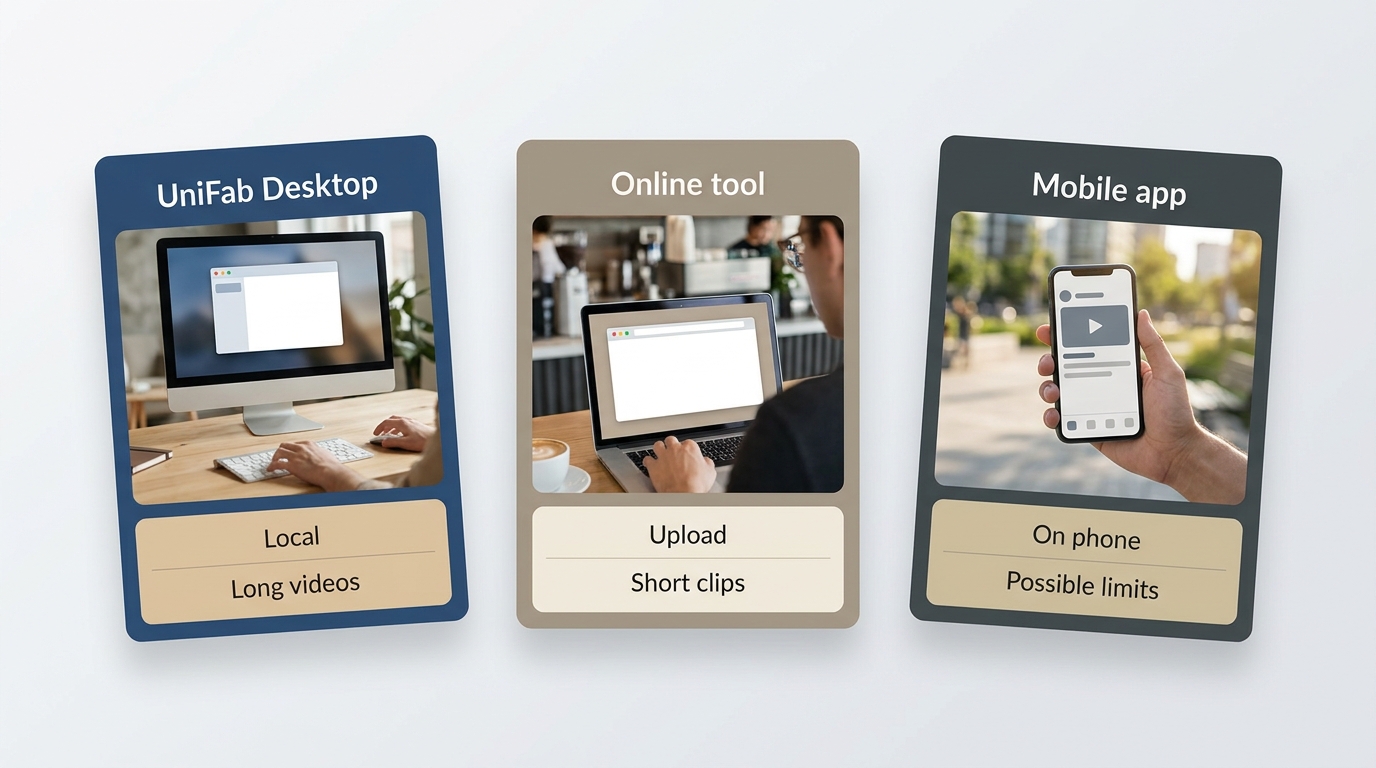
The right video unblur options depend less on convenience alone and more on privacy, clip length, export needs, and available hardware. For the authorized low-resolution clip described above, its privacy requirement points toward a local desktop workflow; a cloud video workflow suits quick low-stakes clips, and mobile editing prioritizes convenience when the app supports full video.
Platform and Method Decision Table
| Method | Media scope | Processing location |
|---|---|---|
| Local desktop video enhancement | Video faces | On the computer |
| Cloud video enhancement | Video clips | Remote servers |
| Browser-local photo sharpening | Still photos | In the browser, locally |
Browser-local photo tools keep supported image processing on the device, while cloud video services send clips to remote servers. For video, I recommend local desktop processing for sensitive or repeated work, cloud processing for short non-sensitive clips, and a video-capable mobile editor when phone-based convenience matters most. Browser-local photo sharpening edits still images and does not replace full-video processing.
Private, Long, and Sent Videos
Private or client video is generally better suited to local processing because the file stays on the computer rather than being sent to a remote processor. A video someone sent you should also be checked for editing permission, source quality, and whether a less-compressed original is available.
- Sensitive footage: keep the workflow local when practical and restrict access to the source and export.
- Long footage: test a short representative segment and confirm that the complete export will fit the available storage.
- Sent footage: request the original transfer rather than repeatedly compressed social or messaging copies.
When anonymity was intentionally added, do not treat enhancement as a reliable reversal method. The responsible path is to preserve the privacy intent and use material you are authorized to edit.
Conclusion: Match the Tool to the Footage
Successful face enhancement starts with diagnosis, not software selection. Check whether usable facial structure remains, choose a workflow that fits privacy and platform needs, preview a short segment, and accept that severe blur or missing detail can prevent a trustworthy result.
I recommend UniFab Face Enhancer AI for local desktop video work when the source still contains usable facial structure. Severe missing detail and intentional anonymization remain outside reliable identity recovery.
Key Takeaways
- Low-resolution softness and compression damage are often more workable than tiny, obstructed, heavily defocused, or strongly motion-blurred faces.
- AI face unblur output may contain generated detail, so visual clarity is not proof of identity accuracy.
- Test a short sequence and review motion consistency before exporting a long clip.
- Choose desktop, online, or mobile based on privacy, clip length, export control, and hardware.
- Retain the original source so the edited result can be compared honestly.
Face Unblur FAQs
How to Unblur a Face in Video: 3 Options for 2026 covers the main workflow; these quick answers address authenticity, platform fit, no-cost limits, processing time, private footage, and videos received from someone else.
Can AI recover the original face exactly?
No. AI can improve visible facial structure, but it may generate plausible details that were not recorded in the source. Treat the result as an edited interpretation, not verified identity evidence, especially with severe blur, obstruction, distance, or intentional anonymization.
Which face unblur option fits my video?
Choose desktop software for private, long, or export-sensitive work; a cloud video service for a short, non-sensitive clip; and a mobile app when it supports full-video editing. Photo controls such as Unblur edit a still image, not an entire video. Also consider source quality, available storage, graphics hardware, and whether you need frame-by-frame preview control.
Can I unblur a video free without a watermark?
UniFab Face Enhancer AI includes three free exports. This allowance does not guarantee unrestricted or watermark-free exports.
How long will face enhancement take?
There is no reliable universal estimate. Processing time changes with clip length, source resolution, scaling choice, enhancement settings, and GPU capability. Run a short representative section first to estimate the full job on the actual computer.
Should private footage stay on my computer?
Yes, when practical. Local video processing reduces the need to upload personal, client, or confidential footage to a remote service. Some browser-based photo tools process supported images locally, so a browser interface does not necessarily mean remote upload; cloud video services send footage to a remote processor. Confirm that you are authorized to edit the footage, control access to both source and export, and avoid attempts to defeat intentional anonymization.
How do I remove face blur from a video someone sent me?
Ask the sender for permission and the least-compressed original file, since messaging and social platforms may discard facial detail. Preserve that original, enhance a short sample, and inspect the face in motion before processing the full video. Respect any intentional anonymization. You are responsible for complying with applicable copyright law and platform terms, and must not redistribute footage without permission.