A free AI caption generator is useful only when its allowance and export format produce a file you can actually use. For free AI captions, choose an editable SRT for reuse or captions rendered into an MP4 for permanent display, then compare credits, watermarks, signup requirements, and correction effort.
Written social media captions are post text; timed video captions synchronize text with speech.
The clearest conclusion is that there is no universal best caption generator: UniFab is a direct SRT option, Kapwing suits hands-on editing, VEED and Flixier emphasize styled video, and Vizard fits an integrated social-video workflow.
Caption Generator Outputs and Review Priorities
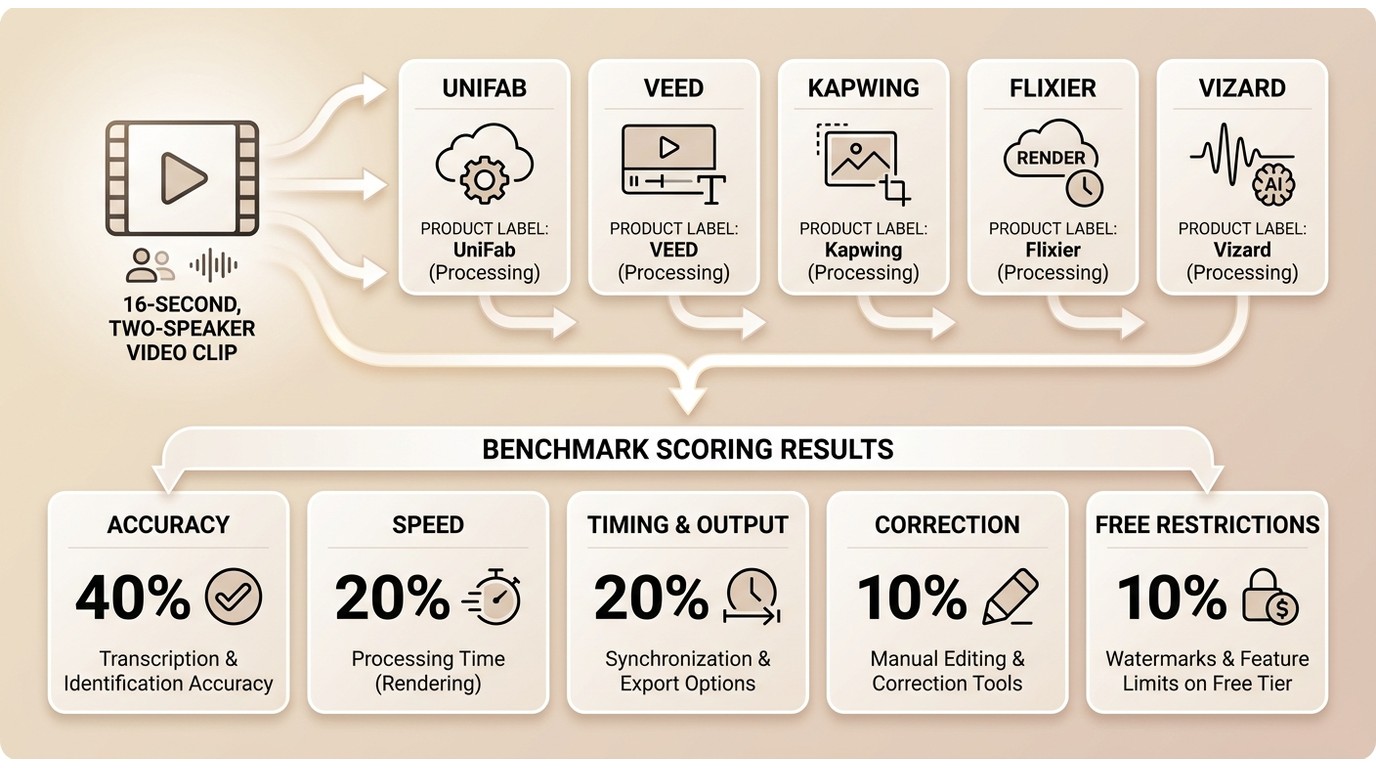
I prioritize the final deliverable before feature count, especially when captions must move into another editor or arrive ready to publish. Names, timing, and export previews matter because a generated draft still needs review before publication.
Caption Quality and Export Priorities
Evaluate each tool against the same practical requirements: transcript quality, caption timing, required output, correction workflow, and free-use boundaries.
- Accuracy: Check names, numbers, accents, and specialist terms.
- Processing and export: Confirm that the workflow produces the required file.
- Timing and output quality: Review synchronization, line breaks, and the exported result.
- Ease of correction: Consider how quickly text and timing can be revised.
- Free-use restrictions: Check generation allowances, export limits, resolution, and watermarks.
Vendor figures such as a language count or an “up to” accuracy percentage are labeled as product claims. Practical fit depends more on the finished deliverable and correction effort than on a decimal-point ranking.
Accuracy Needs Human Review
Names, accents, background noise, overlapping speakers, specialist terms, and long recordings can all increase the correction burden.
Manual review remains necessary before captions are published, especially when accuracy affects accessibility or client approval.
Free-Tier and Export Comparison
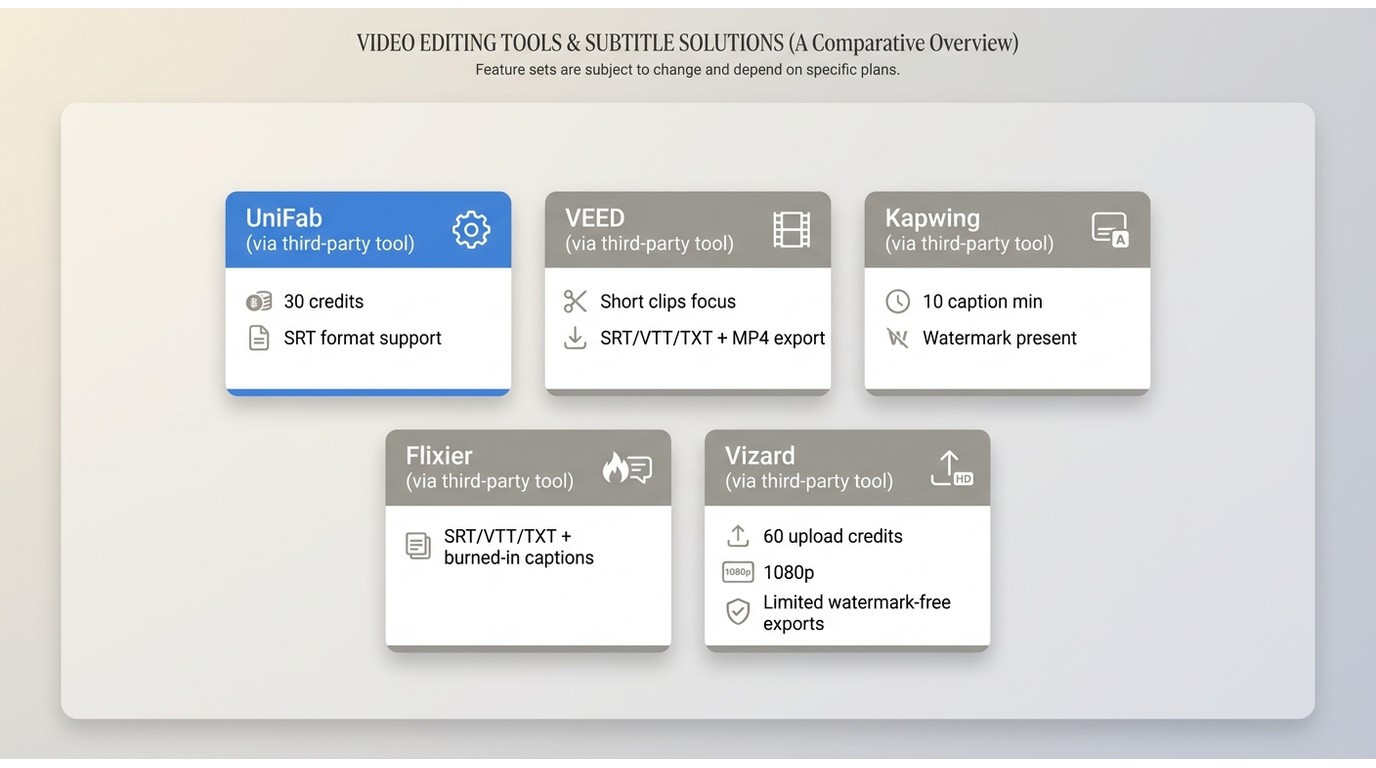
Choose an editable subtitle file when captions need to move between tools, or a captioned MP4 when the text must be part of the video image. Compare the generation allowance with the separate video-export limits before spending time correcting captions.
| Tool | Free caption allowance | Deliverable | Free video export conditions |
|---|---|---|---|
| Subtitle Generator AI-Fabcloud | 30 cloud credits | SRT file only | No rendered-video export |
| VEED | A short clip | SRT, VTT, TXT, and hardcoded video output | Hardcoded video output |
| Kapwing | Up to 10 subtitle minutes | SRT, VTT, TXT, and captioned video | Unlimited watermarked exports; 720p; up to 4 minutes per video; 30 minutes/month* |
| Flixier | 5 subtitle minutes/month | SRT, VTT, TXT, and burned-in video | 10 video export minutes/month; 720p; Flixier watermark |
| Vizard | 60 upload credits/month; 1 credit per uploaded minute | TXT transcript and AI-generated clips; SRT on higher tiers | 720p; up to 10 minutes per export |
Kapwing, Flixier, and Vizard plan terms as of November 2026. Kapwing’s free-plan card lists unlimited watermarked exports, while its pricing comparison lists 30 monthly export minutes.
Kapwing limits free video exports to four minutes per video at 720p, with a watermark. Flixier provides 10 video export minutes per month at 720p with a Flixier watermark. Vizard limits free video exports to 10 minutes per export.
Vizard accepts uploads at up to 1080p on its free plan, but exported video is limited to 720p. UniFab’s Subtitle Generator AI-Fabcloud provides a cloud-to-SRT path rather than a rendered-video export, while VEED combines subtitle editing and styling with hardcoded video output.
5 Free AI Caption Generator Options for Video (2026)
These AI caption generator tools cover different outputs, so the useful comparison is based on the required deliverable and editing workflow rather than a composite score. The profiles below focus on output formats, free-use boundaries, correction effort, and practical fit.
Subtitle Generator AI-Fabcloud
Subtitle Generator AI-Fabcloud is a cloud AI subtitle generator focused on SRT download. New users receive 30 cloud credits.
- Output and storage: SRT download. Completed cloud tasks are retained for 15 days, so save the SRT to your project storage.
- Best for: Users who want a straightforward SRT caption generator without a full video editor.
- Video export: This tool delivers SRT files, not captioned video; import the SRT into your video editor to render the finished video.
Because processing occurs in the cloud, obtain organizational clearance before uploading confidential media.
The desktop Subtitle Generator module lets you import a local video file or upload an .srt file.
VEED Video Caption Generator
VEED combines AI video captions with browser editing, styling, and subtitle and transcript downloads. It supports 125+ languages and suits multilingual projects where visual presentation matters.
- Current allowance and outputs: A short-clip free use path is described; SRT, VTT, TXT, and hardcoded video output are available.
- Best for: Multilingual social or marketing video that needs styled captions.
- Not ideal for: Anyone who needs the free allowance, resolution, and watermark terms stated before beginning a project.
Its strength is the edit-to-publish path. For a closer look at the surrounding editor and alternatives, the VEED review adds context without turning this comparison into a full platform audit.
VEED provides an Auto Subtitle Generator entry for starting its caption workflow.
Kapwing AI Caption Generator
Kapwing provides a detailed editing workflow among these affordable AI caption generators. Free accounts include up to 10 subtitle minutes, while SRT, VTT, and TXT downloads remain available.
- Current allowance and outputs: Kapwing’s free plan includes up to 10 subtitle minutes, a four-minute limit per video, and 720p video output. The conflicting monthly export terms are detailed in the comparison table’s footnote. Free-account video exports carry a watermark.
- Best for: Creators who expect to revise text, timing, and visual style before export.
- Not ideal for: A clean free AI video captions workflow when a watermark is unacceptable.
I would choose Kapwing when correction control matters more than a one-click result. The subtitle allowance does not equal the maximum length of one exported video, so check both limits before starting a longer project.
Kapwing can import content by pasting a link, including TikTok, YouTube, and Twitter videos.
Flixier AI Caption Generator
Flixier supports SRT, VTT, and TXT downloads as well as burned-in video export. That makes it more flexible than a captioned-video-only tool, with styling and translation integrated into the browser editor.
- Current allowance and outputs: Flixier’s free plan includes five subtitle minutes per month and 10 video export minutes per month. Free video exports are 720p and carry a Flixier watermark.
- Best for: Users who want animated caption styling plus separate subtitle files.
- Not ideal for: Time-sensitive delivery where the rendered file cannot be checked before publishing.
Preview the final file to confirm that the generated captions appear as intended. The broader Flixier review is more useful if editing features beyond captions drive the decision.
Flixier accepts MP4, MOV, AVI, WebM, and other major video formats; MP3, WAV, and AAC audio; uploads from your device or cloud storage; and files from Google Drive, Dropbox, OneDrive, Zoom, or any link.
Vizard AI Caption Generator
Vizard connects captioning to short-form video repurposing.
- Current allowance and outputs: 60 upload credits per month, free TXT transcript download, 720p video export, a 10-minute export-length limit, and three-day storage; SRT download is included on paid tiers.
- Best for: Users turning longer recordings into captioned clips within one editor.
- Not ideal for: High-volume publishing that exceeds the credit, export-length, or storage limits.
Vizard makes more sense as a video workflow than as a standalone transcription utility. The fit improves when clipping, reframing, caption styling, and publishing belong in the same project.
Vizard provides an Upload entry for starting a project.
Choosing the Right Caption Workflow
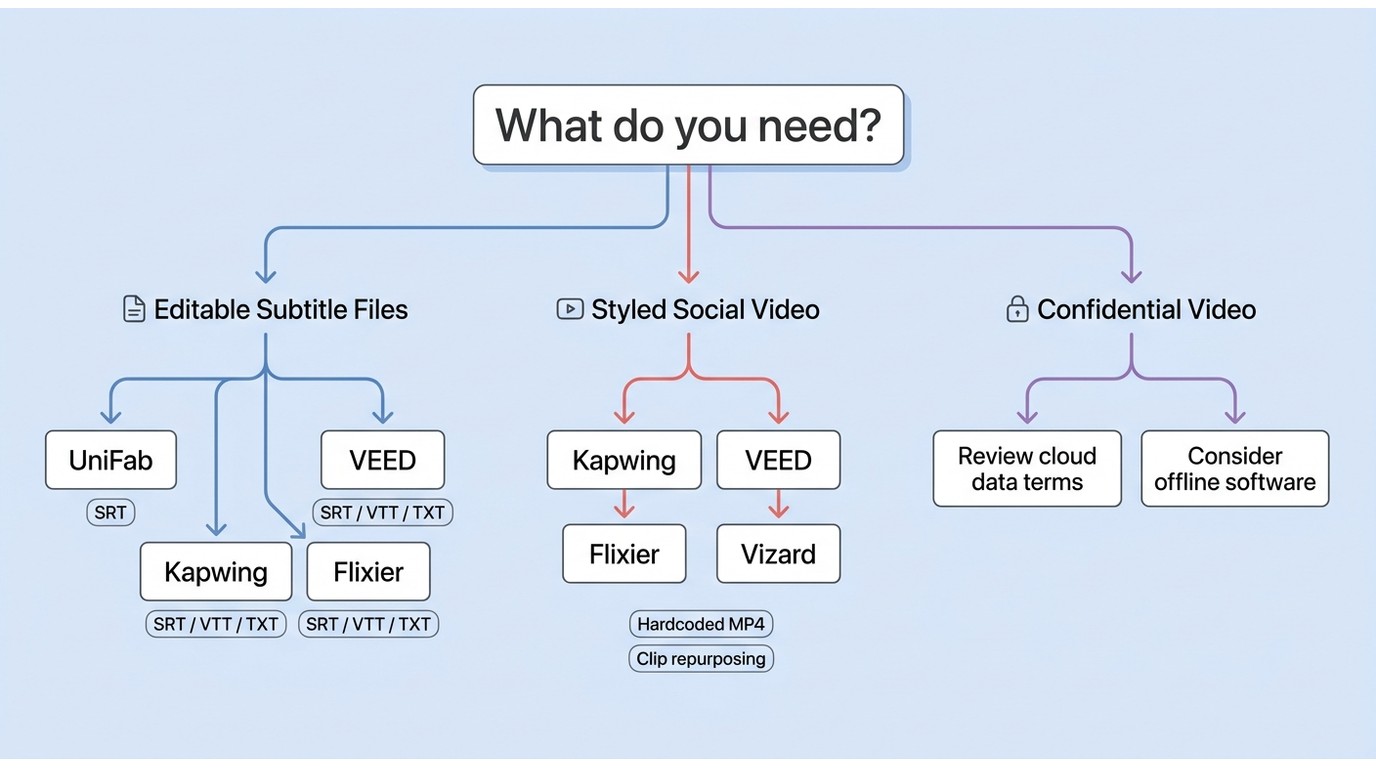
If the next step is another editor, start with an editable SRT and confirm the handoff format before correcting text. If the next step is publishing a finished video, start with captioned MP4 output and confirm the free export budget, resolution, and watermark before styling captions.
Editable Caption Files
Choose an SRT caption generator when captions need to move into a video editor, media player, localization system, or accessibility workflow. Use the comparison table to identify a tool that supplies the subtitle-file format your handoff requires.
Styled Social Video
For styled social video, compare the rendered output rather than the transcript alone. If your caption generator delivers an SRT file, import it into a video editor to style and render the captions. Kapwing offers detailed editing but watermarks free video exports, while VEED and Flixier combine styling with hardcoded video output; Vizard adds clip repurposing. Start with clear audio, then compare plain captions with a style that highlights the currently spoken word. Plain accessibility captions prioritize readable meaning and meaningful sound cues; word-highlighting or animated captions add visual presentation for short-form video. For vertical video, use high-contrast text, split lines at natural phrase boundaries, keep captions above the interface area, and preview the final render before publishing.
Business and Confidential Video
Cloud tools reduce setup, but uploads leave the local device during processing. For confidential business video, obtain organizational approval before uploading and use an approved cloud account or an approved local captioning workflow.
Human review is essential for names, figures, contractual language, medical wording, and accessibility-sensitive captions. Convenience should not replace an approval step when a transcription error could change meaning.
Caption and Subtitle Generators Compared
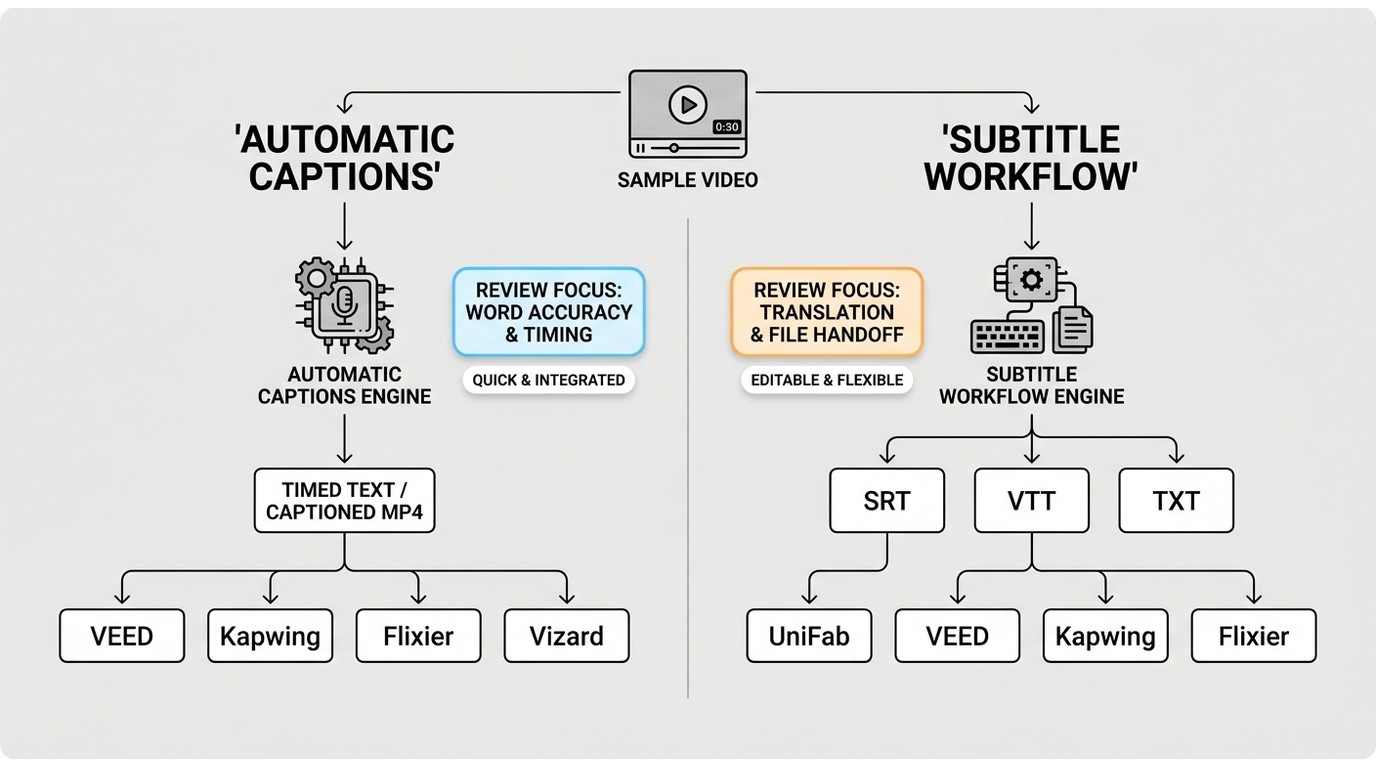
AI caption generators emphasize speech recognition and timing, while subtitle workflows emphasize editable text tracks and localization. Many current tools do both, so the useful distinction is the exported deliverable. Speech transcription converts spoken words into text, translation renders that text in another language, and accessibility captions may also identify meaningful sounds or speaker changes.
| Workflow | Typical output | Useful for | Main review task |
|---|---|---|---|
| Automatic caption generation | Timed transcript or styled captions | Fast first drafts, social video, accessibility preparation | Names, missed words, speaker changes, synchronization |
| Subtitle-file workflow | SRT or VTT; TXT transcript | Editing, translation, players, localization handoff | Reading speed, line breaks, timing, terminology |
| Captioned video workflow | Rendered video with visible text | Social platforms and fixed visual presentation | Safe areas, style, readability, watermark, final render |
The practical upshot is simple: choose subtitle files for portability and captioned video for presentation. If both are needed, confirm both capabilities before committing correction time.
Generate, Review, and Save Captions
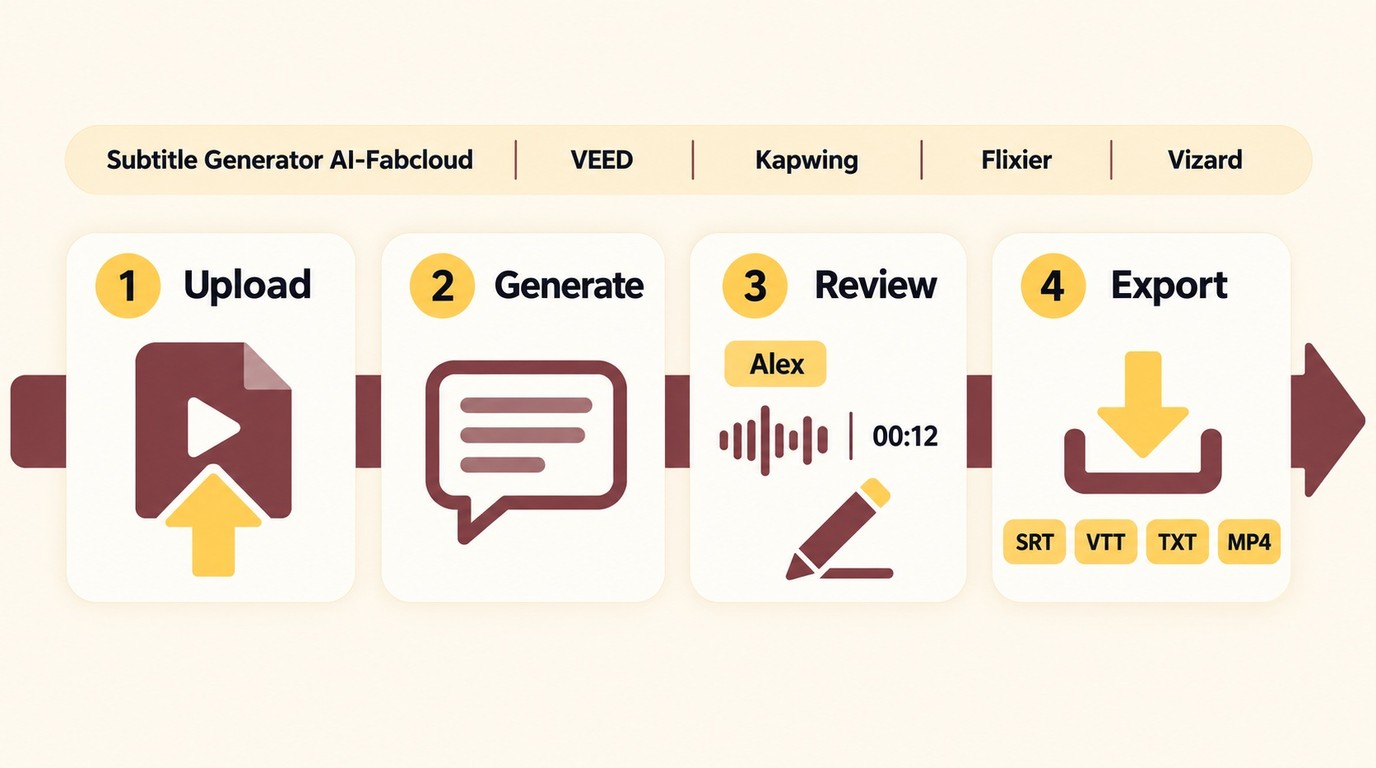
A reliable caption workflow has four stages: upload, generate, review, and export. The generation step is usually the fastest; checking meaning and synchronization is where quality is decided.
Upload Video or Audio
- Choose a tool that accepts the media source and produces the required final format.
- Before uploading, match your source format and input route, such as local upload or URL import, to what the chosen tool supports.
- Use the cleanest available audio track when the file contains multiple mixes.
Generate and Detect Speech
Start automatic captions and select the spoken language when detection is uncertain. Keep the original media available so the generated transcript can be checked against the actual audio.
If you need translated captions, Kapwing can automatically translate subtitles to over 60 languages using AI; its free plan includes up to 5 minutes, while higher plan tiers list up to 500 or 2,000 minutes per month. Review the translated text and its timing against the original media before export.
Review Names and Timing
Edit AI captions for names, accents, overlapping speakers, numbers, punctuation, and line breaks. Play the video around each correction to confirm timing rather than reviewing the transcript as plain text.
Export SRT or Captioned Video
Export an editable SRT when another system will control display. With Subtitle Generator AI-Fabcloud, download the SRT, then import it into your target video editor to render captions into the final video. Choose MP4 caption export when the text must appear consistently in the rendered video, then watch the exported file once before publishing.
Use only content you own or are authorized to access and process, keep it private unless sharing or redistribution is authorized, and follow applicable law and platform terms. You remain responsible for how the content is used; specific requirements depend on the use case.
Final Recommendations by Use Case
No single tool fits every free AI caption project. The right choice among AI video creation tools follows the required output, current allowance, editing burden, watermark policy, and privacy expectations.
Choose an editable SRT workflow when captions must be reused in another editor or media system. Choose a captioned-video workflow when the finished video must be ready to publish, then select among the tools by the available export budget, watermark, styling, and clipping needs.
Free AI Caption Generator FAQs
These questions cover decisions not resolved by a feature checklist alone.
Does Captions AI Offer a Useful Free Option?
Captions offers a limited free version for basic editing; its pricing comparison lists no AI usage credits. The plans displayed on its pricing page are for iOS. Captions AI can be considered alongside the tools above, but the right choice depends on whether its current free output matches the project rather than on the label alone.
What Can I Use Instead of Captions AI?
Choose by the required deliverable rather than treating these tools as one-for-one substitutes: use an editable subtitle-file workflow for reuse, or a captioned-video workflow for direct publishing.
Can ChatGPT Create and Export Video Captions?
ChatGPT can help revise transcript wording, terminology, or punctuation, but it does not replace a media captioning workflow. When revising timed captions, preserve the existing timestamps, verify synchronization against the media, and then export the required SRT file or captioned video through the media workflow.
Which Workflow Fits Confidential Business Video?
Use an organization-approved workflow for confidential recordings. Choose an approved cloud account for remote processing or an approved local workflow that keeps processing on the device.
Can I Export Free Video Captions Without a Watermark?
An SRT file contains timed text, so it has no rendered-video watermark. Kapwing and Flixier watermark their free video exports; for a clean captioned MP4, import the SRT into a video editor whose export terms allow watermark-free output.