Free video background remover apps vary less by headline features than by export restrictions. The useful comparison is whether a tool adds a watermark, meters credits, limits clip length, keeps audio, supports transparent output, and processes footage locally or online. This guide compares those limits for nine current options.
What Free Means in This Ranking
A free video background remover may offer a preview without letting you export the finished clip for free. These nine video background remover apps include free tools, previews, trials, and paid-plan features, so choose one that can deliver the file you need. Test a representative clip, compare the result at full size, and avoid settings that add artifacts or unnecessary recompression. Cutout.Pro provides a five-second 360p preview; full use requires credits.
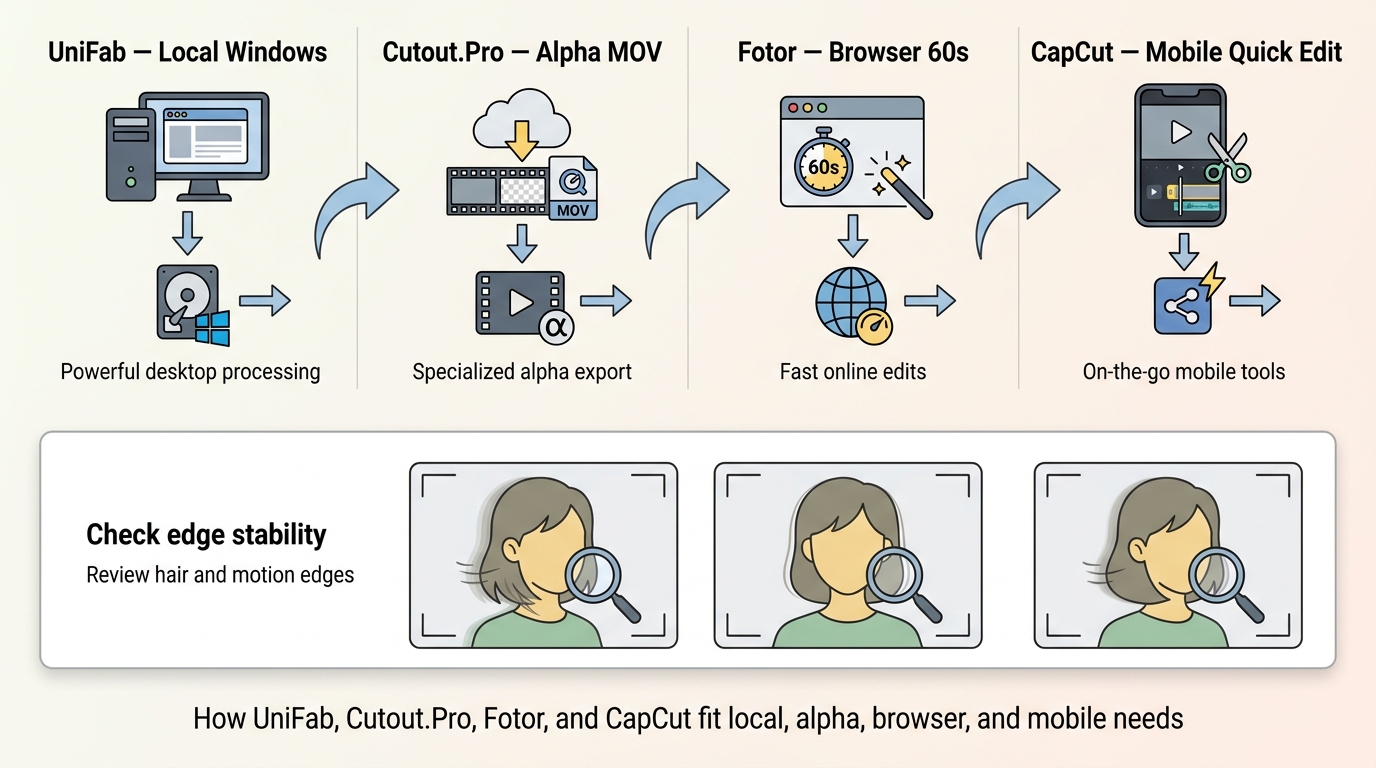
A free video background remover is useful only when its restrictions are visible. Here, free access is judged by signup, watermark, credits, clip length, resolution, export container, audio retention, transparent output, and whether footage stays on the device or is uploaded.
A no watermark video remover can still impose a short preview, paid credits, or an output format that does not preserve transparency. The practical takeaway is to choose by the file you need at the end, not by the word “free” on the upload button.
The comparison criteria cover both easy clips and difficult footage. Useful checks include loose hair, glasses, moving hands, motion blur, semi-transparent edges, and frame-to-frame Edge stability.
Temporal stability matters more than one clean preview frame: an Edge that flickers during motion creates more cleanup work than a slightly soft but consistent cutout. AI can reduce manual masking time, but difficult footage may still need review before export.
Top Picks and Free Limits
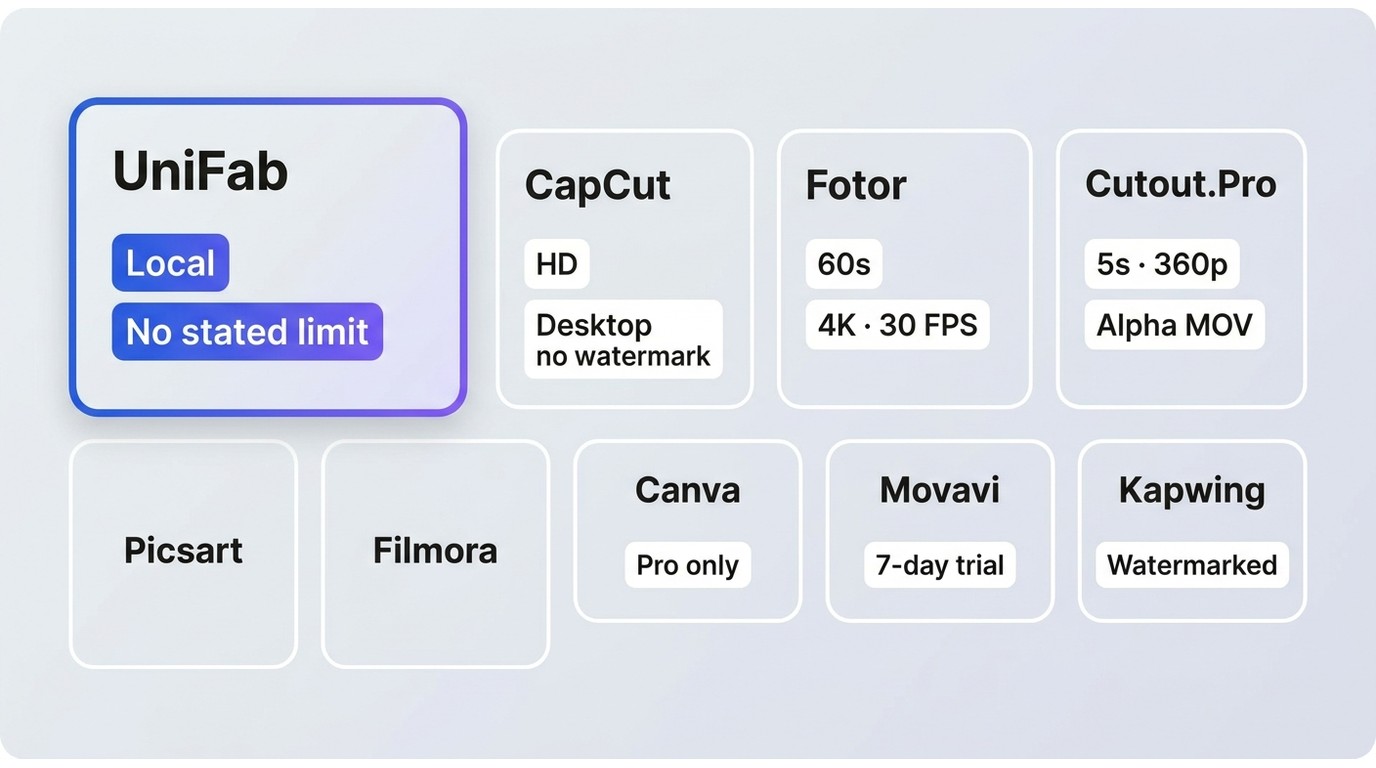
For offline Windows editing, UniFab processes footage locally. CapCut supports mobile editing, while Cutout.Pro offers transparent MOV output through a credit-based service with a free preview. For a short browser project, match the clip’s duration and file size to the upload allowance. Canva requires Pro access; Filmora and Movavi offer trial access rather than unrestricted free final exports.
Legacy conditions are listed as of July 2026; Filmora’s free-export watermark and Kapwing’s MP4, MOV, and WebM export details are listed as of November 2026.
| Tool | Platform | Access model | Key condition |
|---|---|---|---|
| UniFab Video Background Remover AI | Windows | Free desktop tool | Offline; no watermark, usage cap, or video-length limit |
| CapCut | Browser, Windows, smartphone | Free tool access | Desktop: watermark-free HD export; transparent GIF also listed |
| Picsart | Web | Free online tool | Background replacement and transparent-background editing |
| Filmora | Windows, macOS, iOS, Android, iPad | Free download or trial | Free exports carry a Filmora watermark |
| Canva | Web | Canva Pro feature | Pro required; MP4 delivery |
| Movavi | Windows and macOS | 7-day trial | Build-dependent watermark and duration restrictions |
| Fotor | Web | Free tool | 500 MB; 60 seconds; up to 4K at 30 FPS |
| Cutout.Pro | Web | Free preview; credits for full use | 5 seconds at 360p; transparent MOV or replacement MP4 |
| Kapwing | Desktop and mobile browsers | Registered free trial | Watermarked free exports; MP4, MOV, WebM |
Movavi’s July trial conditions included possible limits of 60 seconds or half the audio length, depending on the build. Cutout.Pro accepts sources up to 4K and requires Google or Facebook registration; Kapwing requires email registration.
A free download, a short preview, and a paid-plan feature offer different routes to a finished video. Match the access model to your final export, including transparency and sound.
9 Video Background Remover Apps and Their Free Limits
These video background remover apps cover local, mobile, desktop, and browser workflows. Each card focuses on free access, output fit, and the restriction most likely to affect a real project.
1. UniFab: Offline Windows Processing
UniFab Video Background Remover AI is a downloadable Windows tool that works offline and removes video backgrounds automatically. UniFab states that it has no watermark, usage limit, time limit, or video-length limit.
Best Free Video Background Remover App
- Free Video Background Remover with AI
- Hair-Level Precision with Advanced AI Video Matting
- One-Click Background Change for a Fresh Video Look
UniFab Video Background Remover AI
Best Free Video Background Remover App
- Free Video Background Remover with AI
- Hair-Level Precision with Advanced AI Video Matting
- One-Click Background Change for a Fresh Video Look
UniFab Video Background Remover AI
- Workflow fit: Windows users who prefer an offline video background remover and do not want to upload source footage.
- Platform: Mobile-only tasks can stay in a mobile editing workflow; UniFab serves Windows editing without uploading source footage.
I would choose UniFab when keeping source footage on a Windows PC is a priority.
2. CapCut: Best for Fast Mobile Edits
CapCut is a free background remover app aimed at quick edits across smartphones, browsers, and Windows. Its official page advertises free removal, while the desktop workflow specifically states no-watermark export and HD resolution selection.
- Best for: Short mobile-first edits that will continue into CapCut’s timeline and effects workflow.
- Not ideal for: Projects that require a clearly documented transparent video container or published audio-retention terms.
CapCut fits mobile-first timeline editing, but its desktop export terms should not be generalized to every mobile or online export.
3. Picsart: Best for Social Design
Picsart is an online video background remover that combines automatic subject separation with solid-color, custom-color, and image backgrounds.
- Best for: Social graphics and short creative projects that need background replacement in the same browser workflow.
- Not ideal for: Delivery specifications that require a verified alpha-capable container and confirmed sound retention.
The key distinction is that replacing a background is not the same as delivering a transparent video file.
4. Filmora: Cutout Within an Editing Suite
Filmora includes AI Portrait Cutout within a broader editor available across desktop and mobile platforms. It offers a free download or trial. Filmora adds a Filmora watermark to free exports. AI-credit, transparent-export, and audio conditions vary with the applicable feature and plan.
- Best for: Beginners who want background separation inside a familiar timeline with titles, audio, and other editing tools.
- Not ideal for: Anyone who needs fully documented free export limits before installing.
Filmora’s value is the editing suite around the cutout.
5. Canva: For Existing Pro Users
Canva’s video background remover is a Canva Pro feature, not a fully free option. It fits an existing browser-based design workflow and downloads finished projects as MP4.
- Best for: Existing Canva Pro users building presentations, ads, or social posts from templates.
- Not ideal for: Readers who specifically need to remove a video background free without a paid plan.
Canva is convenient when the subscription is already part of the workflow. It is a weak match for a strict free-tool search because background removal itself sits behind Pro access.
6. Movavi: Best for Familiar Desktop Editing
Movavi remains an active Windows and macOS editor with a seven-day trial. Trial exports may carry a watermark or duration restriction, depending on the build.
- Best for: Existing Movavi users who want to evaluate the capability inside a desktop editing workflow.
- Not ideal for: Buyers selecting a tool primarily for verified cutout, transparency, or batch behavior.
Familiarity with the editor is its defensible advantage in this comparison.
7. Fotor
Fotor offered free browser-based video background removal with these limits: MP4 or MOV input, files up to 500 MB, clips up to 60 seconds, and footage up to 4K at 30 FPS. Its offer included watermark-free downloads and a transparent-background option.
- Best for: Short browser clips where the published file and duration limits fit the project.
- Not ideal for: Long-form footage or files above 500 MB.
8. Cutout.Pro: Best for Transparent MOV Output
Cutout.Pro supports MP4, WebM, MOV, and GIF input, with files up to 2 GB and source resolution up to 4K. Its free access is a five-second 360p preview; full use requires credits. Transparent output is delivered as MOV, while a replaced background downloads as MP4.
- Best for: Confirming whether transparent MOV fits a compositing workflow before purchasing credits.
- Not ideal for: Longer projects that must remain free from upload through final export.
This is the clearest transparent video background option in the matrix, but a preview should not be described as unrestricted free use.
9. Kapwing: For Trial Projects
Kapwing is a cloud-based browser editor that lets registered users try video background removal for free. Free-account exports include a watermark, and full personal-use functionality requires a paid subscription. Kapwing’s background-removal page lists MP4, MOV, and WebM export. These container names alone do not establish alpha-channel support or audio retention.
- Best for: Trial projects that also need browser-based text, layers, or other timeline edits.
- Not ideal for: Anyone searching for a no-watermark free export.
Kapwing remains useful as an online editor, but “unlimited free exports” is not an accurate description of its current free experience.
Choose by Output and Workflow
Use AI cutout to separate a subject in ordinary footage, or chroma key to remove a distinct solid-color background. Manual masking provides local edge correction when the automatic cutout needs cleanup.
| Scenario | Recommendation | Why |
|---|---|---|
| Private footage on Windows | UniFab | Local, offline processing with no stated watermark, usage, time, or video-length limit |
| Fast mobile social edit | CapCut | Mobile-first editing with background removal inside a broader timeline workflow |
| Short browser clip | Match upload and duration limits | File size and clip length must fit the free allowance |
| Transparent MOV for compositing | Cutout.Pro | Transparent MOV output is explicitly documented, with a free preview before credits |
| Template-based campaign asset | Canva Pro | Background removal and MP4 delivery fit an existing Canva design workflow |
| Trial browser project | Kapwing | Cloud editor with registered free access, although free exports are watermarked |
For a transparent video background, confirm the required container and audio behavior rather than assuming every checkerboard preview becomes an alpha-capable video. Cutout.Pro distinguishes transparent MOV from replacement-background MP4; when choosing how to make a video background transparent, use an alpha-capable codec supported by the destination editor rather than relying on the MOV extension alone.
For anyone looking for a video remover with sound, transparency and audio retention must be treated as separate output requirements. Export a short representative clip with speech, then check its sound and lip sync in the destination app before committing a long edit.
A batch video background remover matters for repeat production, but batch behavior should not be assumed from a general batch-export feature. For a broader comparison of desktop and online choices, see this guide to AI video background removal software.
UniFab is a practical local option for Windows users, not a universal recommendation. For mobile editing, I would consider CapCut’s timeline workflow; existing Canva Pro users may prefer staying in Canva, while transparent MOV requirements point more directly to Cutout.Pro.
Tips for Cleaner Background Removal
Better source contrast and lighting reduce cleanup, but they do not eliminate failures around hair, motion blur, glass, or semi-transparent detail. The most reliable improvement is to make the subject easier to separate before the AI processes each frame.
- Create clear contrast. Place the subject against a background with a noticeably different color and brightness.
- Use even front lighting. Reduce hard shadows that merge clothing, hair, or hands into the background.
- Limit motion blur. Slower movement and a stable camera give the model clearer boundaries from frame to frame.
- Check difficult moments. Review frames where hands cross the body, hair moves, glasses catch light, or the subject turns quickly.
- Export for the next step. Choose MP4 for ordinary replacement-background delivery, or an explicitly supported alpha-capable format when transparency is required.
Process only footage you own or are authorized to use, and keep your use personal and lawful without unauthorized redistribution. You are responsible for confirming content permissions and following the relevant service terms and applicable local laws.
The workflow for how to remove a video background for free usually involves an upload or import, automatic subject detection, edge review, background replacement or transparency selection, and export.
Frequently Asked Questions
Why does my transparent video have a black background after export?
A black background can appear when the export loses its alpha channel or the player displays transparency against black. A transparent preview in an editor does not guarantee a transparent exported file. Cutout.Pro distinguishes transparent MOV output from replacement-background MP4, but a MOV extension alone does not guarantee alpha support. Import the exported clip over a colored layer in your destination editor to check whether transparency survived. Match resolution, frame rate, codec, and bitrate to the source and delivery platform, then inspect motion, edges, audio sync, and fine detail.
Can I use the same free background remover on iPhone and Android?
Yes, CapCut offers mobile editing on both iPhone and Android, but background-removal access and export conditions can differ by app version and plan. Its desktop no-watermark offer does not guarantee identical mobile terms. Before starting a long edit, open the background-removal control and export screen in the installed app to see whether the feature and required export are included or carry a charge. Export a short sample to check image quality and compatibility with your destination app.
Will background removal keep my original audio?
Audio retention depends on the tool and export settings; a transparent background does not guarantee that the exported file includes sound. Export a short sample with speech, then play it in the destination app to check the audio and lip sync before processing the full clip. Keep the original audio track available so you can reattach it if needed.
Is an online background remover suitable for private footage?
Online processing uploads footage to a service, while local processing keeps the source on your device. For sensitive footage, choose a local workflow such as UniFab’s offline Windows processing. If you use an online tool, review its retention and deletion terms before uploading, and obtain permission to process footage of other people.
Can I remove a solid-color background without AI?
Yes. Chroma key background removal removes a selected color without AI and works well when the backdrop is evenly lit and clearly distinct from the subject. AI cutout separates a subject without requiring a green screen, while manual masking gives you local control for edge cleanup. A black curtain can be harder to key if dark clothing or shadows share its color. After removing the background, review difficult edges and check that the exported audio stays in sync.