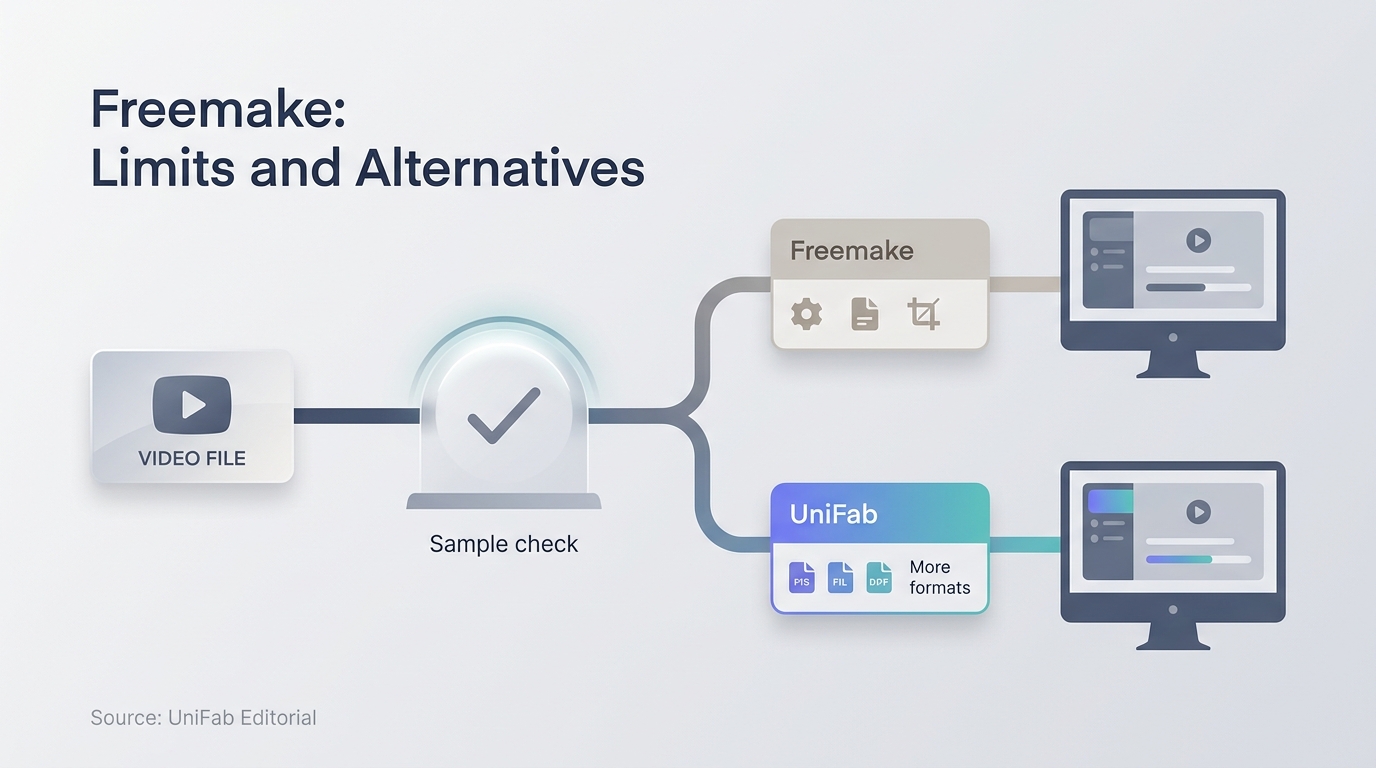
This Freemake Video Converter review focuses on free use and MP4 conversion: a free download is useful only if it produces a complete, playable file. Freemake advertises free conversion without limitations; your new MP4 goes to the output folder you choose. Start with the official installer, then choose the converter that fits your task.
What Freemake Video Converter Does
Freemake Video Converter is a Windows desktop program for changing media files into formats that suit another player, device, or editing workflow. Its central job is local format conversion, with basic editing and output presets supporting that task.
Core Conversion Formats and Output Choices
The app works with familiar containers such as MP4, AVI, MKV, WMV, and MPEG. A container is the file wrapper, while the codec is the method used to encode the video or audio inside it. That distinction matters because two MP4 files can use different codecs and behave differently on the same television or phone.
Freemake also provides output profiles aimed at common devices. Choose a profile for compatibility, not because its label sounds more capable.
Windows Compatibility and Typical Use Cases
Freemake is designed around a Windows desktop workflow. Typical jobs include changing a file for device playback, trimming unwanted footage, joining clips, rotating a recording, and preserving or adding subtitles where the selected format permits it.
Is Freemake Video Converter Really Free and Safe?
Freemake advertises free conversion with no trials or limitations, including 4K output. For the question “is Freemake Video Converter safe?”, start with the official installer, a Windows Security scan, and a review of setup choices. A free download label is not a safety guarantee.
The Limits Behind the Free Label
The Freemake Video Converter full installer is a setup package. The word “Full” in FreemakeVideoConverterFull.exe identifies the official offline installer, rather than a separate unlocked edition.
One 2026 Trustpilot reviewer praised the finished output; another 2026 Trustpilot reviewer found the app easy to use. A third 2026 Trustpilot reviewer reported that the software stopped working, while a June 2024 Reddit user reported version 4.1.12 working for one day before stopping. These individual experiences do not establish a universal licensing policy or export limit.
A short export is the practical check before a large job. I would judge the converter by usable output, not its free-download label.
Installer Safety, Pop-Ups, and Complete Removal
Concern about an installer does not establish that the program itself is malware. It does justify a controlled installation: use the official package, scan it with Windows Security, read each option, and decline unrelated additions. Freemake says it removed third-party installer advertisements in March 2018.
A November 2023 r/techsupport post described a cleanup problem: “I dont know how because I uninstalled it but im not suprise because few months ago I still had the freemake pop ups until I found how to delete it manually. How can I eradicate it from my PC?” If removal leaves pop-ups or menu entries behind, check Startup Apps, browser notification permissions, installed extensions, and File Explorer shell entries after the normal uninstall finishes.
Who Freemake Suits by Platform and Task
Freemake suits local conversion on Windows when you are comfortable installing desktop software. If you need a playable disc rather than an MP4 file, distinguish DVD-Video authoring from file conversion before choosing the output.
Freemake Video Converter Download and Installation
Use Freemake’s official Downloads page for the installer, including the offline option. Prepare a local video you are authorized to process and review setup choices before starting a larger job.
- Prepare Windows, free storage, and a small test video.
- Download the installer from Freemake’s official site.
- Review each setup choice before installation.
- Launch the app and test one conversion.
Prerequisites Before You Download
Start with a supported Windows setup, an account that can approve installation, and enough free space for both the source and output files. Keep a small video whose framing and audio you already know; it will make first-launch checks much easier. Back up important work or create a restore point before adding unfamiliar desktop software.
Step 1: Get the Installer From the Official Site
As of November 2026, Freemake's Downloads page lists Video Converter 6.0.1 with an October 16, 2025 date; its changelog uses the version label 5.0.0.18 for the same date. Select Video Converter or the page’s offline-download option. The official Freemake Video Converter offline installer is named FreemakeVideoConverterFull.exe.
Use the official package for a new installation. A Freemake Video Converter portable package from a download portal is not interchangeable with that offline installer: offline setup installs the application, while portable packaging is intended to run without installation.
Step 2: Review Each Installation Choice
Read each dialog instead of accepting the default sequence automatically. Confirm the install folder and shortcut choices, and decline any unrelated offer that is not required for video conversion. If the publisher shown by Windows does not match the expected software vendor, cancel rather than continuing through the warning.
Step 3: Launch, Update, and Check the App
After installation, run a Windows Security scan and open Freemake from the shortcut you approved. Check the displayed version and any update prompt inside the application. A successful installation is not proof of a successful conversion.
Using Freemake Video Converter
Here is how to use Freemake Video Converter for MP4 conversion: add the source, select to MP4, choose settings and an output folder, then convert. Your Freemake Video Converter MP4 output is a new file; the source stays unchanged.
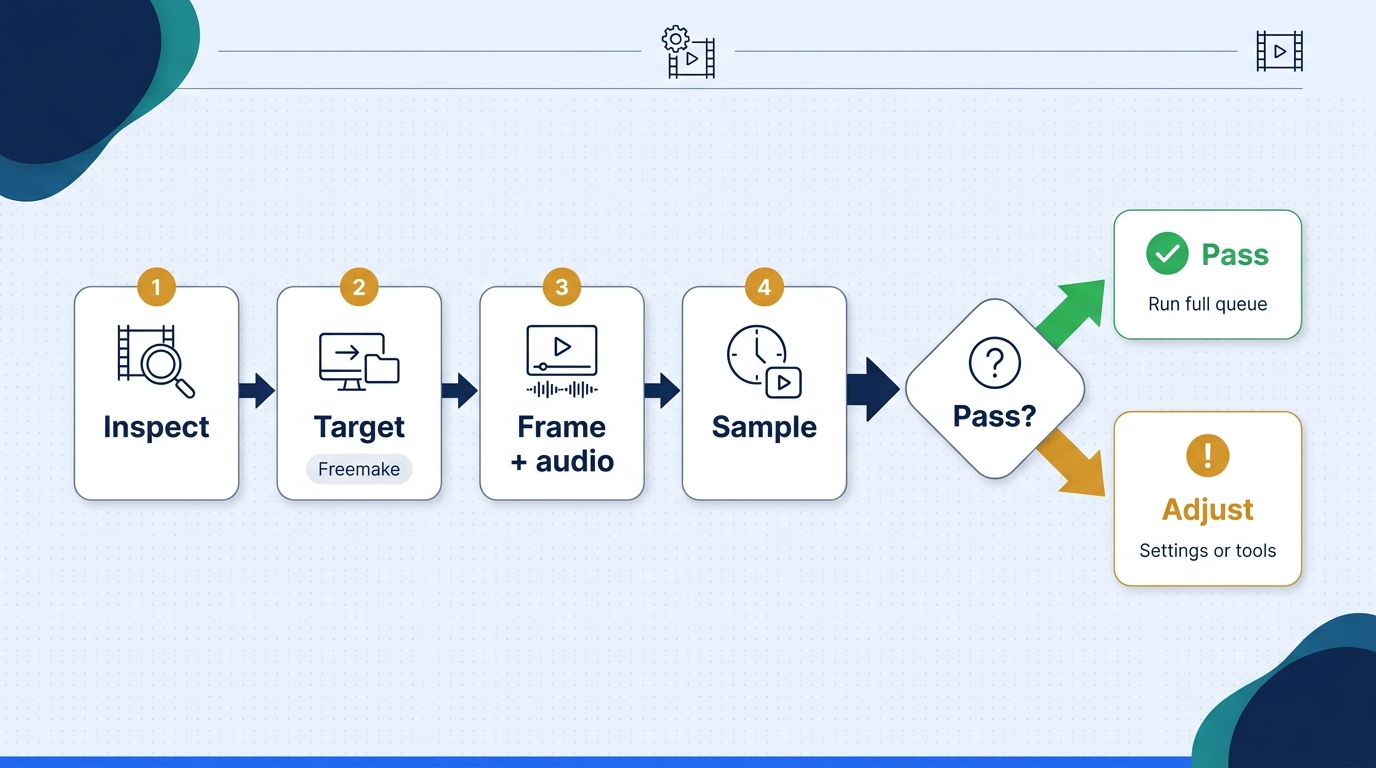
Step 1: Add the Source Video and Inspect It
Select +Video and add the source file. Note its duration, resolution, orientation, aspect ratio, audio tracks, and subtitles. Play the original and confirm it contains video as well as audio before changing export settings.
Framing deserves special attention. An August 2025 forum post described an MP4-to-ISO conversion: “Some files that i've converted from MP4 to ISO with Freemake Video Converter, the converted video seems to of 'zoomed in' a little bit and is missing the top and bottom on the video.” Record the source aspect ratio so you have a concrete setting to compare if your export crops the picture.
Step 2: Choose a Format or Device Preset
Select to MP4, then choose a preset or custom parameters for your destination player. A preset is a starting point. Match its codec, the method used to encode video, and resolution to the player’s supported settings.
In MKV to MP4 conversion, remuxing changes the file wrapper while preserving the encoded video and audio streams, whereas re-encoding changes those streams. Choose the output for playback compatibility rather than the filename alone.
Step 3: Set Resolution, Aspect Ratio, and Audio
Match the source aspect ratio unless you intentionally want a crop or letterbox. Do not raise resolution automatically; a larger frame does not restore detail absent from the source. Changing a file to MP4 alone does not make it smaller. When choosing a preset or custom parameters, remember that lowering video bitrate (the amount of video data per second) reduces file size but can reduce detail, and re-encoding can alter quality. For audio, preserve the required track and choose settings the destination player supports. If subtitles matter, confirm whether the selected output keeps them as a selectable track or renders them into the picture.
Step 4: Convert a Sample and Verify the Result
Choose an output folder and select Convert. The new MP4 is saved in that folder, and the original stays unchanged. Start with a short section containing motion, speech, and any subtitles.
Check all four edges for cropping, listen for sync or distortion, confirm the expected duration, inspect file size, and play the result on the destination device. Reuse the settings for the full file after the sample passes. If conversion crashes, retry with a small known-good local file to distinguish a source-file problem from an application problem.
UniFab as a Freemake Video Converter Alternative
UniFab’s Video Converter is a Freemake Video Converter alternative for desktop format conversion.
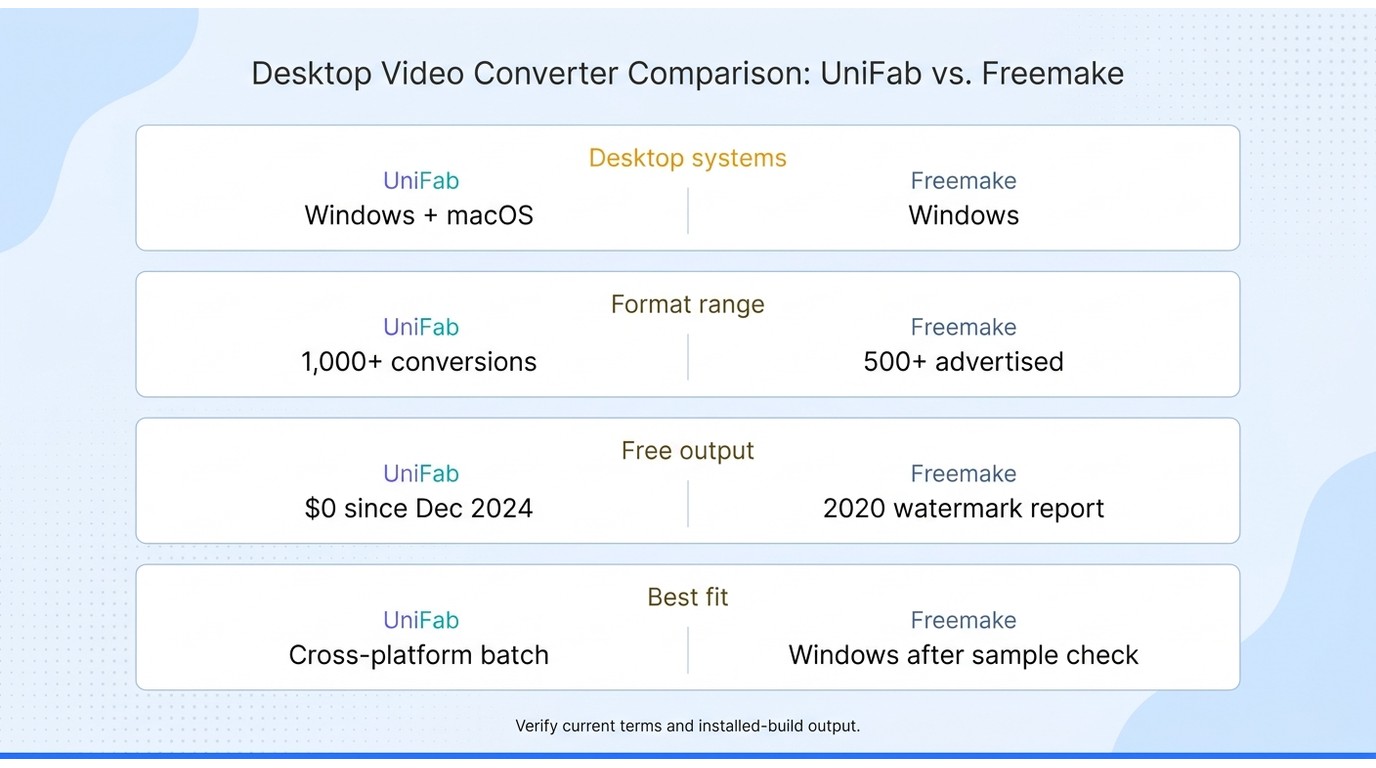
| Dimension | Freemake | UniFab |
|---|---|---|
| Desktop systems | Windows Vista/7/8/8.1/10/11 | Windows and macOS |
| Free-use offer | Advertised: Absolutely free. No trials or limitations. | Free; no watermark |
| Conversion workflow | Local files; MP4 and other formats | Local desktop batch conversion |
| AI restoration | Separate task from format conversion | Separate task; handled by dedicated UniFab AI products |
Specifications as of November 2026. Historical user reports cover the June 2024 account of version 4.1.12 and the November 2023 uninstall account. Other historical discussions include the August 2025 cropping account and the May 2020 conversion discussion.
For a Windows-only conversion, Freemake fits the task. For local batches across Windows and macOS, I would choose UniFab.
UniFab Format Range at a Glance
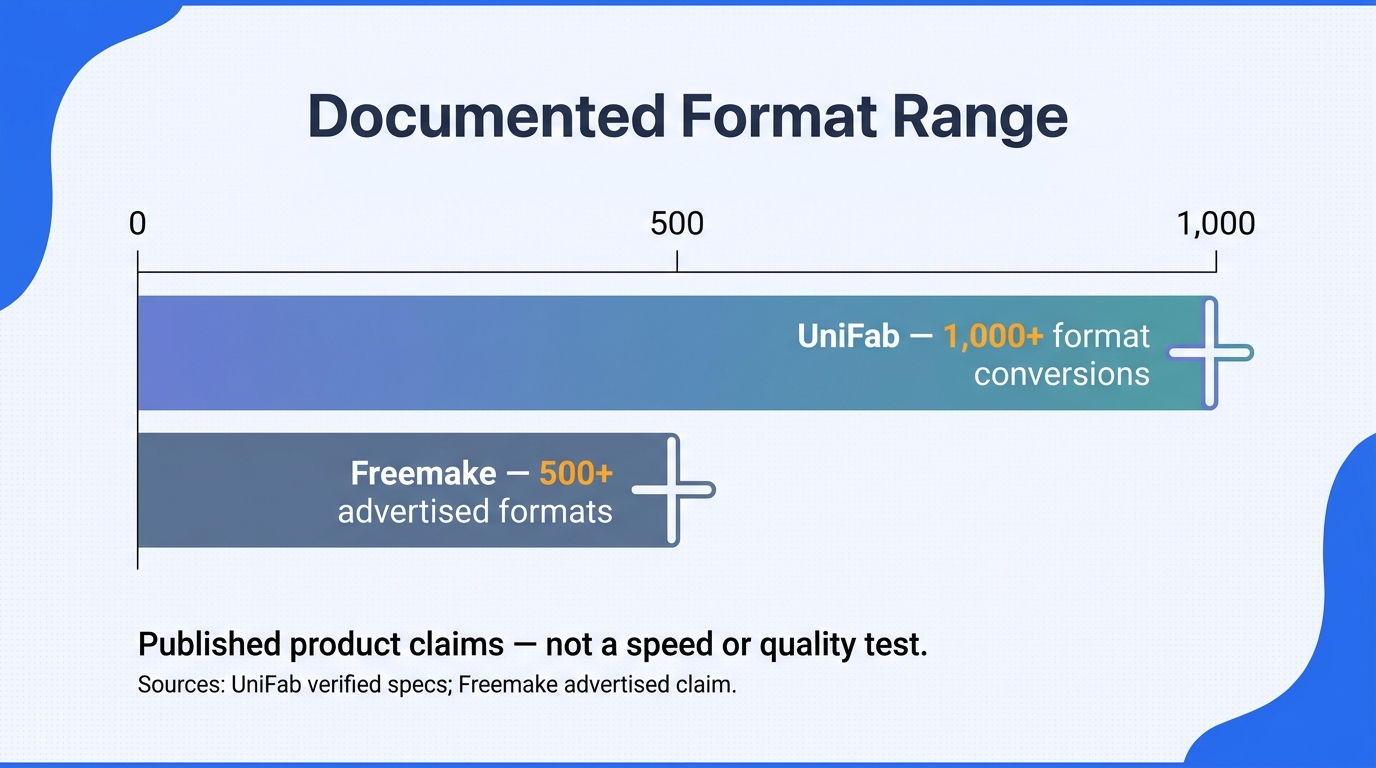
The chart is a quick format-range reference; confirm the target format and device requirements before choosing an output profile.
A Short Conversion Path in UniFab
- Add one or more local video files.
- Choose the target format or device profile.
- Adjust resolution, aspect ratio, audio, and destination folder.
- Run the full batch after confirming the settings.
UniFab Conversion and Other Workflow Needs
Video Converter requires desktop installation; a browser-based converter offers a lightweight route for an occasional no-install task. AI restoration is separate from Video Converter and requires a dedicated UniFab AI product.
DVD-Video authoring is a separate task from producing an MP4. A disc player that expects a DVD-Video structure needs authored output, rather than an MP4 copied onto a disc.
Editorial conclusion: Continue with Freemake when a Windows-only conversion, the installation choices, and the sample output meet your needs. Consider UniFab when you need local batches across Windows and macOS; use a dedicated UniFab AI product only when AI restoration is part of the task.
Freemake Video Converter FAQ
Installer packaging, output settings, and content permissions answer different questions. Match each choice to the file and device you need.
Is Freemake Video Converter Legal to Use?
Yes, for authorized access and conversion of content you own or have permission to process. Do not redistribute without permission. Follow applicable law and platform terms; the permissions required depend on your use case.
Does Freemake Video Converter Support 4K Output?
Freemake advertises 4K conversion. Select the 3840 × 2160 output option for a native 4K source and play a short export on your destination device.
Can You Use Freemake Video Converter on a Mac?
Freemake Video Converter is a Windows application. For conversion directly in macOS, choose a native Mac converter rather than installing a Windows environment solely to run Freemake.
Is There a 64-Bit Offline Installer or Portable Version?
Choose FreemakeVideoConverterFull.exe for official offline setup, not a portable repack. Compatibility with 64-bit Windows does not mean an application is a native 64-bit executable.
Should You Install an Old Version of Freemake?
Choose the current official installer for a new setup. Installing version 4.1.12 does not establish a watermark-free export; use a short clip to check the output you need.
Does Freemake AI Improve Video Quality?
Format conversion changes a file’s container or encoding; AI restoration reconstructs or enhances image detail. Choosing a larger output frame in Freemake Video Converter does not add an AI restoration step. Video Converter handles format conversion; UniFab’s AI processing tools are separate products.