Before You Start: What “YouTube to GIF” Means
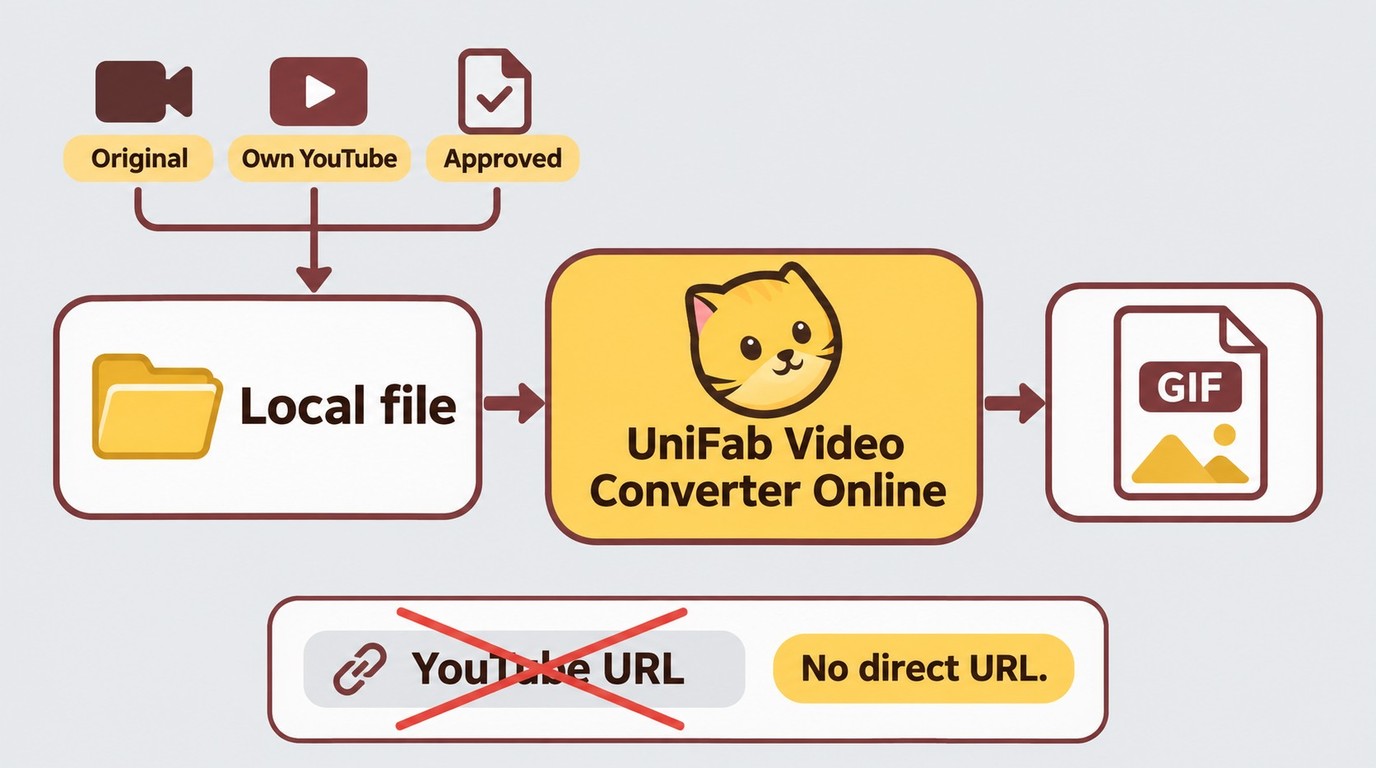
A YouTube link alone is not the local clip you need to make a GIF with this workflow. For YouTube to GIF conversion, start with an original or authorized video file, select a short moment, export it, and check the silent loop.
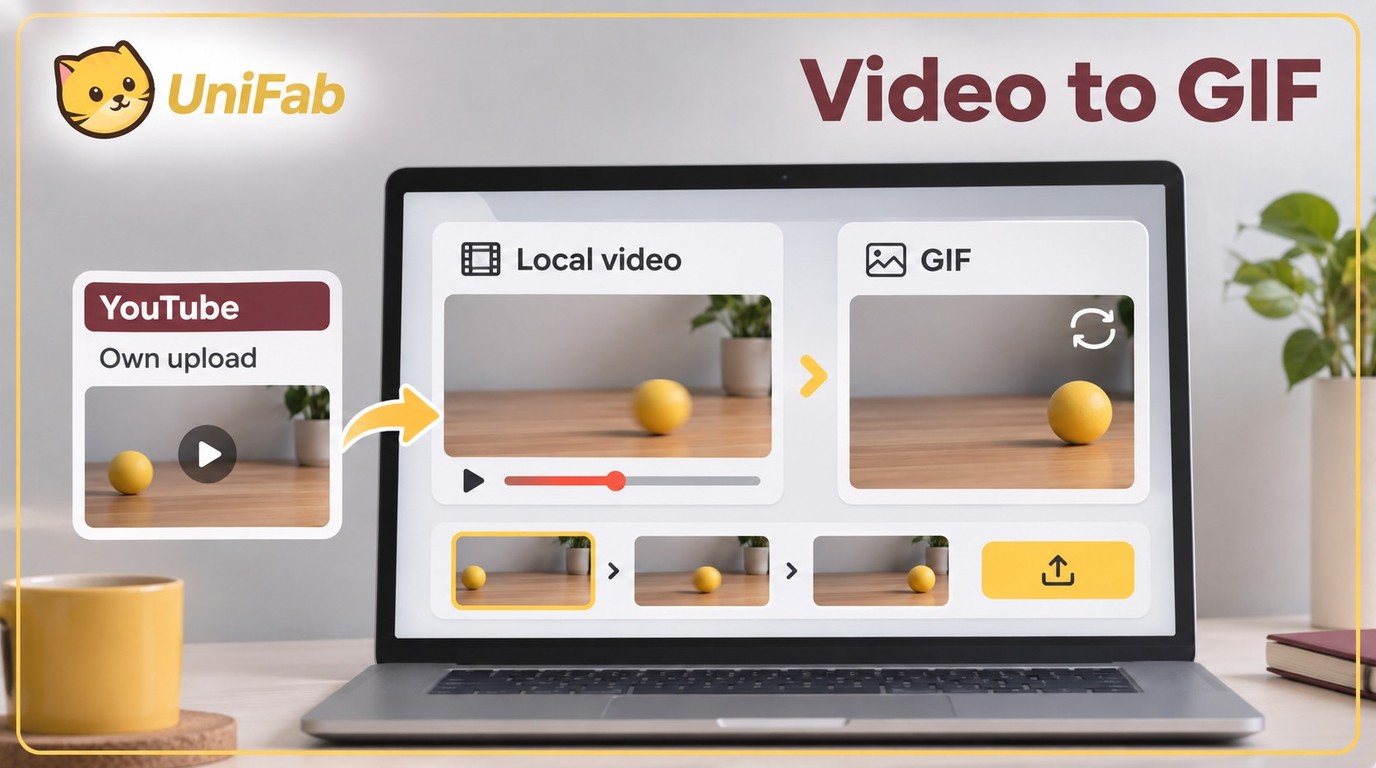
There are two separate steps:
- Get an authorized local source file. It may be your own recording, your own YouTube upload, a licensed asset, or a file supplied by the rights holder.
- Convert a selected moment into GIF. This is the step a video-to-GIF converter performs.
UniFab Video Converter Online converts local video files to GIF; it is not a YouTube downloader or a paste-a-URL tool.
YouTube's Terms of Service govern use of the platform, and YouTube provides an official help page for downloading videos you uploaded. If the video is not yours, use a file supplied through an authorized channel or obtain permission before repurposing it. This article does not provide instructions for bypassing platform controls, creator choices, DRM, or other access restrictions.
Method 1: Local Video to GIF with UniFab
UniFab's Video Converter Online provides a browser-based path for turning a selected video range into a GIF. Supported video inputs include MP4, MOV, WebM, and MKV, with GIF available as an output; compatibility also depends on your browser and the codec inside the file.
If you already have an authorized local file, follow the steps below. If you have only a YouTube link, first use the own-upload or permission-based source route in the following sections, then return to this conversion workflow.
1. Open the online workspace. No installation is needed for the browser workflow.
2. Add your local video. Use a file you created, own, licensed, or have permission to use.
3. Describe the intended result. In plain language, state that you want a GIF and identify the moment or range. If framing matters, include the crop or visual focus.
4. Download the GIF. Check the first frame, last frame, loop, crop, text, and file size in the actual app or page where you will use it. On a phone, choose an authorized video through the device file picker and export the GIF using the same workflow. Use the browser's download control to save the exported GIF to the device's download location.
| Source | What you need | Retrieval route | Conversion handoff |
|---|---|---|---|
| Original local video | Your own or licensed file | Camera, project export, or archive | Add file; select the moment |
| Your own YouTube upload | An eligible upload on your account | YouTube Studio: Content → video menu → Download | Add downloaded file; select the moment |
| Creator-supplied video | Permission covering your intended use | Request an approved file from the creator | Add approved file; select the moment |
I recommend the original local file when it is available, since it avoids another platform-compressed copy. Otherwise, retrieve an eligible upload from your own account or request a creator-supplied file for authorized third-party material, then select and crop the same moment before export.
The online workflow is free from upload through download, requires no signup, account, subscription, credits, or installation, and does not add a UniFab watermark to exported files. Video bytes are not sent to the intent service, while instructions and technical metadata may be used to generate a conversion plan.
A multi-gigabyte source may exhaust browser memory; use a shorter source or switch to a desktop workflow. I would use the browser workflow for a short local clip and a desktop workflow for folders, batch jobs, or detailed controls.
Your Own YouTube Video to GIF
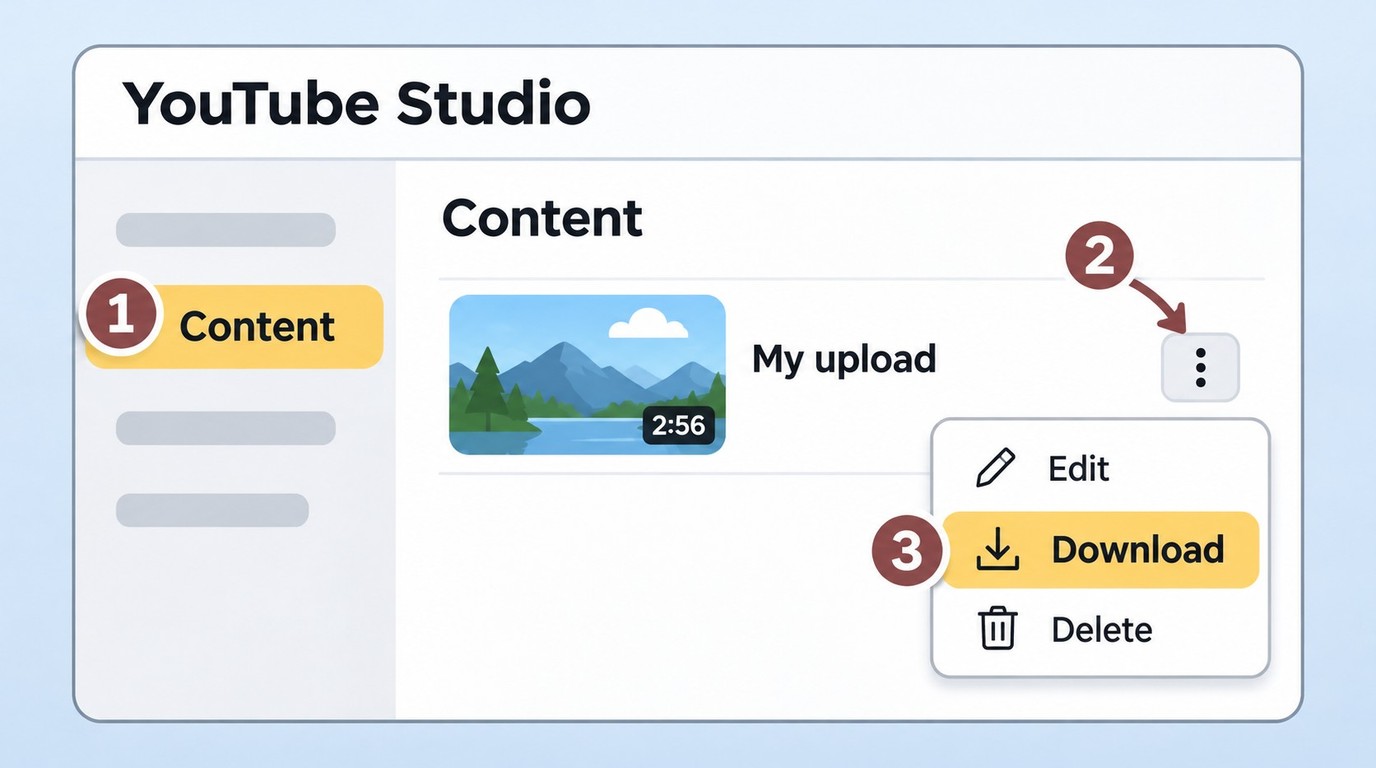
If the YouTube video is your own upload, the cleanest workflow is to obtain your own source file. Your original project or camera file is preferable because it may have better quality than a platform-compressed copy. If you no longer have the source, use YouTube’s download option for videos you uploaded: on a computer, sign in to YouTube Studio, open Content, open the video’s menu, and choose Download. Downloads are unavailable for removed videos, videos with copyright or Community Guidelines strikes, videos using a preapproved audio track, or videos that have reached the daily download allowance; use your original file or another authorized source instead. YouTube Premium offline viewing does not provide a reusable local source file for this conversion workflow.
Once the video is available locally, use the same UniFab conversion workflow described above:
- Open the local file and identify the exact action.
- Note the beginning and end of the moment.
- Add the file to UniFab Video Converter Online.
- Ask for a GIF from that selected range.
- Review the plan and confirm the crop.
- Download and test the loop.
For a reaction, choose a facial expression that reads without dialogue. For a tutorial, keep the cursor, hand movement, or changing interface visible. For a product demonstration, begin before the key action and end after the result appears.
Someone Else’s Video: Permission Comes First
Permission should be specific enough to cover the way you plan to use the GIF. A private chat reaction, a public marketing post, a support article, and a paid advertisement are different contexts.
Before adding the authorized file to the same local-to-GIF workflow above:
- Ask the rights holder for the original or an approved source file.
- Keep the written license or permission with the project.
- Preserve attribution when the license or agreement requires it.
- Avoid cropping or editing that changes the meaning of the original.
- Check whether music, performers, trademarks, or other elements involve additional rights.
The U.S. Copyright Office maintains a fair use index for general educational context, but fair use is fact-specific. It is not an automatic permission slip for every reaction GIF or excerpt. For a consequential legal question, consult a qualified professional in the relevant jurisdiction.
Turn a Video into a Better GIF
Choose one complete visual beat
A GIF should make sense without a timeline scrubber. Select one action: a button changes state, a person reacts, an object moves, or a before/after result appears. If the selected range needs spoken explanation, the video format may be better.
Trim the hesitation
Remove the seconds spent waiting for the action. Start close enough to create momentum, but leave enough context for the first frame to be understandable.
End after the payoff
Do not cut while the important result is still appearing. A brief hold on the final state can make a tutorial or product GIF easier to understand.
Crop for the destination
A wide YouTube video may become tiny in a messaging app. Crop around the face, cursor, product, or demonstration area. Keep any necessary captions away from the edges.
Test the silent version
GIF does not carry the video's audio. GIF is an image format rather than a standard audio-video container. If spoken words carry the meaning, add context outside the GIF or share a short video instead.
For a brief on-image label, use an editor that supports text and keep the words readable and clear of the frame edges. Preview the exported loop at its actual display size to check that the label remains legible throughout.
Export settings for a smaller, clearer GIF
Set the export in this order: first shorten the range to one complete visual action, then crop around the subject, then reduce the output dimensions for the destination. In an editor that supports these controls, adjust frame rate after those choices, then tune the palette and dithering for the remaining color detail.
| Setting | What to adjust | Trade-off |
|---|---|---|
| Duration | Keep only the shortest range that shows one complete action. | A shorter loop can remove useful setup or the final payoff. |
| Crop | Frame the face, cursor, product, or other main subject. | A tighter crop removes surrounding context. |
| Output size | Reduce dimensions to fit the destination where the GIF will appear. | Smaller dimensions discard fine detail. |
| Frame rate | Lower it only as far as the action remains understandable. | Lower frame rates can make motion less smooth. |
| Palette and dithering | Adjust available colors and dithering in a supported editor. | Color detail and the appearance of gradients can change. |
A 4K source does not guarantee that the GIF will look clear at its target location. The final crop, output size, frame rate, palette, and dithering still determine the technical trade-offs.
Common YouTube-to-GIF Problems
I only have a YouTube link
A link is not the same as a local source file. If it is your own upload, use your source archive or YouTube's official download option where available. If it belongs to someone else, ask for an authorized source.
The browser cannot open the file
The extension does not tell the whole story. An MP4 can contain a codec your browser cannot decode. Try a compatible source, such as an H.264 file created through converting MOV to MP4, update the browser, or use desktop conversion.
The file is too large for the browser
Browser capacity depends on device memory. Close other tabs, work from a shorter source, or switch to a desktop tool for a multi-gigabyte file.
The GIF looks blurry or the text is tiny
Return to the export settings sequence above: crop to the relevant area, reduce output dimensions for the destination, then adjust palette and dithering if the editor supports them. Test at actual display size, because a wide crop can make the important area or text look tiny. Do not assume the preview represents every app's rendering.
The GIF is unexpectedly large
Return to the export settings sequence above: shorten the range, crop to the essential area, and reduce output dimensions before adjusting frame rate. Modern video compression can be more efficient than GIF, so a short MP4 or a WebM version converted from MP4 may be a better choice when file weight matters. If you need to keep GIF output and your editor offers frame-rate controls, lower the frame rate only while the action remains understandable.
I am not sure whether I can share it
Pause before publishing. Confirm the owner, license, permission, attribution requirements, and context. A technical ability to make a GIF does not determine whether a particular use is lawful.
FAQ
Does UniFab convert a YouTube URL directly?
UniFab Video Converter Online starts with a local video file, not a pasted YouTube URL. For your own upload, use the original source file or download an eligible video through YouTube Studio, then convert the local file to GIF.
What file formats can I use for a video-to-GIF conversion?
The UniFab online page lists MP4, MOV, WebM, and MKV as video inputs and GIF as an output. Browser codec support can still affect whether a particular file opens.
How long should a video clip be for a GIF?
There is no universal duration that suits every GIF. The source video's length and the selected GIF range are separate: a longer video can supply a short loop. Use the shortest range that contains one complete visual action.
Does a GIF include sound from the original video?
No. GIF is an animated image format and does not include the video's soundtrack. Choose a moment that remains clear without audio.
Is an online video-to-GIF converter safe to use?
Review the service's data-processing explanation and avoid sensitive files when the terms are unclear. UniFab states that video bytes are not sent to its intent service, while instructions and technical metadata may be used to generate the plan.
What should I check before sharing a YouTube GIF?
Check ownership or permission, attribution, the selected context, crop, text readability, first and last frames, loop behavior, and file size. Keep the source file and permission record with the project.
Conclusion
To make a GIF from a video or your own YouTube clip, separate obtaining the source file from converting it. Start with a local file you own or are authorized to use, select one short visual beat, and test the silent loop before sharing. For your own YouTube upload, use the original source or YouTube's official download route where available. Then use UniFab Video Converter Online for a no-install, no-signup local-file-to-GIF workflow, without assuming that it downloads a pasted YouTube URL.