What Is SmoothVideo Project (SVP)?
If you want smoother movie or anime playback, SmoothVideo Project (SVP) is worth configuring with VLC when you want adjustable motion smoothing and are comfortable with player setup. It also offers SVPcode for saving interpolated files, not just smoothing live playback. It analyzes motion between existing frames and generates new intermediate frames on the fly, making motion look fluid and natural. During live playback, the result is similar to watching content filmed at a higher frame rate, but without re-encoding your video files. Like display-side TV motion smoothing, this changes viewing; SVPcode transcoding creates a saved video file. SVP targets motion smoothness and judder; trying to remove motion blur already captured in a video is a different task. This SmoothVideo Project review covers VLC setup, hardware requirements, SVPcode export and file queues, and the UniFab alternative to help you choose a workflow.
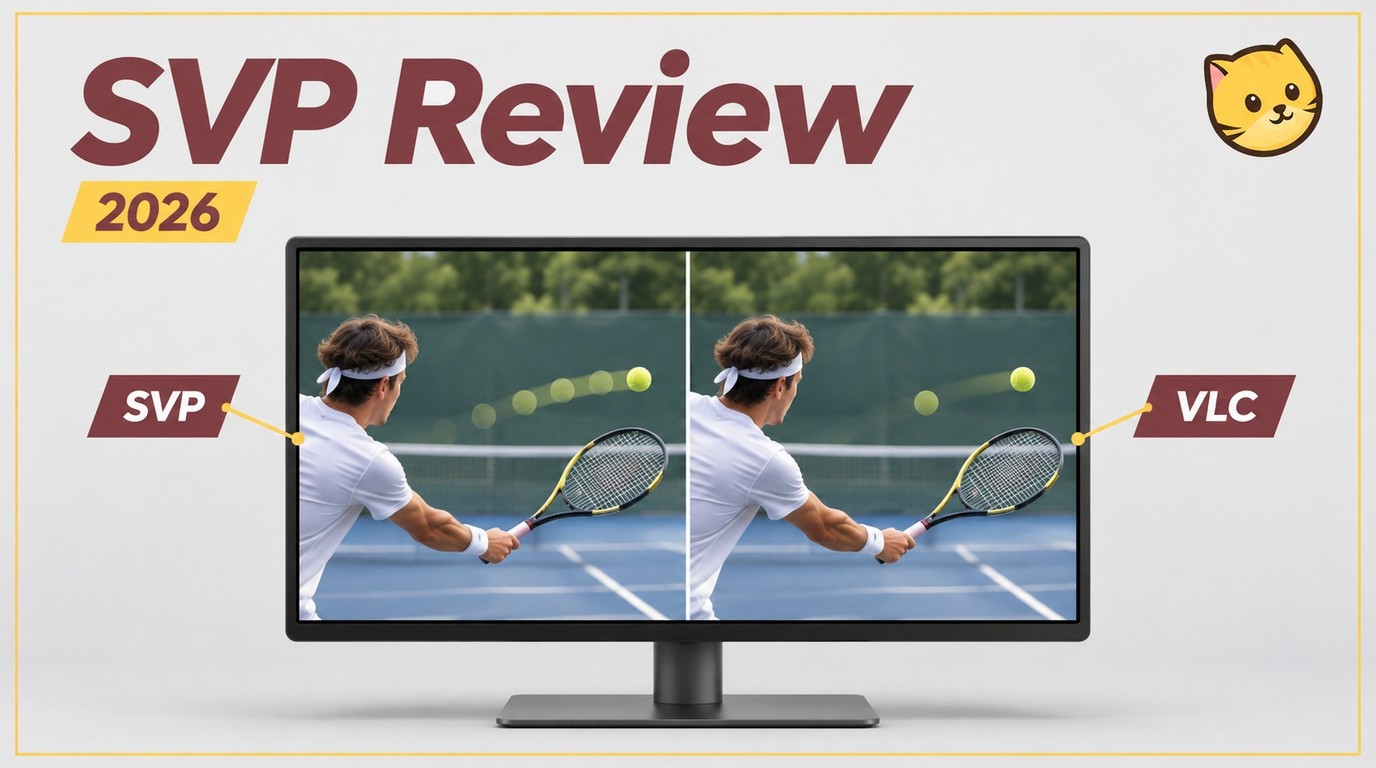
How SVP works
When you play a 24fps movie through a compatible media player with SVP enabled, the fps converter tool generates additional frames — interpolating to 60fps, 120fps, or higher — in real time using your GPU. During live playback, the original file stays unchanged; SVP enhances what you see without saving the generated frames. SVP also offers SVPcode transcoding, which saves interpolated video files and can queue multiple files. Choose live interpolation for viewing or SVPcode when you need a saved result.
Key capabilities of SVP
- Real-time frame interpolation (no file conversion needed)
- FPS targets: 45, 48, 50, 60, 72, 75, 90, 120, 144, and 240fps, depending on the player and profile
- FPS multipliers: x2, x3, x4, x5, x6, depending on the player; VLC conversion is limited to x3
- Supports HD, 4K, and 8K playback
- Works with VR, 3D, and HDR video formats
- Compatible with VLC, PotPlayer, MPC-HC, and mpv
- Customizable motion smoothness, sharpness, and artifact handling
- Desktop SVP: Windows, macOS, and Linux; separate SVPlayer apps: iOS, Android, and Apple TV
Source FPS is the video's existing frame rate, target FPS is the interpolated rate, and display refresh rate is how often the screen updates.
System Requirements for SmoothVideo Project (SVP)
SVP relies on both your processor and graphics card. The balance of CPU and GPU work depends on the interpolation engine; source resolution and target FPS also determine processing demands. Here are the hardware and software requirements you'll want for SVP to run correctly.
Hardware Requirements of SVP
| Video Format | CPU (Minimum) | CPU (Recommended) |
|---|---|---|
| Below Full HD | Any processor (except Intel Atom) | Intel Pentium (2 cores) |
| Full HD (1080p) | Intel Pentium (2 cores) | Intel Core i5 / AMD Ryzen 3 |
| 4K (2160p) | Intel Core i7 (4 cores) | Intel Core i7 (6 cores) / AMD Ryzen 7 |
Software Requirements of SVP
| Requirement | Details |
|---|---|
| Operating System | Windows 10+ (64-bit), macOS 13+, Linux 64-bit (Ubuntu 22.04+) |
| Disk Space | Minimum 200MB free |
| Media Player | VLC, PotPlayer, MPC-HC, or mpv |
SVP Engines and GPU Backends
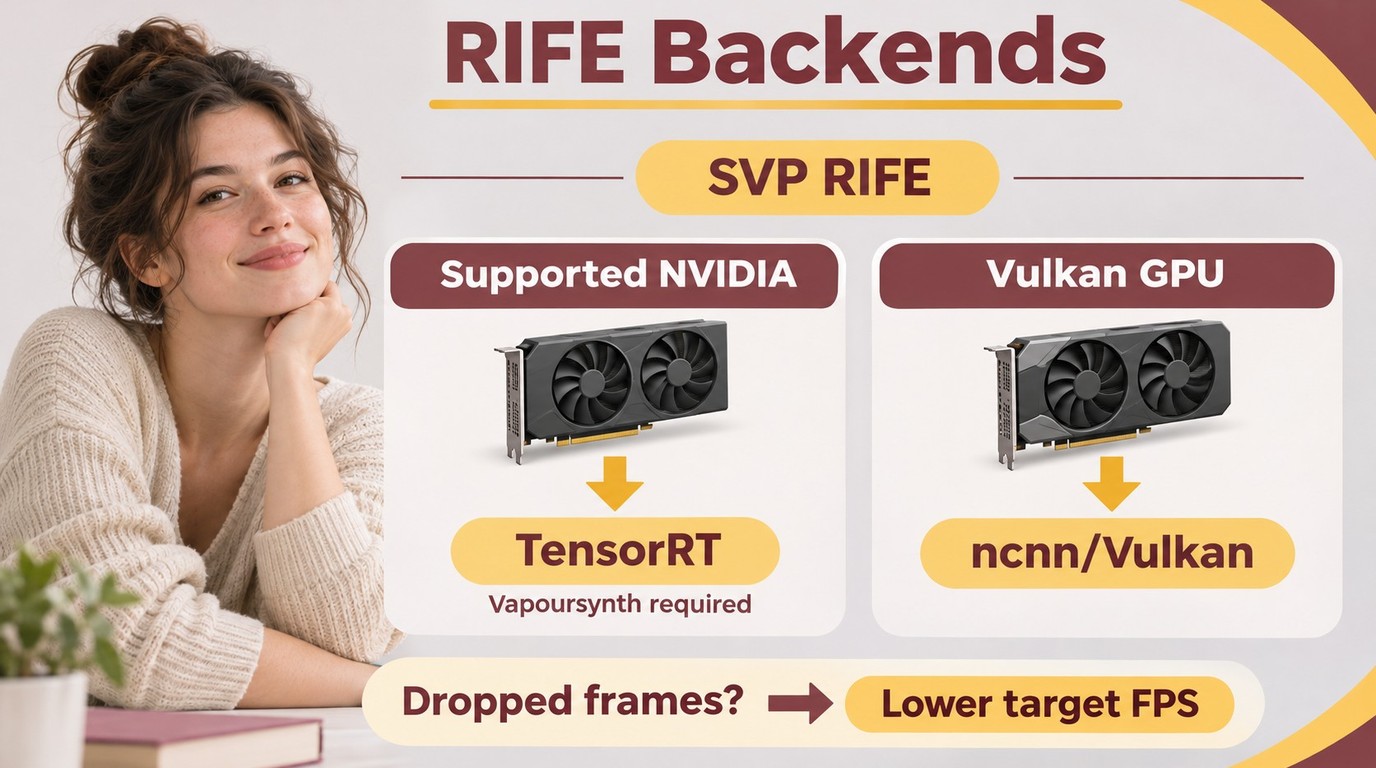
SVP supports traditional interpolation and RIFE neural interpolation. RIFE works in both live playback and transcoding, with TensorRT or ncnn/Vulkan as backend options. TensorRT requires supported NVIDIA hardware; ncnn/Vulkan uses a Vulkan-compatible GPU. Choose the backend for your graphics hardware, then adjust source resolution and target FPS to fit the available processing capacity.
RIFE's scene-change threshold disables interpolation across detected cuts, although artifacts can still occur. If SVP displays No acceleration, check the selected backend, graphics-driver compatibility, and the integration for your chosen player. If playback drops frames, lower the target FPS or use SVPcode to process the file before viewing.
SVP Pricing
| Platform | Price | Notes |
|---|---|---|
| Windows | $24.99 (lifetime) | 30-day free trial |
| macOS | $24.99 (lifetime) | 30-day free trial |
| iOS / Apple TV | Free trial + in-app purchases | SVPlayer; separate purchase |
| Android | Free trial + in-app purchases | SVPlayer; separate purchase |
| Linux | Trial available | Desktop trial download |
The $24.99 desktop license is a one-time lifetime purchase; mobile and TV SVPlayer purchases are separate (as of November 2026). SVP desktop download and purchase page.
SVP 4 Free vs SVP Pro
SVP 4 Free: This historical free edition is distinct from the current desktop trial and SVP Pro license.
Pro ($24.99): The current desktop option uses a one-time lifetime license. SVP supports live playback interpolation and saved-file transcoding through SVPcode; mobile and TV SVPlayer purchases are separate.
When Does SVP Work Best?
SVP excels with:
- Smooth, consistent motion — scene panning, 3D CGI, and camera movements
- High-resolution content — 1080p Blu-rays perform significantly better than 720p streams
- Cinema and drama — dialogue scenes and slow camera movements benefit most
SVP struggles with:
- Traditional hand-drawn animation — frames animated below 24fps cause ghosting artifacts
- Rapid action sequences — fast movements can produce visual glitches
- Low-resolution content — 720p and below may show artifacts more prominently
SVP's adaptive mode can help by automatically disabling smoothing in problematic scenes, but it isn't a cure-all.
The Soap Opera Effect and Real-World Tradeoffs
The biggest thing no SmoothVideo Project review should skip is the "soap opera effect." When you interpolate a cinematic 24fps film up to 60fps or higher, the added smoothness can strip away the intended film aesthetic and make a movie look uncannily like a cheap daytime TV broadcast or a home video. Many first-time users love it on sports and disable it within minutes on films.
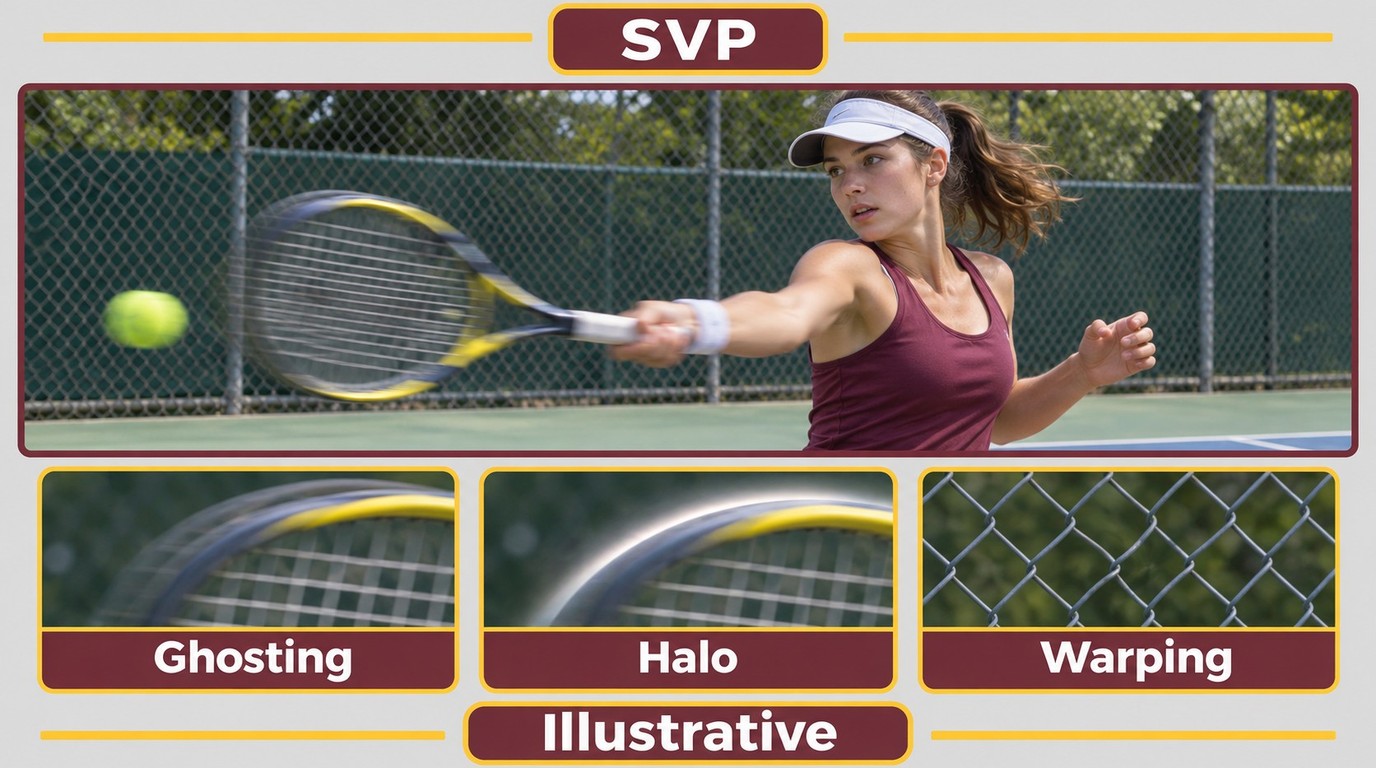
Because SVP has to guess frame content in real time, fast or complex movement — leaves rustling, chain-link fences, confetti, sudden camera whips — often produces ghosting, halos, or warping. The algorithm predicts motion between frames, and when motion is unpredictable, the prediction fails. SVP's RIFE profile includes a scene-change threshold that disables interpolation across detected cuts, although interpolation artifacts can still occur. None of this makes SVP bad; it's simply the nature of real-time, best-effort interpolation. Just know the tradeoff before you commit to it as your everyday playback layer.
How to Use SVP with VLC: Step-by-Step
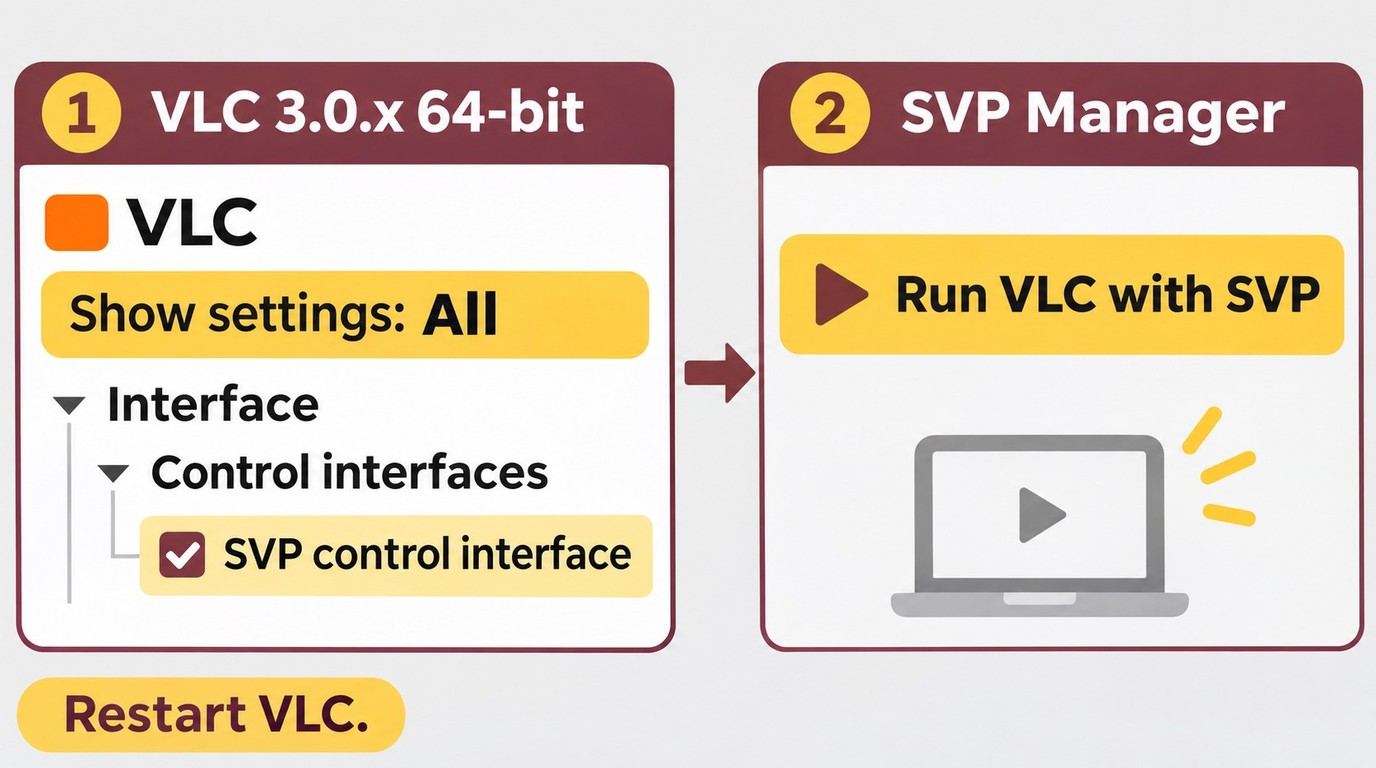
Setting up SVP with VLC takes several configuration steps and is the part most non-technical users find frustrating. The steps below cover the Windows integration with VLC 3.0.x 64-bit, which limits frame-rate conversion to x3. Have SVP, the matching VLC installation, and a supported local video file ready before you begin. Protected streaming playback is outside this player integration.
Step 1: Install SVP and VLC Plugin
Download and install SVP from the official website. Open SVP, go to Utilities > Additional programs and features, and install the VLC support package.
Step 2: Configure SVP for VLC
In SVP's main menu, select Utilities > SVP in VLC. If prompted by User Account Control, click Allow. Ensure the VLC plugins folder is set to writable.
Step 3: Enable SVP Control Interface in VLC
Open VLC, go to Tools > Preferences > Show settings: All > Interface > Control interfaces. Enable the SVP control interface, then restart VLC.
Step 4: Play a Video
With SVP running, launch VLC through Utilities > Run VLC with SVP in SVP's menu, then open a supported local video file you are authorized to use. You should see the SVP icon in your system tray showing the interpolation status and current frame rate.
Tip: If interpolation does not start, check that the SVP control interface is enabled, confirm that the VLC plugins folder is writable, and restart VLC.
Saving Interpolated Files with SVPcode
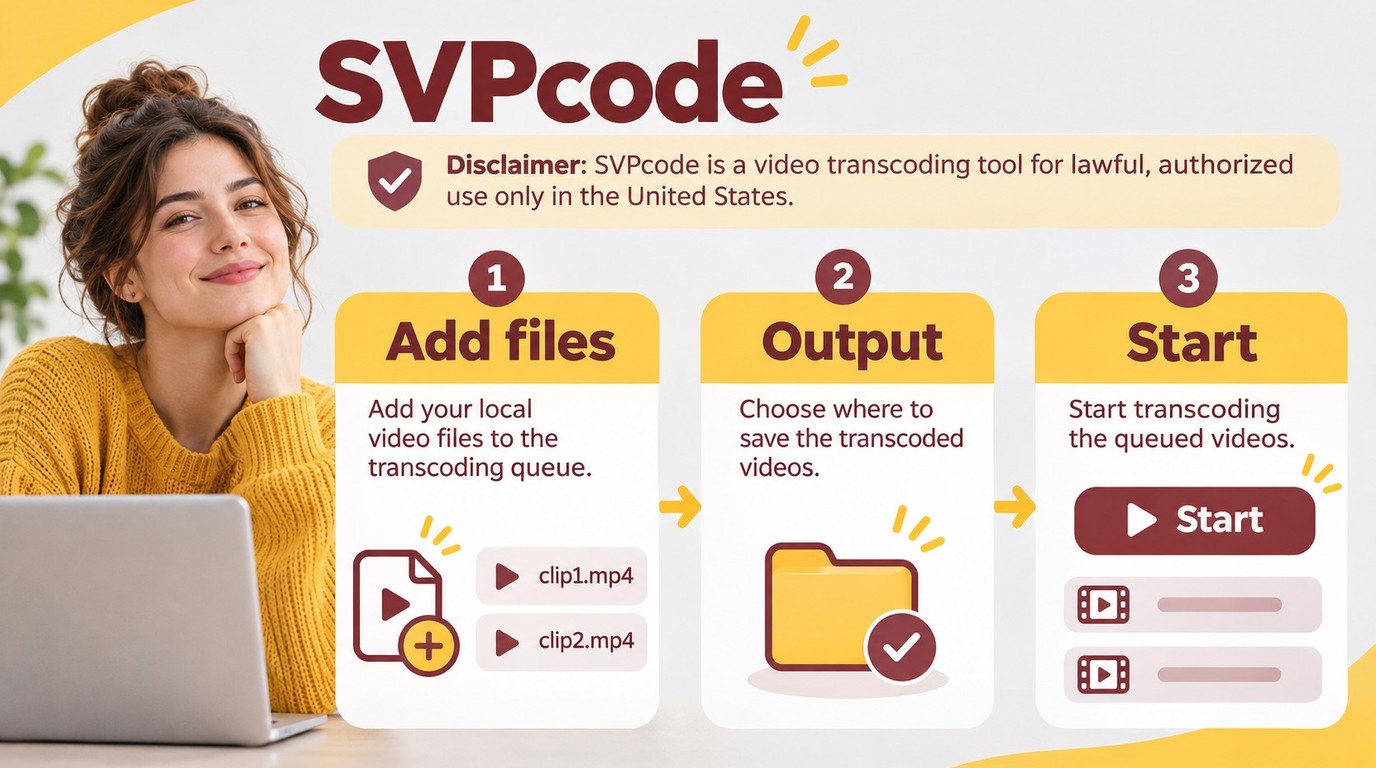
SVPcode saves interpolated video files and can queue multiple files. Unlike live playback, transcoding creates a new video file that you can open without running interpolation in real time. Before starting, have SVPcode installed and your local video files ready.
- Open SVPcode from SVP Manager.
- Add one or more local video files that you are authorized to process.
- Choose the interpolation profile and configure the output encoding settings for your intended playback device.
- Choose the destination, add the files to the transcoding queue, and start processing.
- Open the resulting file and check motion, audio, and subtitles.
SVP Review: Pros and Cons
Pros of SmoothVideo Project
- Extensive FPS options (45–240fps and multipliers up to x6, depending on player integration; VLC is limited to x3)
- Customizable output: sharpness, motion blur, and noise reduction
- GPU-accelerated for smooth real-time performance
- Excellent for anime and movie playback with consistent motion
- Desktop SVP on Windows, macOS, and Linux; separate SVPlayer apps for mobile and TV
- One-time $24.99 desktop purchase (lifetime license); Linux trial available
- Plugin support for advanced users
- Live playback leaves originals untouched; SVPcode saves interpolated files and queues multiple files
A Reddit user in r/ultrawidemasterrace described the result as decent in 2025, while a separate 2025 commenter in r/losslessscaling preferred RIFE's appearance. These individual impressions favor trying different interpolation profiles with the movies or anime you actually watch.
Cons of SmoothVideo Project
- Player configuration: live interpolation requires a compatible media-player integration
- Processing load: hardware needs depend on the interpolation engine, resolution, and target frame rate
- Interpolation artifacts: complex motion can produce ghosting, halos, or warping
- Separate export workflow: saving interpolated video requires SVPcode transcoding rather than live playback
- Scene-cut handling: RIFE's scene-change threshold disables interpolation across detected cuts, though artifacts can still occur
- The soap opera effect — cinematic films can lose their intended look
A 2025 Reddit commenter in r/nvidia found strong interpolation too artifact-prone for their taste. In an older, individual opinion from 2019, a commenter in r/pcmasterrace objected to Pro's limitations at the time. For live viewing, reduce smoothing if artifacts distract you; for saved output, use the separate SVPcode workflow.
Who Should Use SVP — and Who Should Skip It
Use SVP if you are comfortable configuring media players, watch a lot of sports, anime, or high-motion content, and want smoother playback on your own PC. SVP also offers SVPcode transcoding to save interpolated local files and queue multiple files.
Consider a file-oriented alternative if you prefer importing clips into a desktop processing interface rather than configuring playback integration. I would choose SVP for player-based viewing and consider UniFab Smoother AI when that file-oriented interface better fits the editing workflow. If your goal is a finished 60fps or 120fps file, both SVPcode and a dedicated processing app are options, and choosing the right frame rate converter matters more than raw FPS numbers.
SVP Alternative for File Processing: UniFab Smoother AI
For users who prefer a file-oriented desktop workflow, UniFab Smoother AI offers AI-powered frame interpolation with real file output. It generates intermediate frames to increase a video's frame rate. I would consider its import-and-process interface when preparing local clips for editing rather than configuring a media player. It produces a finished MP4 or MKV file, while SVP can save interpolated video through SVPcode. UniFab Smoother AI also includes a slow-motion mode to make a video slow motion with up to 4x slowdown.
Key Attractions
- Customizable frame rate interpolation (60/120 FPS export)
- Slow-motion mode that reduces speed by up to 4x
- Batch processing and a simple drag-and-drop interface
UniFab Smoother AI processes local files in a desktop app; it is not a live media-player smoothing layer. For playback smoothing, use SVP's player integration; for clip processing, use UniFab's official free download from the product page above. UniFab's published Windows recommendation includes an NVIDIA RTX 30 Series or newer graphics card with 8 GB of VRAM. Use that free download to check compatibility with your own footage.
SVP vs UniFab Smoother AI: Comparison
SVP supports live playback interpolation through compatible media players and saved-file transcoding with SVPcode. It can use RIFE in both workflows, with ncnn/Vulkan or TensorRT as backend options. SVPcode can queue multiple files for processing.
UniFab Smoother AI uses a file-oriented desktop interface for AI interpolation, batch processing, and saved output. Its 60fps and 120fps export options and up to 4x slowdown serve file-processing needs rather than live-player integration. Both products can generate interpolated files; export and AI interpolation are not exclusive UniFab capabilities.
For smoother viewing within a compatible player, I would choose SVP's playback integration. For preparing interpolated files through a dedicated processing interface, I would consider UniFab Smoother AI.
Conclusion
Many users prefer SmoothVideo Project for video frame interpolation, and this SmoothVideo Project review shows why it remains a capable, great-value tool for smoother playback in 2026 — provided you're willing to learn its setup. Its practical tradeoffs include player configuration, processing demands that vary by engine and settings, and the soap opera effect. Saved output is available through SVPcode, which can also queue multiple files. UniFab Smoother AI offers a file-oriented desktop workflow for AI interpolation and batch processing. I would start with SVP for playback smoothing without creating another file, use SVPcode when its transcoding workflow fits, and choose UniFab Smoother AI when a dedicated file-processing interface better suits the task.
Frequently Asked Questions
Is SVP free to use?
SVP offers a 30-day free trial on Windows and macOS. The current desktop lifetime license costs $24.99 as a one-time purchase. A Linux trial is available; historical SVP 4 Free is a separate edition from the current desktop trial. Mobile and TV versions of SVPlayer are sold separately from the desktop license.
Does SVP work with Netflix, YouTube, or streaming services?
SVP can work with YouTube through a compatible media player that supports streaming, such as mpv with yt-dlp. For Netflix and other DRM-protected streaming services, direct integration is not supported because of content protection. For supported streaming playback, local playback, or transcoding, use only content you are authorized to access and process, follow applicable law and platform terms, and do not redistribute content without permission. The permissions required depend on your use case.
What are the best SVP settings for smooth playback?
Choose a target based on the source frame rate, your display's refresh rate, and the selected interpolation engine; VLC conversion is limited to x3. For traditional SVP interpolation, start with motion-vector precision at "Full pixel" and artifact masking at "Average". For RIFE, use its profile controls, including the scene-change threshold, rather than traditional motion-vector settings. You can increase FPS when your player, display, and processing hardware support the target; lower the target or smoothing strength if playback drops frames. If SVP shows "No acceleration," check the selected backend, graphics-driver compatibility, and player integration.
Can SVP export smoothed video files?
Yes. SVPcode saves interpolated video files and can queue multiple local files for transcoding. SVP's live playback mode leaves the source file unchanged.
Does SVP work on Mac?
Yes, the current SVP desktop release supports macOS 13 and later. The Mac version offers the same core functionality as Windows, including real-time frame interpolation with compatible media players. SVP Pro for macOS costs $24.99 (lifetime). Setup depends on your compatible media player; the Windows VLC menu sequence is not a universal Mac setup procedure.
How much GPU power does SVP need?
GPU requirements scale with video resolution. Requirements also depend on the interpolation engine and target FPS: traditional SVP interpolation and RIFE have different processing demands. RIFE supports ncnn/Vulkan or TensorRT backends. If SVP displays "No acceleration," check that the selected backend supports your GPU, that the graphics driver is compatible, and that your player integration is configured correctly. Lower the interpolation target if playback drops frames.