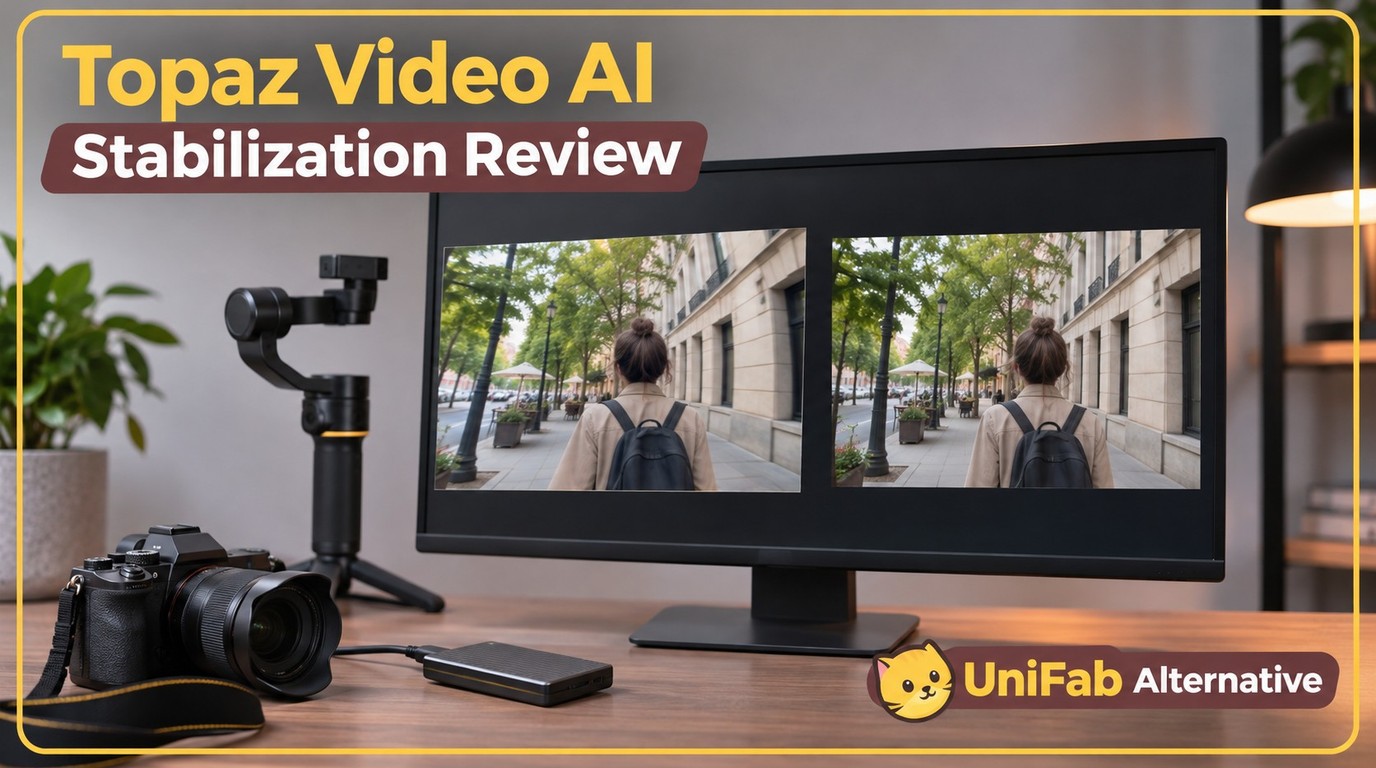
If handheld footage still shows jittery motion or a preview stalls, start Topaz Video AI stabilization by choosing the framing mode and previewing crop loss and detailed edges. The practical takeaway: adjust strength to suit the clip, and add passes only when the preview improves.
The current application is called Topaz Video; Topaz Video AI is its legacy search name. I recommend treating stabilization as controlled reframing rather than a rescue switch: smoother movement can come at the cost of crop or edge artifacts. Start with the framing modes, adjust settings against a representative preview, then check the exported file.
How Topaz Video AI Stabilization Works
Topaz analyzes movement across frames, then shifts and rotates them to counter unwanted camera motion. This exposes empty areas around the image, so the software must create edge content or crop inward.
Full Frame vs Auto Crop
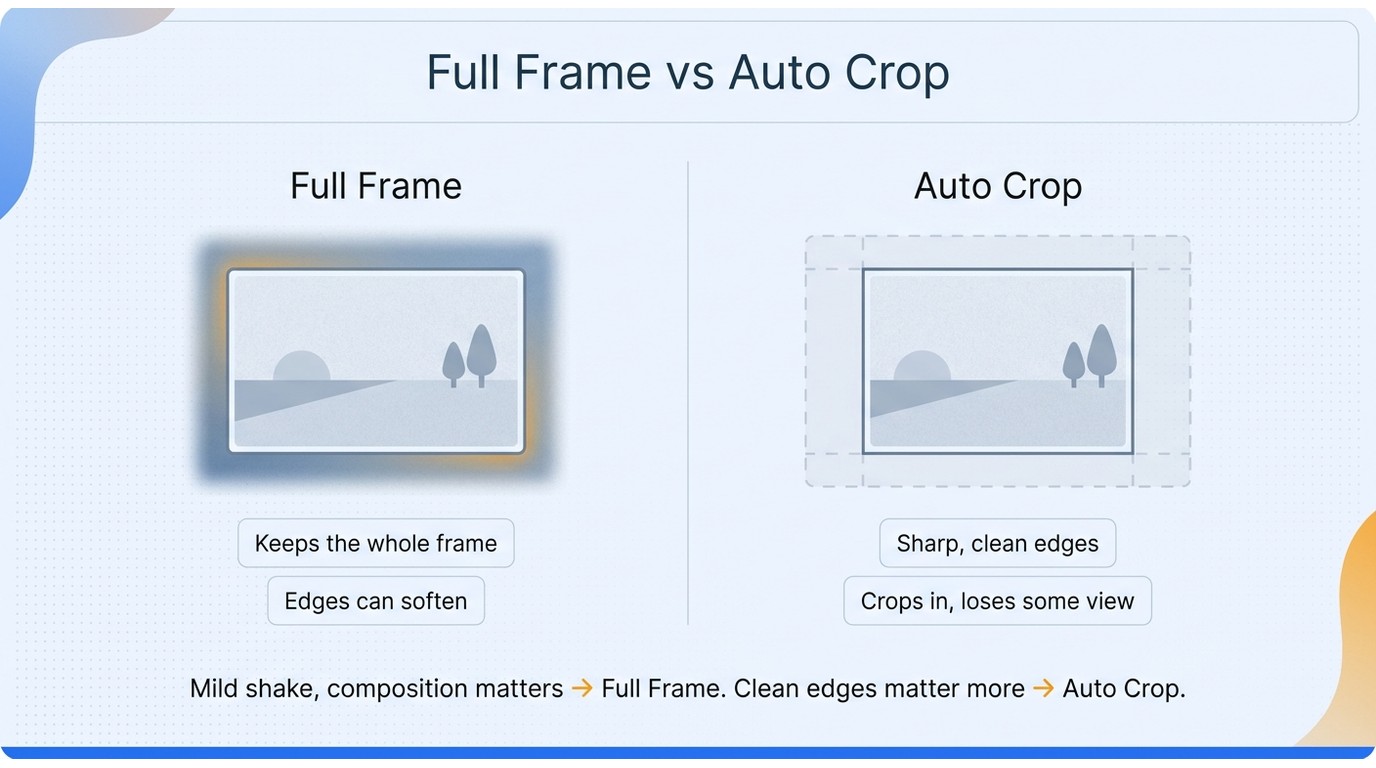
Full Frame preserves the original frame dimensions by filling the moving borders. It protects composition, but the generated or interpolated edges may look soft or unstable when the source shake is severe.
Auto Crop enlarges and trims the image so those empty borders remain outside the final frame. It generally keeps the visible picture cleaner, but you lose some field of view. Use Full Frame when composition matters and the shake is mild. Use Auto Crop when clean edges matter more than retaining every pixel near the border.
This is the first decision I would make, because no strength setting can remove the underlying choice between preserving the frame and preserving edge integrity.
Rolling Shutter Correction and Reduce Jittery Motions
Rolling Shutter Correction targets skew and wobble caused by CMOS sensors reading the image line by line. Enable it when vertical lines bend during fast pans or handheld movement. Reduce Jittery Motions addresses parallax and tilting and uses Chronos Fast on each interpolated pass.
These controls solve different defects. Enabling both may add work without improving broad camera shake.
- Ordinary camera shake: start with stabilization and choose Full Frame or Auto Crop.
- Perspective shifts or tilting: preview Reduce Jittery Motions.
- Rolling-shutter skew or wobble: preview Rolling Shutter Correction.
- Motion blur: use the separate Themis motion-deblur filter rather than increasing stabilization strength.
Stabilize a Clip in Topaz, Step by Step
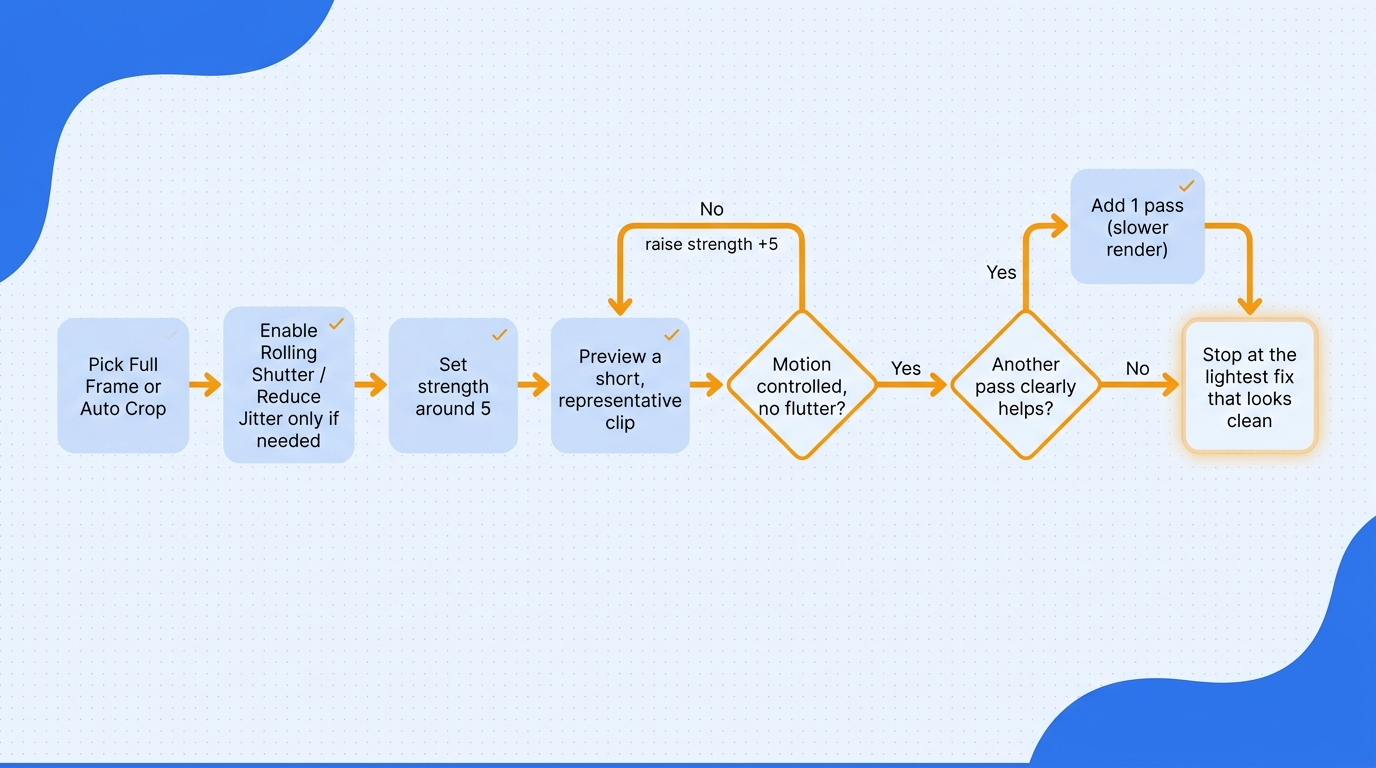
Once the framing trade-off is clear, preview a representative section and adjust strength while comparing crop loss and detailed moving edges. More passes can smooth difficult movement, but each pass increases processing time and can amplify artifacts if the underlying setting is already too strong.
Choosing strength and number of passes
The reliable sequence is simple:
- Import the clip and open the Stabilization filter.
- Choose Full Frame or Auto Crop based on whether composition or clean edges is more important.
- Turn on Rolling Shutter Correction only for visible skew or wobble, and use Reduce Jittery Motions for parallax or tilting.
- Preview a representative section with both camera movement and detailed edges; a lower strength can be a conservative starting experiment.
- Adjust strength while comparing crop and detailed moving edges after each change, stopping when motion looks controlled without fluttering textures.
- Add another pass only if the preview shows a clear benefit worth the longer render.
The official worked example uses Auto Crop at 50%, not a universal setting. Use the preview to judge the stabilization and framing trade-off for your clip, and add passes only when the result improves.
Why it renders slowly, and how to cut render time
Stabilization is slow because the software estimates motion across frames, transforms them, rebuilds exposed edges, and repeats the analysis for every added pass.
To reduce the wait:
- Use one pass unless a second pass visibly improves the preview.
- Process only the section that needs correction instead of the entire source file.
- Work at the required delivery resolution rather than enlarging and stabilizing in one oversized render.
- Confirm that Topaz is using the available GPU.
- Queue long footage as shorter segments when that fits the edit.
For a long or failure-prone render, I would process manageable sections individually and reassemble them afterward. Allow for the extra assembly work afterward. The practical goal is not maximum stabilization strength; it is the lightest correction that makes the shot usable.
Broader setup and model-selection choices covered in the Topaz Video AI settings guide complement these stabilization-specific adjustments.
- Hardware and processing: the current Mac version requires Apple Silicon. For a stalled preview, review hardware compatibility, GPU drivers, application version, active filters, and delivery resolution. Local rendering keeps files on your computer; optional cloud rendering processes them remotely. Internet activation and model downloads are separate from where rendering runs.
- Preview and export: compare a representative section containing camera movement and detailed borders. Then play the actual MP4 export to check crop, edge artifacts, and whether the file plays through to the end.
- Export errors: check that the output path is writable and storage is available. Disable optional rolling-shutter correction or motion-deblur filters individually to isolate the failing combination. Contact Topaz support if the failure persists.
Use only footage you own or are authorized to process for lawful personal backup or editing, and follow applicable law and the tools’ terms of service. You are responsible for content rights and permissions; do not redistribute footage without authorization.
UniFab Video Stabilizer AI: Local Processing and Licensing
If stabilization is the main job, a focused module keeps the workflow centered on de-shake controls. UniFab Video Stabilizer AI runs locally on Windows and macOS, uses GPU acceleration, supports batch processing, and offers Motis for standard de-shake work. Its output is limited to MP4 or MKV at up to 4K; use the official UniFab Video Stabilizer AI download to preview a representative clip. Statys is offered separately as a DLC and requires its own purchase entitlement; select that option when you need its stabilization model.
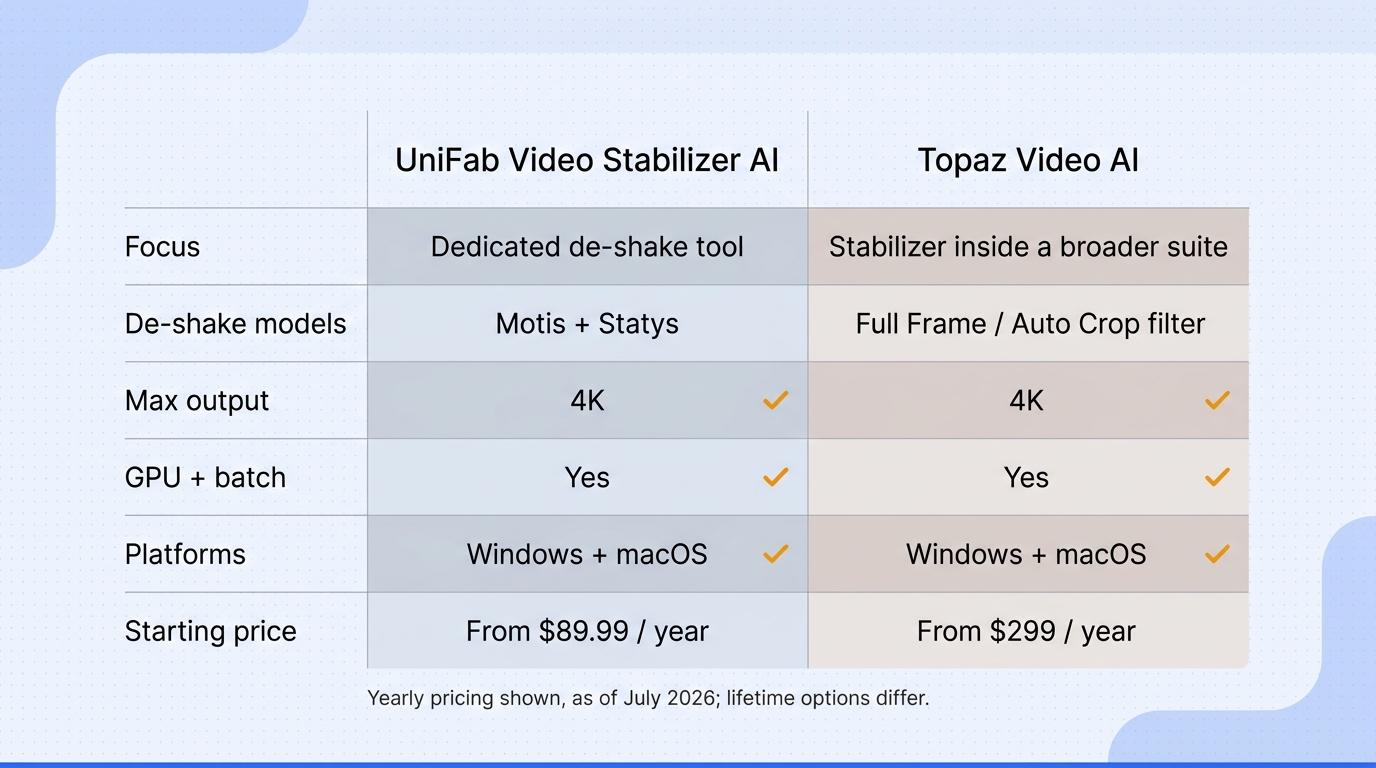
| Product | Stabilization controls | Maximum output | Processing location | Platforms |
|---|---|---|---|---|
| Topaz Video (formerly Topaz Video AI) | Full Frame; Auto Crop | 16K | Local or cloud | Windows and macOS |
| UniFab Video Stabilizer AI | Motis; Statys DLC purchased separately | 4K | Local | Windows and macOS |
Specifications and Topaz plan prices as of November 2026.
Topaz Video has an application output ceiling of 16K (15360 × 8640), subject to encoder and hardware constraints. Its stabilization filter sits within a broader enhancement application, and it supports batch processing and GPU acceleration.
UniFab Video Stabilizer AI is the focused stabilization module; UniFab All-In-One is the broader enhancement suite.
Best fit: editors who mainly need to steady handheld clips and value a focused workflow.
Suite features and licensing options differ, as detailed in the UniFab versus Topaz comparison.
In October 2026, we recorded more than 670,000 tasks across all UniFab services.
The Bottom Line: Which Stabilizer Fits Your Footage
The decision follows the job. If you already use Topaz for upscaling or denoise, its stabilizer is a sensible part of that workflow: adjust strength using a representative preview, inspect difficult edges, and add passes when they visibly improve the result. If de-shake is the main requirement, I would consider UniFab Video Stabilizer AI for its focused stabilization controls.
Footage condition matters more than the logo. Mild handheld motion suits either route. Severe shake, motion blur, and large perspective changes may force heavy cropping or reconstruction artifacts.
In a 2025 discussion about upgrading from Topaz Video v3, one user said they had not been especially impressed with stabilization and upscaling. Before purchasing a broad suite, choose one representative clip, compare edge behavior and crop, then decide whether stabilization is a frequent need or an occasional repair.
Frequently Asked Questions
These answers cover the buying and edge-case questions that settings alone do not resolve.
Is Topaz Video AI worth it just for stabilization?
For a single project, monthly access avoids an annual commitment. If your existing editor can stabilize the clip with acceptable crop and clean detail, another application may be unnecessary.
Why Does Topaz Report a Stabilization Export Error?
An “Unable to write the CPE file” message, reported by a Mac user in 2023, indicates a file-write failure rather than residual camera shake. Check the output path, write permissions, and free storage. If MP4 export still fails, contact Topaz support with the application version, export settings, and error message.
Can I stabilize a shaky video for free?
AVCLabs offers a 5-second online stabilization preview, which is not unrestricted full-file export. For on-device use, stabcam offers free stabilization for clips of limited duration.
Can Topaz fix very shaky, handheld footage?
It can improve some heavily shaken clips, but stronger correction demands more crop or more edge reconstruction. If faces, text, or straight lines begin to bend or flutter, reduce strength and accept some remaining motion. A stable-looking image with warped detail is not a successful repair.
Can I Pay for Just One Month of Topaz Stabilization?
Yes. Topaz Video offers a $59 personal monthly plan; the $39-per-month option requires a 12-month commitment. The $299 prepaid annual plan covers a full year rather than a single month.