If your WeVideo green screen still shows green or hides the background, put the background on Video 1 and the subject on Video 2, then open the subject’s Keying tab. The six browser steps below explain green screen in WeVideo, including edge cleanup and export.
What Is WeVideo?
WeVideo is a cloud-based video editing platform that runs entirely in your web browser. It is widely used in schools (K-12 and higher education), businesses, and by individual creators who want a capable video editor without installing desktop software.
Key platform highlights:
- Browser-based color keying on Windows, Mac, and Chromebook; a separate iOS Background Removal capture workflow needs no physical green screen
- No software installation required
- Real-time collaboration features for teams and classrooms
- Built-in stock library with video clips, images, and music
- Green screen (chroma key) effect included
WeVideo Pricing
WeVideo offers a seven-day trial, and trial exports include a watermark. Paid plans are organized by market segment:
| Plan | Annual billing | Seats or audience |
|---|---|---|
| Creator | $240/year | Individual creators |
| Teams | $624/year | 3 seats |
| Instructor | $384/year | 30 seats |
These annual-billing examples represent separate creator, team, and education offerings as of November 2026 (WeVideo pricing).
Green screen functionality is available during the trial.
WeVideo Green Screen in Six Steps
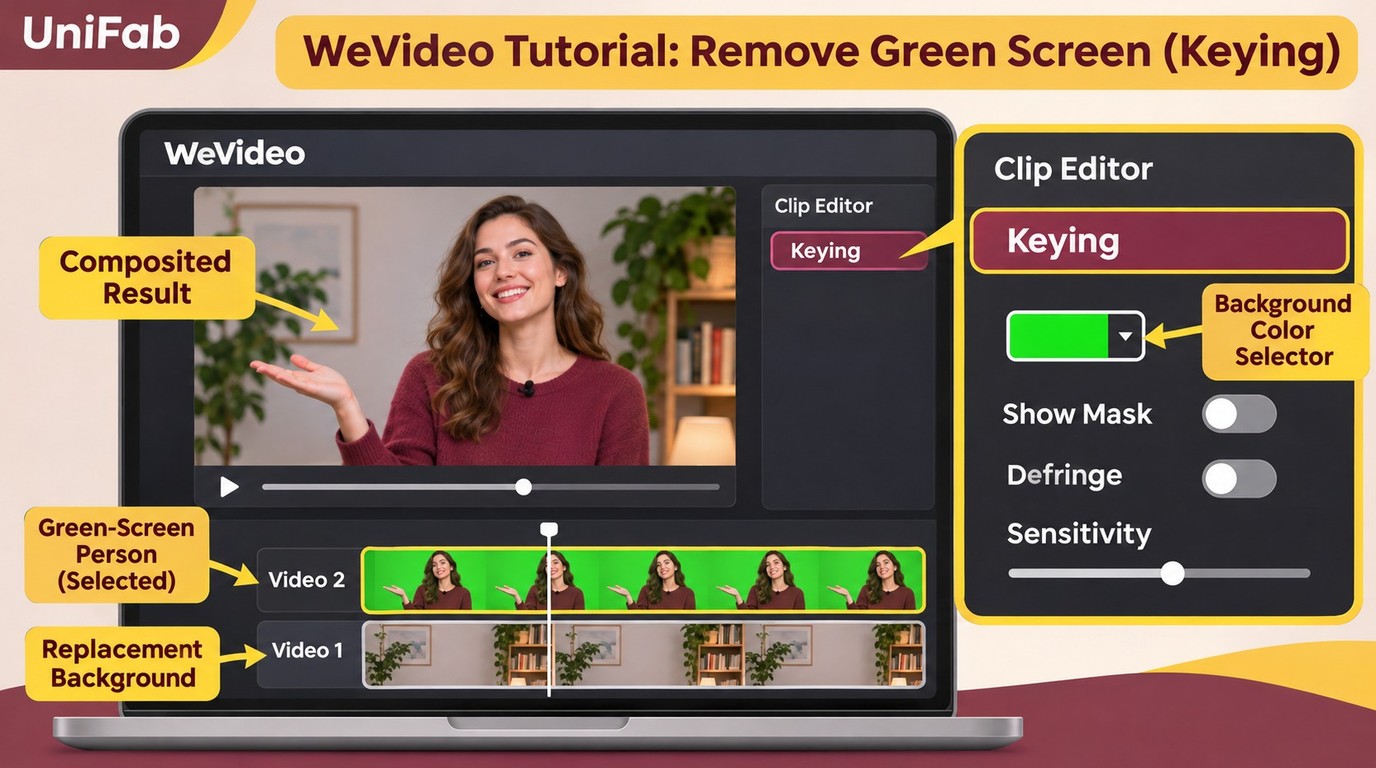
WeVideo’s browser editor supports two color-keying workflows: using your own footage shot in front of a physical green screen, or using green screen stock clips from WeVideo's built-in library. The iOS app offers a separate Background Removal capture workflow without a physical green screen; the two methods below cover browser color keying.
Method 1: Using Your Own Green Screen Footage
This method requires video that you have already recorded in front of a physical green or blue screen.
Step 1: Open WeVideo and Create a Project Log into WeVideo and open the editing dashboard. Create a new project or open an existing one.
Step 2: Import Your Videos Upload your green screen footage and the background video or image you want to use. Drag both into the media library.
Step 3: Arrange the Timeline Add your background media to the bottom video track (Video 1). Then place your green screen footage on the track above it (Video 2). The green screen clip must be layered above the background.
Step 4: Apply the Chroma Key Effect Select the green screen clip on the timeline. Open the Clip Editor, then select the Keying tab. Select the backdrop color to tell WeVideo which color to make transparent.
Step 5: Fine-Tune the Effect Use the adjustment sliders to refine the green screen removal:
- Show Mask — Reveals which areas are being removed, helping you spot missed edges
- Defringe — Reduces the green halo that sometimes appears around edges of your subject
- Sensitivity — Controls how aggressively the tool removes the selected color
Step 6: Preview and Export Play the preview to verify the green screen effect looks correct. When satisfied, click Export in the top right corner. Name your project, select "Video" format, and choose your resolution. Use Advanced Settings to customize frame rate and quality if needed. Before exporting the full project, export a short clip and play it on the intended device to check motion and audio sync.
A keyed composite shows your subject over a replacement background; it is different from an exported file that retains transparency. Preserving a transparent video background requires alpha-capable output settings (settings that retain transparency) and a playback or editing workflow that supports alpha.
Method 2: Using WeVideo Stock Green Screen Clips
If you do not have your own green screen footage, WeVideo's stock library includes pre-made green screen assets:
- Click on the Stock section in the media library
- Search for "green screen" to find available clips (animated overlays, text effects, objects)
- Add your desired background to Video 1
- Drag the stock green screen clip to Video 2
- Open the stock clip in the Clip Editor, select the Keying tab, and adjust the effect (same as Method 1, Steps 4-5)
- Use the Transform tool to resize and reposition the overlay
- Export your final video
Tips for Better Green Screen Results in WeVideo
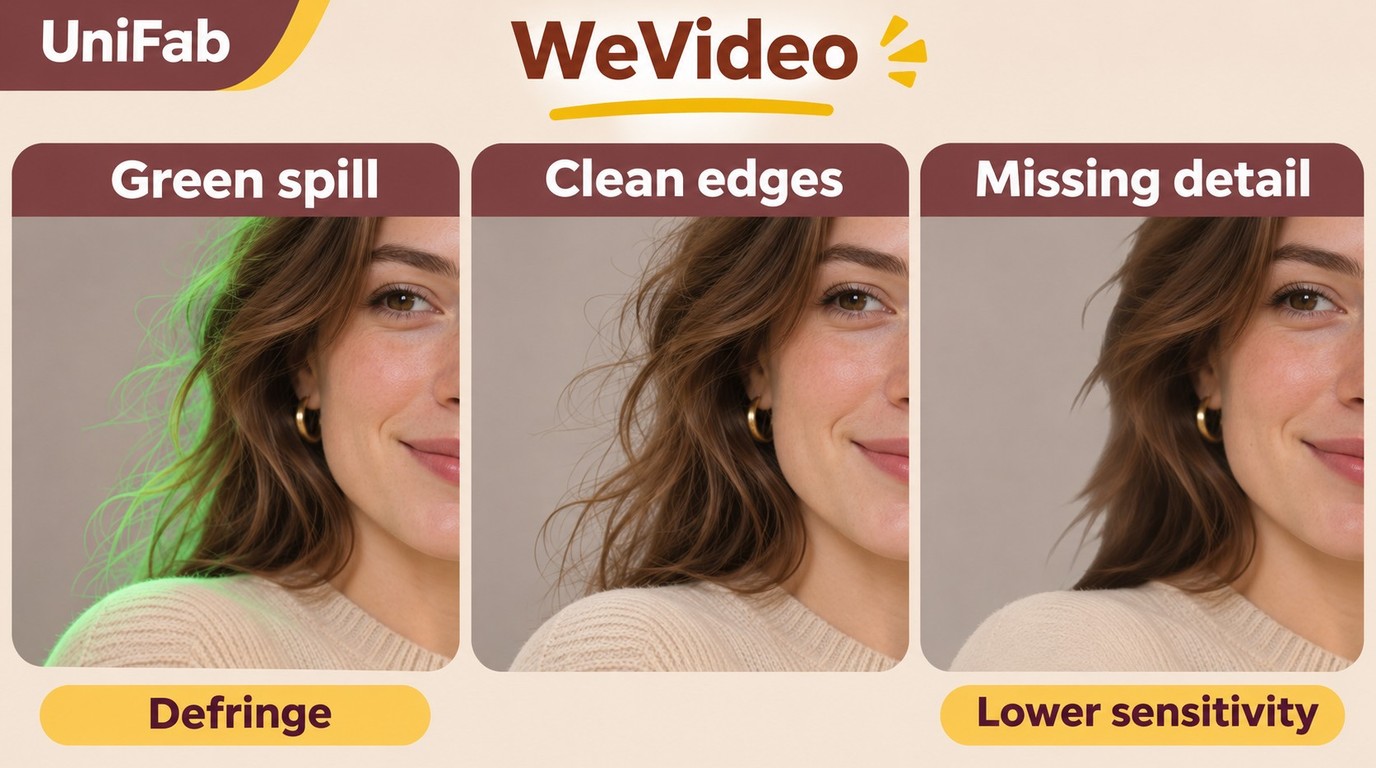
Getting clean WeVideo green screen results depends as much on your recording setup as on the editing tool. Follow these tips:
Recording Tips
- Use even lighting — Distribute light evenly across the green screen to avoid shadows and dark spots. Shadows create uneven green tones that make keying harder.
- Keep distance from the screen — Stand at least 4-6 feet from the green screen to minimize green light reflecting onto your skin and clothing (known as "green spill").
- Avoid green clothing — Anything green on your body will become transparent along with the background.
- Use a wrinkle-free screen — Creases and folds create shadows that the chroma key tool may struggle to remove evenly.
- Use consistent color — A dedicated green screen fabric or paint works better than improvised materials with color variations.
Editing Tips in WeVideo
- Missing replacement background: Check that the background is on the lower video track and overlaps the foreground clip on the timeline.
- Green halo around the subject: Inspect the Show Mask view, then adjust Defringe to reduce green edges while checking that subject details remain intact.
- Disappearing subject details: Use Show Mask to see what the keying is removing, then ease Sensitivity if parts of the subject are being removed.
- Split long clips — If lighting changes throughout your video, split it into segments and apply slightly different keying settings to each
- Layer multiple effects — Combine the green screen with WeVideo's picture-in-picture, text overlays, and transitions for polished results
WeVideo Green Screen: Pros and Cons
Pros
- Cloud-based — No installation needed for browser editing, including on Chromebooks
- Real-time collaboration — Multiple users can work on the same project simultaneously
- Built-in stock library — Access green screen clips, backgrounds, and effects without sourcing external assets
- Cross-platform — Browser Keying supports layered video projects; the iOS app offers a separate Background Removal capture workflow without a physical green screen
- Educational templates — Specialized templates for classroom presentations, virtual newsrooms, and science demos
Cons
- Limited trial period: Seven days, then a subscription is required to continue
- Complex pricing — Multiple plan tiers and segments make it confusing to find the right price
- Learning curve — The green screen keying interface requires some practice to master
- Internet dependent — Editing and rendering happen in the cloud, so a stable internet connection is essential
- Manual browser keying: Browser Keying requires selecting the backdrop color and adjusting its removal. For footage without a keyed backdrop, a separate AI background-removal workflow may be a better fit.
Is WeVideo Free?
WeVideo offers a seven-day trial, but it is not a permanently free tool. During the trial, you get access to most features including WeVideo green screen, and exports include a watermark. After seven days, you must subscribe to a paid plan to continue using the platform.
UniFab Video Background Remover AI as a WeVideo Alternative
If your footage was recorded without a green screen, UniFab Video Background Remover AI offers a fundamentally different approach.
As of November 2026, UniFab Video Background Remover AI uses AI video matting technology to remove video backgrounds with no green screen required.
For a clip with an evenly colored backdrop, color keying provides a straightforward way to replace that color. Start with a short sample containing the subject, hair, and any foreground objects you want to keep, then inspect the cutout before processing the full clip.
How to Remove Video Background with UniFab
Use the UniFab Video Background Remover AI product link above to access the software and background-removal instructions.
Process only footage you are authorized to use; you are responsible for confirming content permissions. Follow applicable law and platform terms, and do not redistribute content without permission.
WeVideo vs UniFab: Side-by-Side Comparison
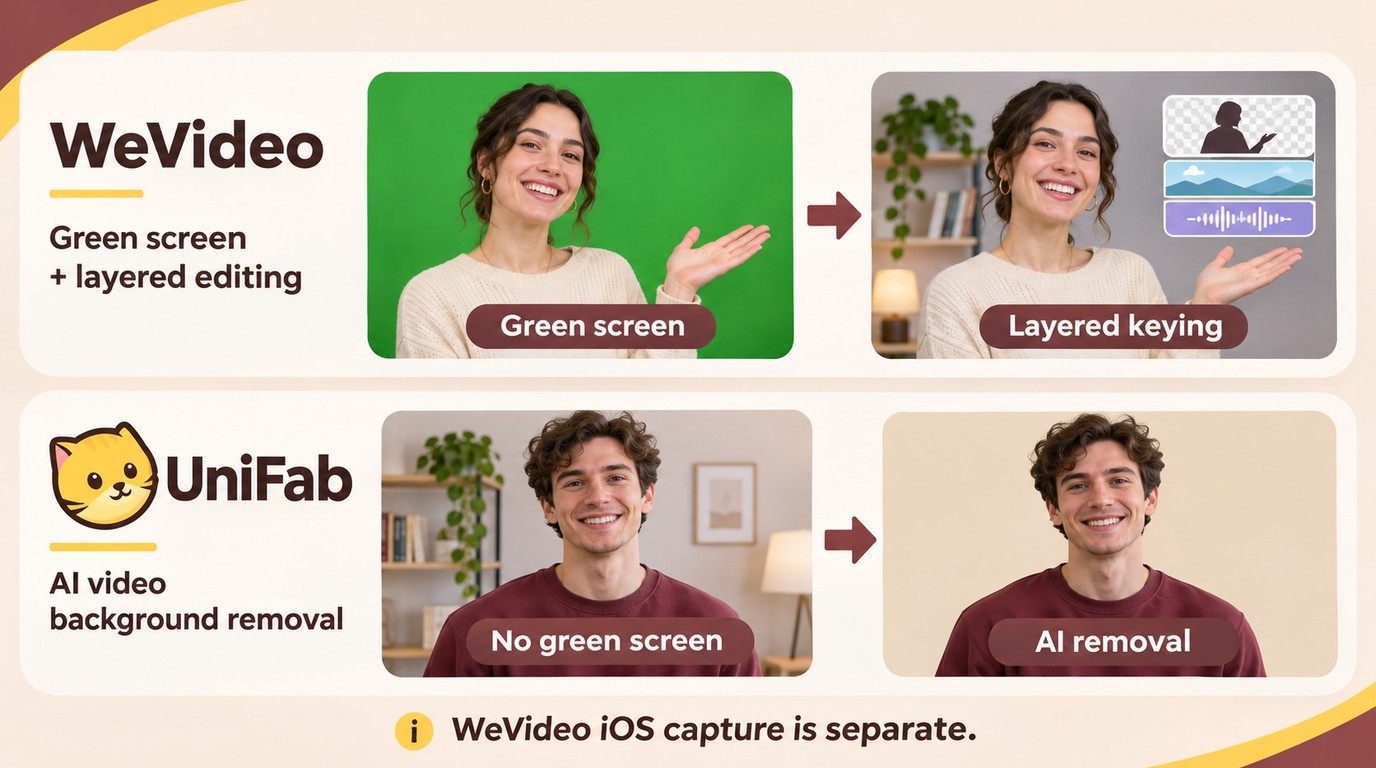
| Feature | WeVideo Green Screen | UniFab Video Background Remover AI |
|---|---|---|
| Background removal method | Browser: color keying; iOS capture: Background Removal | AI video matting technology |
| Input requirements | Browser: selected backdrop color; iOS capture: no green screen required | no green screen required |
| Editing platform | Browser editor; separate iOS capture workflow | UniFab AI software |
I would keep a layered video project in WeVideo's browser editor and use UniFab for AI-assisted background removal from footage recorded without a green screen.
Other Green Screen Alternatives Worth Considering
Other options for removing backgrounds from video include AI-assisted removal and manual color keying:
- CapCut — Free video editor with built-in chroma key effect. Good for social media creators. Available on desktop, mobile, and web.
- Clipchamp — Microsoft's free online video editor with green screen support. Integrated with Windows 11 and Microsoft 365.
- DaVinci Resolve — Professional desktop editor with advanced chroma key tools. Free version is extremely capable. Best for experienced editors.
- OBS Studio — Free open-source tool for live streaming with real-time green screen support. Ideal for streamers and virtual meetings.
- Fotor Background Remover — Online tool for basic green screen effects on photos and short videos.
Desktop, online, and mobile green screen editors offer different combinations of color-key controls and editing tools.
FAQs about WeVideo Green Screen
Can I change my WeVideo background without a physical green screen?
Yes. WeVideo's stock library includes pre-made green screen overlay clips that you can layer onto your background without filming your own green screen footage. WeVideo's iOS app also offers a separate Background Removal capture workflow without a physical green screen. In the browser editor, Keying removes a selected color from the foreground clip; the iOS capture controls are not instructions for browser or Android editing.
What screen color should I use if my subject is wearing green?
Use a blue screen if blue is absent from the subject and any foreground objects you want to keep. WeVideo's Keying tool lets you select the backdrop color to remove, so choose a color that does not appear in those areas and light the screen evenly. A specific green hex code is not required.
Can I use WeVideo green screen on a Chromebook?
Yes, WeVideo's browser editor supports green screen editing on a Chromebook. Place the background on Video 1 and the subject clip on Video 2, then open the subject clip in the Clip Editor and select the Keying tab. This makes it especially popular in K-12 schools where Chromebooks are standard equipment.
What should I check before exporting a WeVideo green-screen video?
Preview the subject's edges and replacement background, then export a short clip and play it on the intended device to check motion and audio sync. Available export resolutions depend on your plan. Trial exports include a watermark.
Can I use WeVideo green screen as a live meeting background?
WeVideo is a video editor, not a real-time virtual background tool. You can use it to create pre-recorded videos with green screen effects, but it does not work as a live background for Zoom, Teams, or Google Meet. For real-time virtual backgrounds, use OBS Studio (free, advanced) or the built-in virtual background features in Zoom and Teams.
Will AI background removal keep foreground objects as well as people?
Not necessarily. Color keying removes a selected backdrop color while retaining differently colored foreground areas. AI background removal identifies a subject, so a table or prop may not be included in the detected subject. When using AI or manual video background removal, inspect a short sample containing the people, objects, and fine edges you want to keep before processing the full clip.