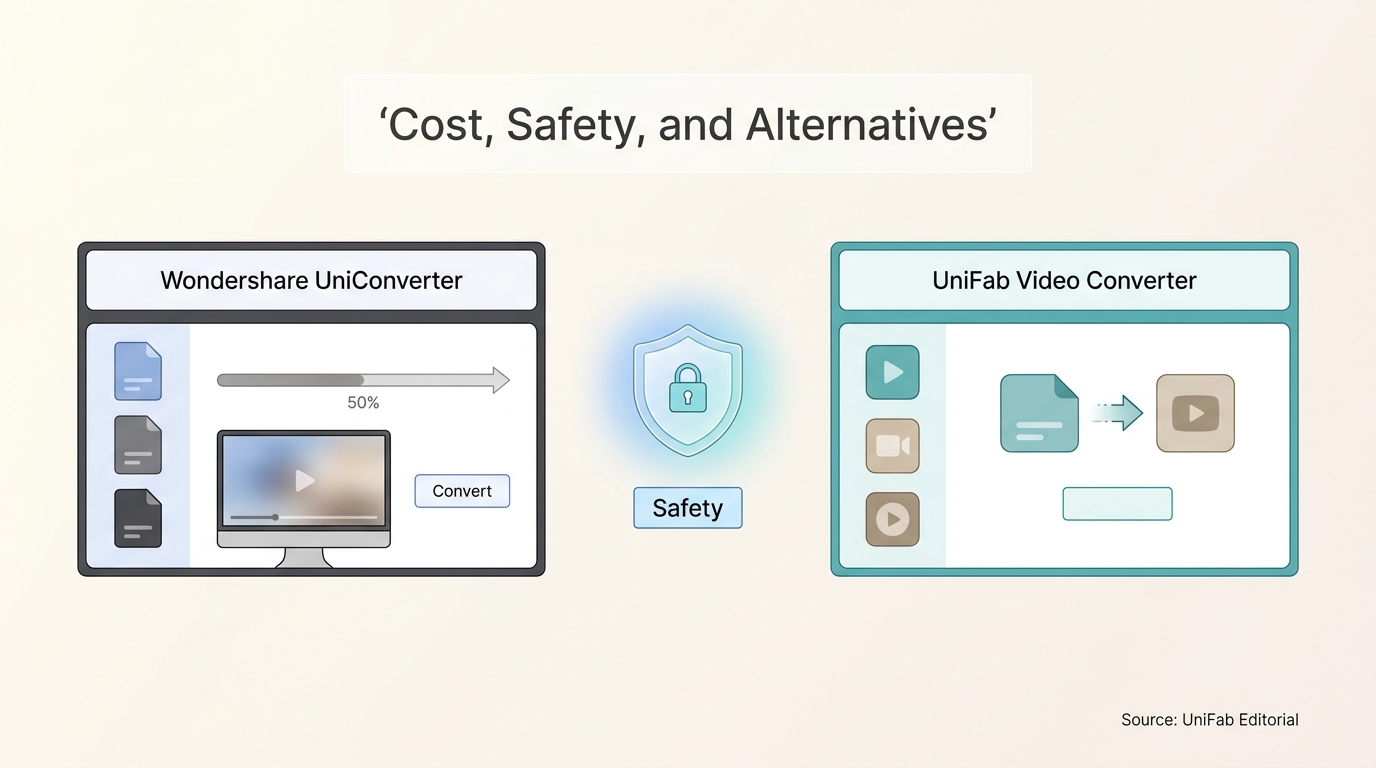
The practical decision is whether you can create a complete output that plays correctly on the destination device. Start with a representative file, check the cost and official installation source, then play the saved output on its target device before deciding between an all-in-one toolbox and a focused local converter.
What Wondershare UniConverter Does and How to Use It
Wondershare Video Converter is now branded as UniConverter 18, a desktop application for Windows and Mac that combines local video conversion with other media tools. If a TV rejects a file, choose the output profile for that device and check one sample for picture, audio, subtitles, and frame rate before starting a large batch.
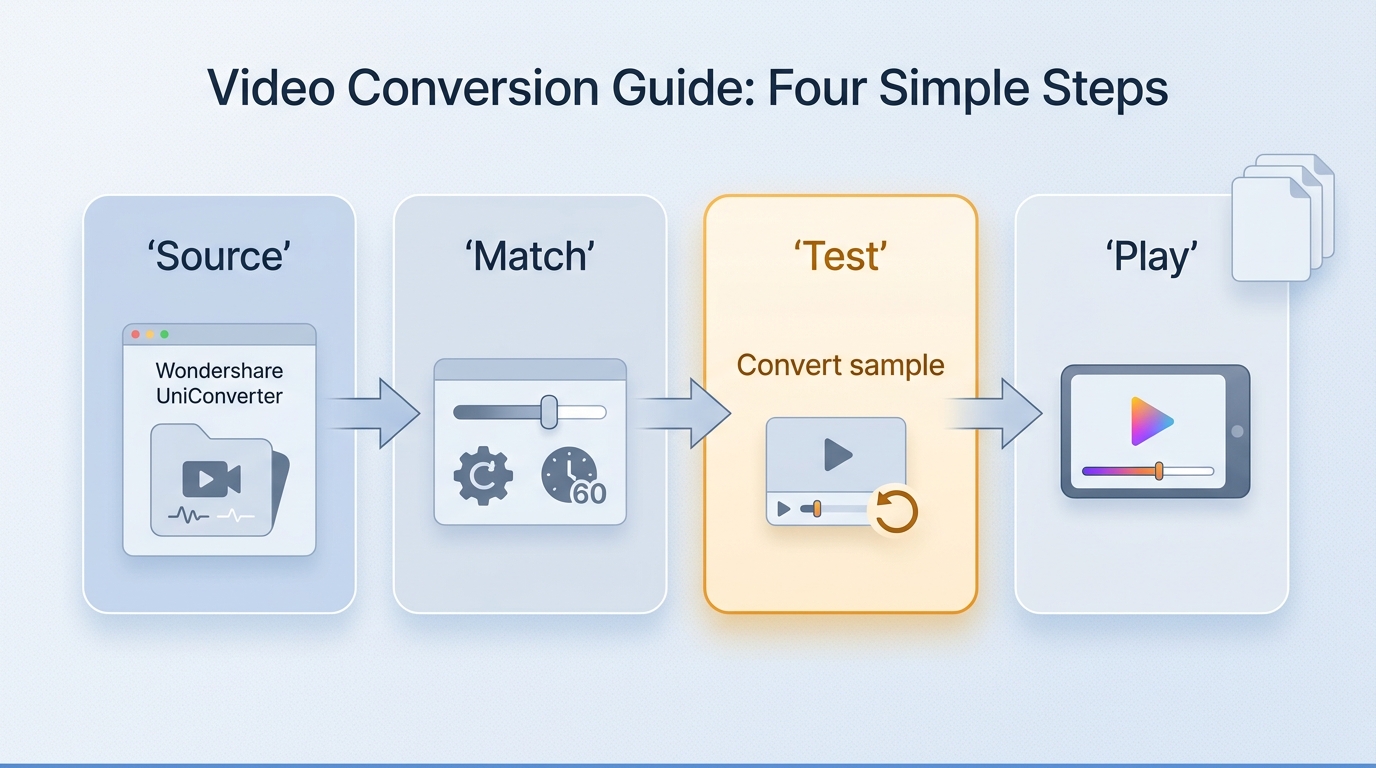
Before You Start: Check the Source, Device, and Output Goal
Hypothetical local-video-to-TV scenario: You want to play a local video on a living-room TV. Start by identifying the TV’s required container and codecs, then define the resolution and frame rate you need before selecting an output profile.
- A current Windows or macOS installation
- The source video file
- The target TV, phone, editor, browser, or media server
- A required container and codec, if the device specifies them
- A target resolution and frame rate
- Enough storage for the source and converted copy
MP4, MKV, and MOV are containers; playback support also depends on the video and audio codecs inside them. A living-room TV may accept an MP4 container but reject a newer codec, while an editing app may open the video and mishandle its audio track. If the source is MKV, the distinction between repackaging and re-encoding is central to a sound MKV to MP4 workflow.
Step 1: Add the File and Choose an Output Profile
Continue the hypothetical TV scenario in this order:
- Drag the source file into UniConverter or use the file picker.
- Choose the output container, such as MP4, MOV, or MKV.
- Select a device profile when the destination has strict playback requirements.
- Confirm the output folder before adding more files.
For the TV, choose MP4 with H.264 when the TV supports that codec, then select the folder where you want the saved MP4 to appear.
A device profile is useful when you do not want to research codec support manually. A custom profile is better when a production workflow requires a specific codec, frame size, or audio format. For phone-shot media, the container and orientation issues covered in a MOV to MP4 conversion workflow are often more important than the product name on the converter.
Step 2: Set Quality, Codec, and Hardware Acceleration
For the same TV scenario, adjust only the settings that affect compatibility or the amount of re-encoding:
- Match the output resolution to the source or target screen.
- Preserve the source frame rate unless the destination requires another value.
- Choose a video codec and audio codec the target device accepts.
- Enable supported hardware acceleration when processing a larger queue.
- Keep bitrate or quality controls conservative for the first sample.
A practical rule is to avoid raising resolution without a clear output need. Format conversion can change the container and encoding, but it cannot recreate detail that is absent from the source. AI enhancement is a separate task, with different processing costs and expectations.
Step 3: Convert, Inspect, and Troubleshoot the Result
Finish the same TV scenario by converting one sample before starting the rest of the queue:
- Play motion-heavy scenes and look for stutter or dropped frames.
- Check speech at the beginning, middle, and end for audio sync.
- Select the intended audio language, toggle selectable subtitles on and off, and check chapters and metadata when needed. Burned-in subtitles remain part of the picture and cannot be toggled.
- Open the file on the target TV or in the intended editor or player.
- Compare the sample’s picture, frame rate, and file size with the source before starting the batch.
If the output skips, match the source frame rate and try a codec supported by the target device. If audio drifts, avoid unnecessary frame-rate conversion and inspect whether the source uses variable frame rate. If the file plays on the computer but not the TV, simplify the codec and audio settings rather than repeating the same export.
This sample-first workflow prevents an overnight queue from producing files that look valid in a folder but fail in the place they were meant to play.
What the All-in-One Toolbox Adds Beyond Conversion
Usage note: Process only media you own or are authorized to use, and use it only for lawful personal purposes under applicable law and relevant platform terms. Do not use these tools to evade payment, access, or content protections.
UniConverter 18 advertises 4K and 8K video conversion and also groups editing, compression, downloading, screen recording, and DVD-Video authoring into one desktop application. Authoring DVD-Video for a disc player is a different workflow from saving a local video as an MP4 file. Its value is consolidation: a creator who routinely trims clips, compresses deliveries, records a screen, and converts formats may prefer one interface and one license history.
That breadth is not automatically useful to everyone. For an occasional file-format problem, a large toolbox can add cost and choices without improving the result. Wondershare’s limited free access lets you assess that workflow before purchasing a license. UniConverter fits multi-step media workflows; it is less compelling when the task begins and ends with local format conversion.
Is Wondershare UniConverter Free? Pricing and Limits
People searching for a Wondershare free Video Converter can download UniConverter, but video conversion is limited to one-third of the video length during free access. The US Windows store shows conflicting plan prices, detailed in the table below. AI Creation Tools is an optional, separately renewing add-on rather than part of the main license.
What Free Access Includes and Restricts
Wondershare Video Converter free access lets you assess the interface, profiles, and workflow. UniConverter limits video conversion to one-third of the video length. Compression is limited to one file of up to five minutes, screen recording is limited to one minute, and batch image conversion carries a watermark. These feature-specific restrictions matter when you need to complete a client delivery or archive copy.
The distinction is easy to miss in a branded download search. The word “free” is therefore less useful than checking whether the limit for the feature you need will cover the intended job.
Current Plans and Version Choices
The main choices are recurring access or a perpetual license:
| Access route | US Windows display | Terms or display discrepancy |
|---|---|---|
| Video conversion access | $0 download | Up to one-third length |
| Yearly plan | Plan card: $45.99/year | Comparison row: $39.99 |
| Two-year plan | Plan card: $79.99 | Comparison row: $55.99 |
| Perpetual license | Card: $55.99 | Purchased major version; conflicting annual label |
| AI Creation Tools add-on | Seven-day access | Then $19.99/month, auto-renews separately |
US Windows offers as of November 2026. Wondershare US Windows store: plan-card and comparison-row amounts differ.
Annual access can make sense for a short production cycle that needs several toolbox functions. A UniConverter perpetual license covers the purchased major version; future major-version upgrades require a separate purchase, and AI Creation Tools access is separate. In both cases, read the included features and billing terms as closely as the headline price.
Quality, Batch, and Billing Checks Before Purchase
Use the same hypothetical TV scenario to decide whether the toolbox is worth buying:
- Export a short sample in the intended format and resolution, then check picture quality, frame pacing, audio sync, the required audio language, and selectable subtitles on the destination device.
- Confirm the queue can handle the size of the planned batch.
- Inspect add-on selection, renewal intervals, cancellation controls, and refund terms in your Wondershare account.
- Save the order receipt and dated confirmation of any account change.
If the sample plays correctly on the TV, I would choose recurring access for a temporary workload needing several toolbox functions, or a perpetual purchase for continued use of the purchased major version.
Wondershare UniConverter vs. UniFab Video Converter
Choose by workflow: Wondershare UniConverter suits projects that also need a broader media toolbox, UniFab Video Converter suits repeat local format changes, and HandBrake suits standard encoding. I would check destination playback with an available sample and add tools only when the workflow needs them.
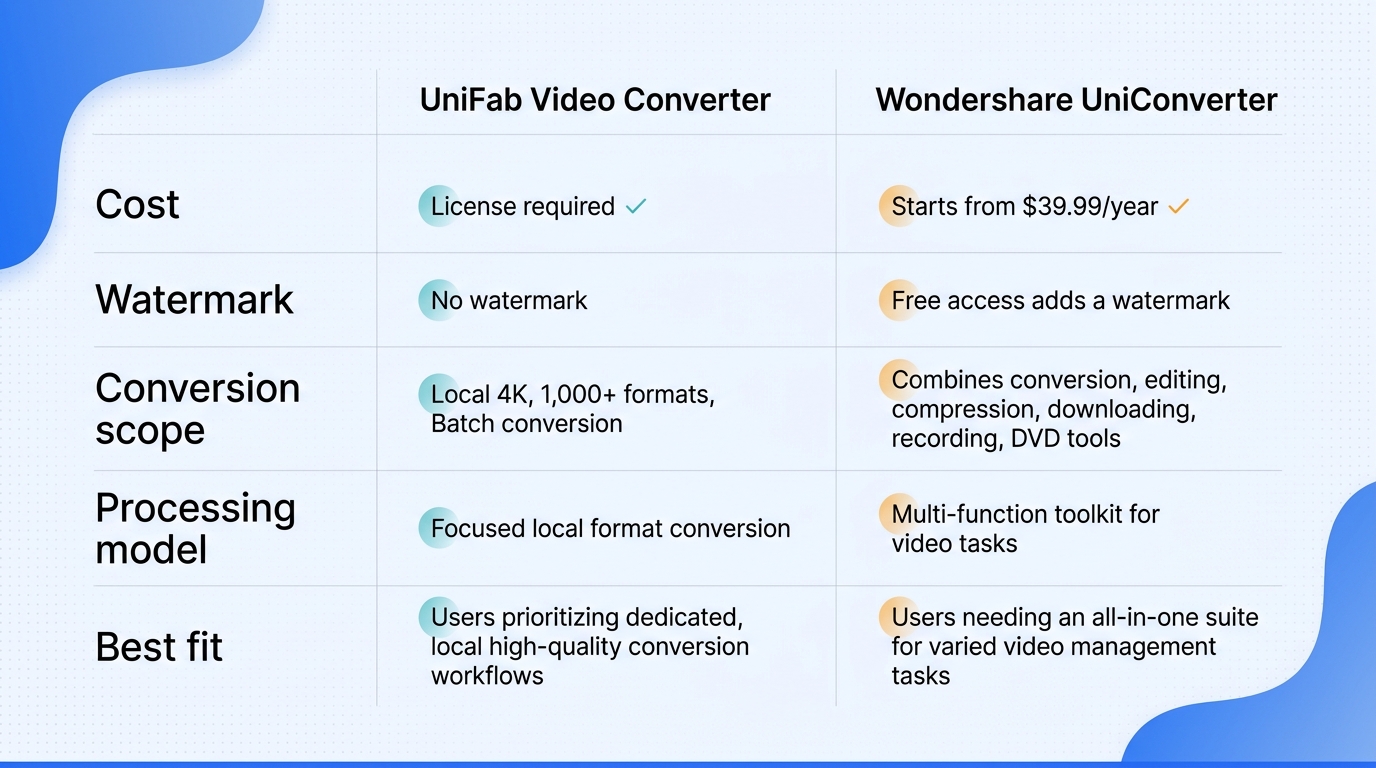
Side-by-Side Decision Table
| Product | Access model | Local workflow | Output scope |
|---|---|---|---|
| Wondershare UniConverter | Recurring; perpetual covers purchased major version | Desktop media toolbox; Watch Folder | Resolution: 4K/8K; free conversion: one-third length |
| UniFab Video Converter | $0 conversion; no watermark | Desktop batches; NVIDIA, AMD, Intel GPU acceleration | Resolution: up to 4K; formats: 1,000+ |
| HandBrake | Free and open source | Desktop transcoding | Containers: MP4, MKV, WebM |
Output specifications as of November 2026.
HandBrake suits the standard open-source encoding workflow discussed in our HandBrake Video Converter review.
Choose Wondershare for a Broader Media Toolbox
Wondershare suits creators who want conversion beside editing, compression, downloading, recording, and DVD functions. It is the more coherent fit when several of those tasks recur in the same project. It is not ideal when the one-third video-length limit prevents a complete conversion during free access or when most of the toolbox will sit unused.
Choose UniFab for Free Local Format Conversion
I would choose UniFab’s Video Converter for repeat local format changes when a broader media toolbox is unnecessary.
Trade-Offs to Keep in View
Video Converter outputs up to 4K; choose a supported output profile within that limit. Wondershare advertises 4K and 8K conversion. AI enhancement is separate from this converter; UniFab’s product page lists the separate enhancement tools. Ad removal and subtitle downloading are not included; use local files with the subtitle tracks you need. Its strengths are batch conversion, built-in editing, and compatible H.264 remuxing. Wondershare is a better fit when broader recording, downloading, or DVD tools belong in the same workflow, while HandBrake suits straightforward standard encoding.
Wondershare Video Converter FAQ
The FAQ also covers product naming, Android packages, browser use, and legacy builds.
Is Wondershare Video Converter safe to install?
Install the current desktop build from Wondershare’s official UniConverter site, then confirm the publisher name during setup. Review optional installer choices and any proposed browser changes, and run your operating system’s security scan before opening sensitive media. Avoid modified installers from download archives.
Is Wondershare Video Converter Ultimate the same as UniConverter?
Wondershare Video Converter Ultimate is the former product name associated with today’s UniConverter line. An old review may describe familiar conversion and editing functions, but it should not be treated as documentation for the current interface, pricing, codec support, or license terms.
Is there a Wondershare Video Converter app or APK for Android?
UniConverter’s main product is a desktop application for Windows and Mac. Do not assume a file labeled “Wondershare Video Converter APK” is an official mobile release. For Android, use a listing published through a recognized app store and confirm that the publisher matches Wondershare before installation.
Can you use Wondershare Video Converter online without installing it?
Wondershare offers UniConverter Online Free alongside its desktop UniConverter application. Online tools require file upload and depend on connection speed, file-size policies, and server-side privacy practices. Desktop conversion is usually the clearer fit for large, private, or repeated local jobs.
Should you install an old version of Wondershare Video Converter?
An old build may lack current codec support, operating-system fixes, and security updates. Use the current official release unless a controlled legacy workflow requires a specific build.
Bottom Line: Which Converter Fits Your Workflow?
Prioritize a complete file that plays correctly on the target device. I would pay for a broader toolbox only when its extra tools serve recurring needs.